Patch management is often an underappreciated responsibility, frequently assigned to whoever happens to inherit it rather than someone who actively seeks it out. If you consider the WSUS administrators you’ve encountered over the years, it’s rare to find anyone genuinely enthusiastic about the role. For many, the monthly Microsoft patch cycle is something to be endured rather than enjoyed. While modern tools and technologies have significantly improved compared to the past, patch management remains a largely meticulous and repetitive task, focused on ensuring that the correct updates are deployed to the appropriate systems.
In Windows Server environments, the WSUS role is responsible for managing updates. WSUS, or Windows Server Update Services, runs on a server, even though it delivers updates to both server and client systems. Prior to Windows Server 2008 R2, WSUS was offered as a separate, freely downloadable product from Microsoft. Beginning with that release, it became an integrated server role.
WSUS allows organizations to centrally manage and control Microsoft updates by giving IT administrators the ability to review update metadata and the updates themselves before approving and deploying them to targeted groups of computers.
This level of control is essential, as there have been instances where Microsoft updates have produced unintended side effects—situations that IT professionals are understandably eager to avoid.
WSUS BENEFITS
The approval mechanism is the primary feature, but WSUS also allows us to manage bandwidth effectively, ensuring our networks are not overwhelmed when large updates are released. In addition, it provides visibility into the update process by showing which systems have received updates and which have not, as well as generating detailed reports. This level of monitoring is essential in today’s environment, where unpatched systems are increasingly vulnerable to security threats.
Without a centralized tool like WSUS, administrators would have to manually review event logs on individual Windows machines to determine which updates were installed and which failed—an inefficient and impractical approach. Moreover, WSUS has become even more valuable since Windows 10 no longer allows users to choose which updates to install or defer, making centralized control and reporting critical.
Difference between updates and upgrade
An update is typically a patch that addresses security vulnerabilities, improves reliability, or fixes bugs. An upgrade, on the other hand, introduces new features and may also remove or replace existing ones. With Windows 10, Microsoft releases upgrades two to three times per year. These upgrades are now often referred to as feature updates, although Microsoft does not use this terminology consistently, so the meaning must be inferred from context.
From a WSUS perspective, the key point is that WSUS is capable of synchronizing and distributing Windows 10 upgrades, including feature updates. This functionality is built into WSUS on Windows Server 2016. For environments running Windows Server 2012, support for Windows 10 upgrades can be enabled by installing update KB3095113 on the WSUS server. However, this update is not required for WSUS to synchronize and distribute standard Windows 10 servicing updates.
WSUS DEPLOYMENT TYPES
SIMPLE
A simple WSUS deployment is one in which the WSUS server downloads update metadata and updates directly from Microsoft. An administrator then tests and approves the updates before they are distributed to WSUS clients. It is important to note that a WSUS client can also be a server, since servers require updates as well. In this context, a server receiving updates functions as a client of the WSUS service.
Regarding the approval process, administrators can also configure automatic approval rules for low-risk updates, such as anti-malware definition updates, to streamline update management.
AUTONOMOUS
An autonomous WSUS deployment is one in which each WSUS server is configured independently, with its own computer groups, synchronization rules, and product selections. Each server can obtain update files and metadata either directly from Microsoft or from another WSUS server. Additionally, each WSUS server may have different administrators who manage and approve updates independently and on their own schedules.
REPLICA
To centralize WSUS administration and management, it may be preferable to configure a downstream WSUS server as a replica server. In this setup, update files, group definitions, and approval statuses are synchronized from the parent server to the replica. However, it is important to note that group memberships are not replicated. On a replica server, administrators cannot create new WSUS groups, approve updates for distribution, or configure automatic approval rules.
WSUS DATA MANAGEMENT
You might wonder: where does WSUS store its data? To answer this, it’s important to distinguish between update metadata and the update files themselves, which are stored in separate locations.
Database: The database stores metadata about Microsoft updates. This metadata can reside in either the Windows Internal Database (WID) or SQL Server. Metadata provides essential information about each update, including its properties and Microsoft Software License Terms, helping administrators determine the relevance and usefulness of an update. Typically, the metadata package is much smaller than the actual update files.
Content Location: The content location is where the actual update files are stored, assuming you choose to stage them locally. Because the update files are significantly larger than the metadata, adequate storage space must be allocated. If sufficient space is not available, storing updates locally is optional. In that case, WSUS clients will need reliable internet connections to download updates directly from Microsoft in a timely manner.
WSUS CLASSIFICATIONS
Microsoft organizes updates into a classification system, which allows administrators to control which updates are downloaded based on their relevance. These classifications can also be used to define the scope of automatic approval rules.
Microsoft organizes updates into classifications, which help administrators control what gets downloaded and define the scope for automatic approvals. The main classifications are::
- Critical Updates (Non-Security Updates): Updates that address important issues unrelated to security, such as stability or functionality improvements.
- Security Updates — Any important security updates show up under the security updates classification. So stuff that you may see in the security updates category may very well be critical in terms of its importance to your organization’s IT security, but they won’t fall under the critical classification.
- Updates (Non-critical, non-security)
- Definition Updates (anti-virus)
- Drivers (only metadata based on inventory) WSUS actually only downloads metadata for drivers based on the hardware, otherwise, the driver metadata downloads would be humongous and largely unnecessary.
- Feature packs, tools, rollups, and service packs
- UPGRADES ( This is a new category in 2016)
One more thing to discuss before we jump into server manager and install WSUS role.
WUDO (Windows Update Delivery Optimization)
Now for those of you who may have deployed Windows 10, you’re probably aware of something called WUDO or Windows Update Delivery Optimization. This is an operating system service in Windows 10 Enterprise and Education editions that permits peer updating that is the ability of a computer to receive and provide Windows Updates to peer PCs on the same local area network. So this can help keep more traffic on local links and avoid overloading links to your WSUS servers, and it can result in more rapid update deployment that PCs require at least 4 GB of RAM and 250 GB of disk space to participate in the peer updating scheme. So WSUS works with WUDO.
Now when we know all of that we are ready to install WSUS server role and start playing with it.
INSTALL WSUS 2016
Now just like with any service, installing a new role onto a machine requires actually installing that role, and its associated role services. Open server manager and click on Manage –> Add Roles and Features
Before you begin page will pop-up. Click Next
Click next accepting the defaults until you come to Select server roles. Scroll down and check Windows Server Update Services. When we click it, we can see that we’re going to get various other features, .NET Framework, RSAT tools, etc. so go ahead and choose Add Features and Next
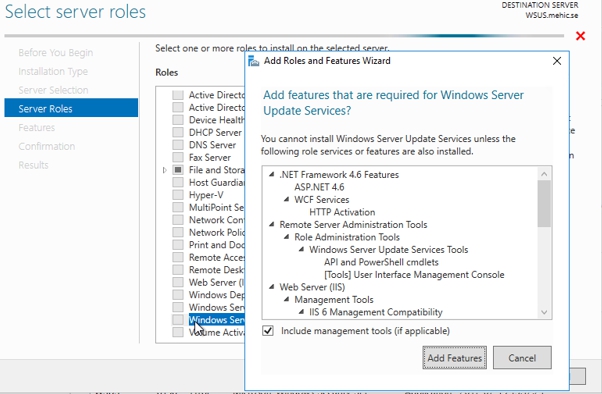
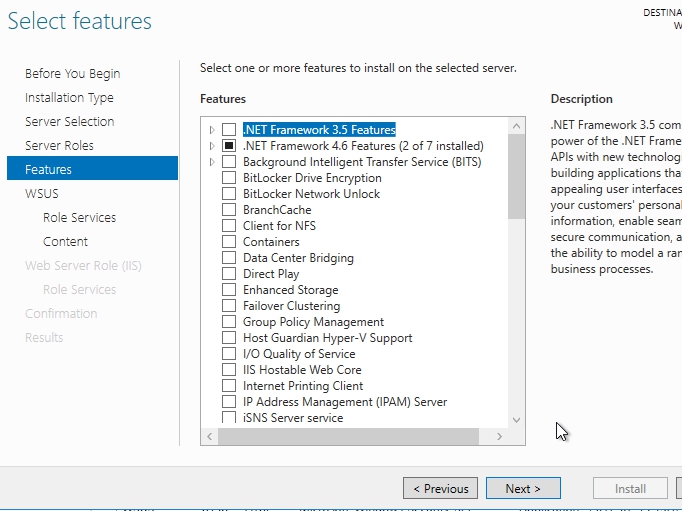
We don’t need to add any additional features beyond this, so we’ll click Next again.
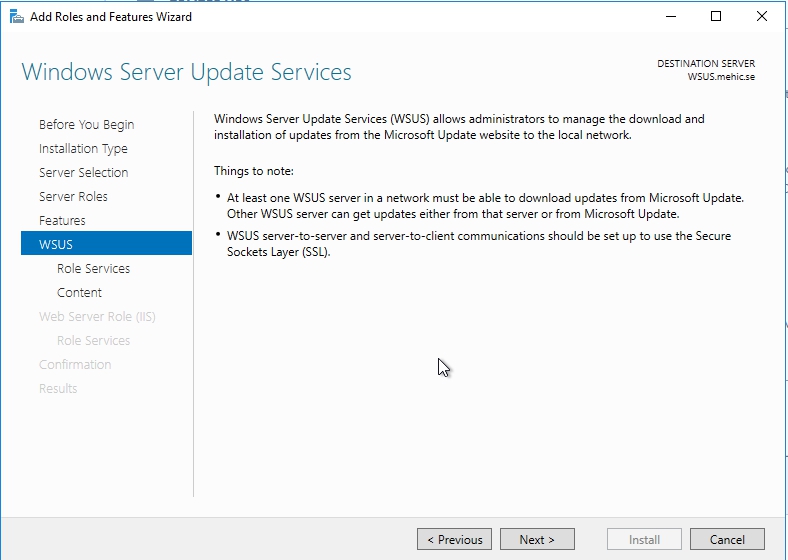
On Windows Server Update Services windows click next
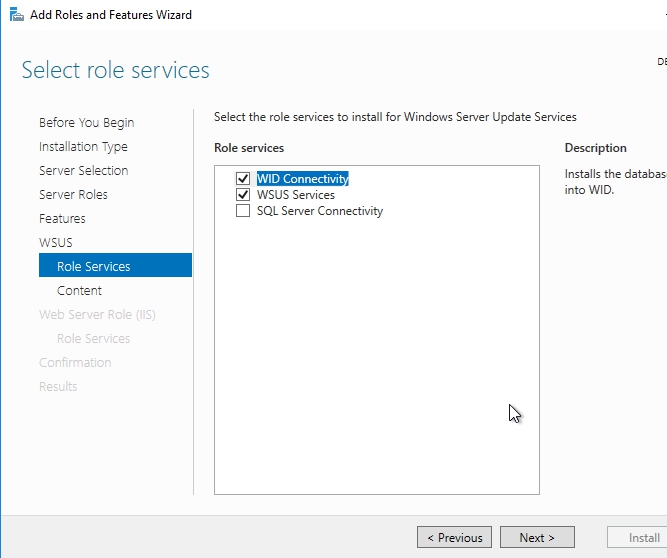
Here we have the opportunity to make a decision about how we want to store the database WSUS uses for containing the information that it requires. Now, by default, and in most situations, the Windows internal database is just a perfect location for your WSUS database.
If you would like to store it on SQL server you would need to choose SQL Server Connectivity which corresponds essentially to a copy of SQL server that is either on this machine, or some other machine in your environment.
Once done, click next
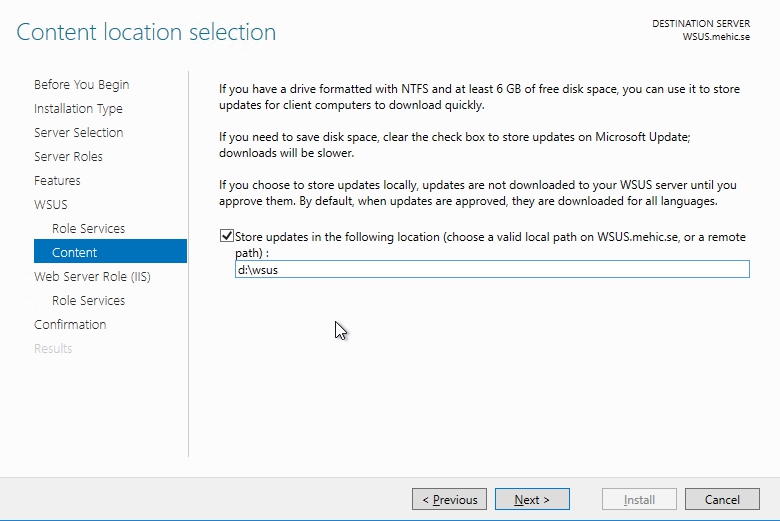
Content location selection window, Here we have to determine where we want to store the content that WSUS will be using. If you clear checkbox then updates will come from Microsoft but approvals will still come from WSUS. This might be a good approach if the client systems have a slow WAN connection to the WSUS server but a reasonably zippy connection to the internet.
I will choose to download updates and I will specify the location
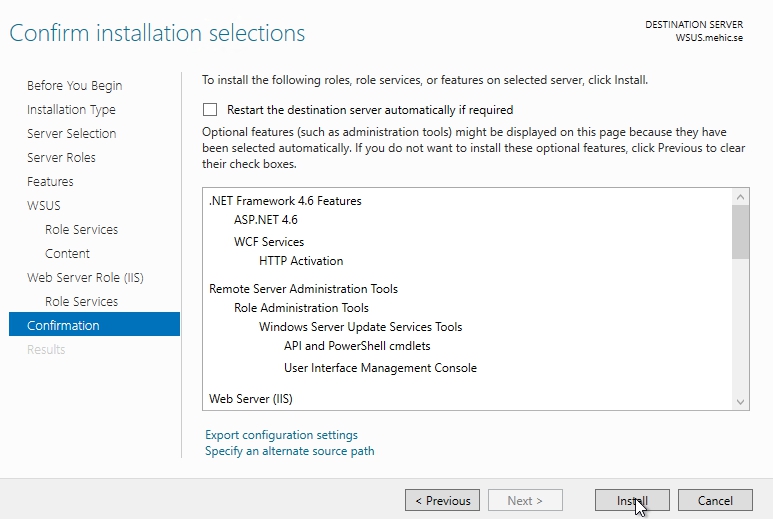
Once we’re done with that, the rest of the wizard is relatively straightforward so go through it and complete this installation.
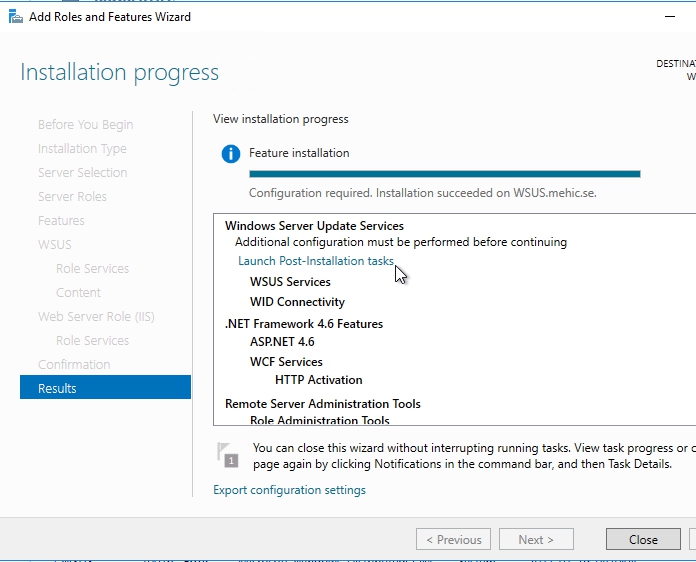
Once that is done you will notice the link called launch post-installation tasks. This launch post-installation tasks view gives me the ability to then go through that post-installation config here for WSUS. Click on it.
Once done click Close.
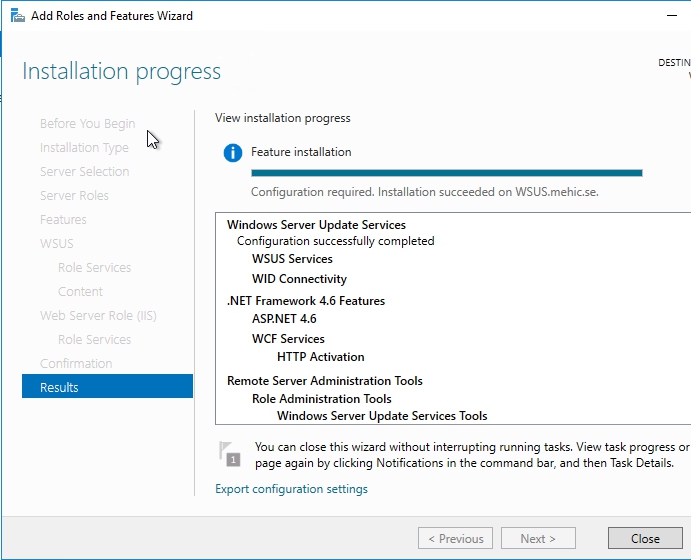
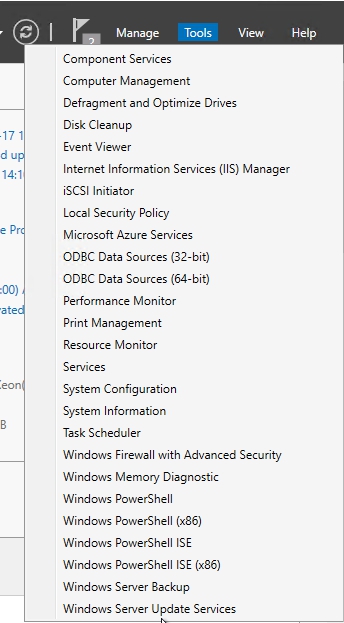
We still do have a couple of things to configure, we need to configure WSUS to operate in the way that we’re looking for it to do. In order to accomplish that click on Tools –> Windows Server Update Services.
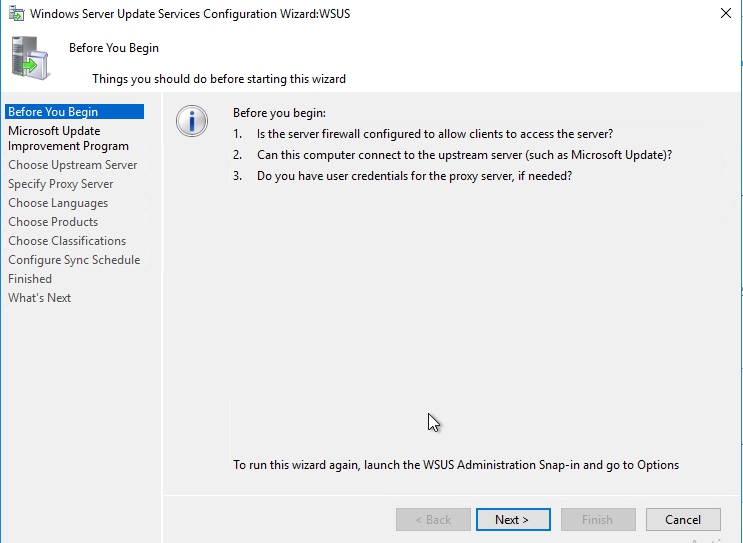
One of the very first things you’ll see, the first time you try to launch the console here, is this configuration wizard that WSUS will make available for you. It’s here where we can make some of the decisions about how we want this server to get its information, how we want it also to disseminate that information, and then also what kinds of information we care about. What kinds of languages, what kinds of products, what kinds of classifications that we’re interested in using the server for.
Click Next
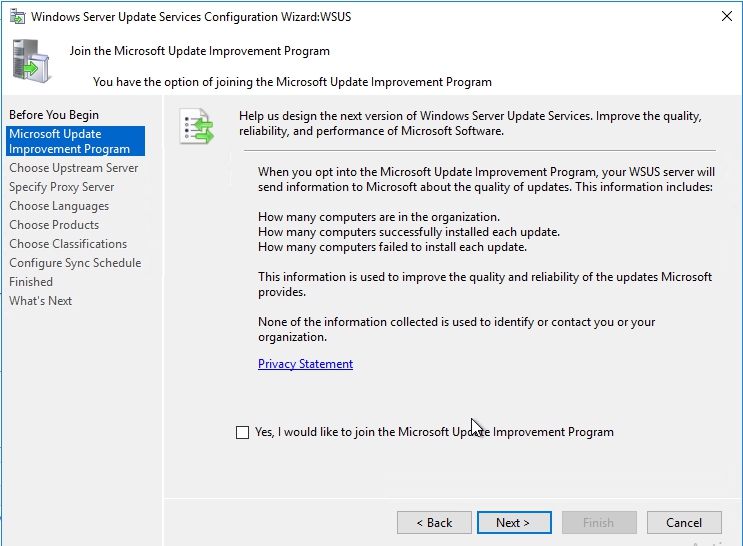
We can choose whether we want to join the Update Improvement Program. For our purposes, I’ll say No. Click next
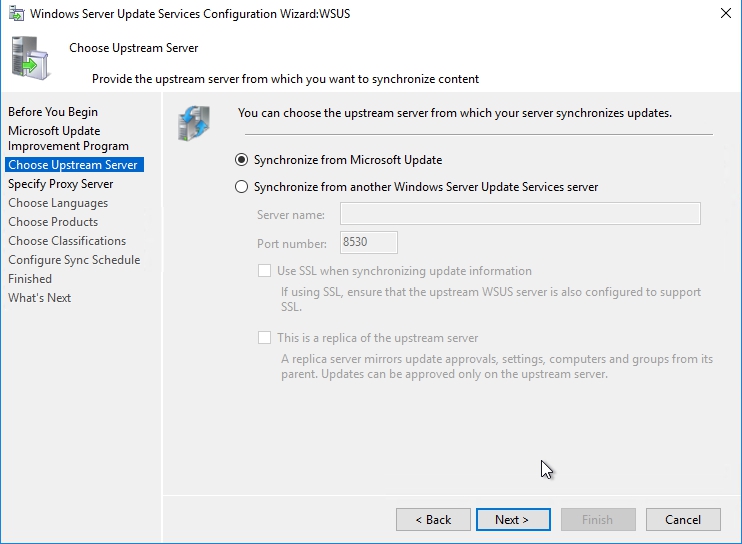
Here we can determine where we want to synchronize our updates from. This is my first WSUS server so I will choose Sync from Microsoft Update, click next
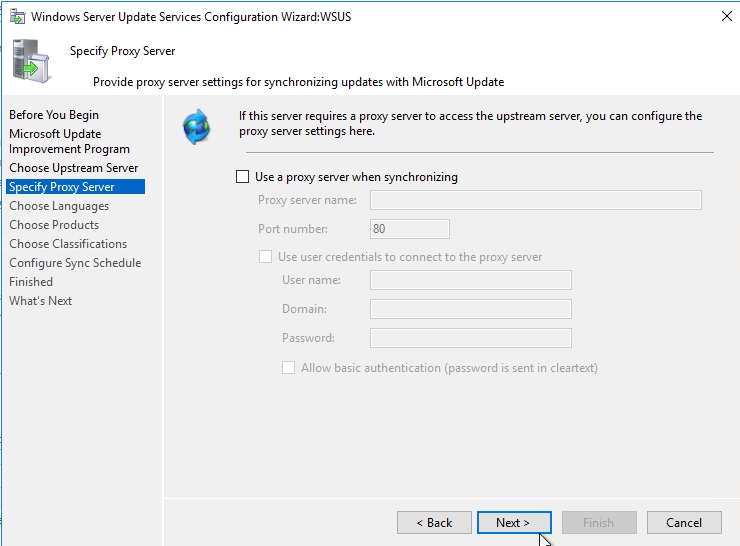
I won’t choose a proxy server, because I have no outbound proxy server
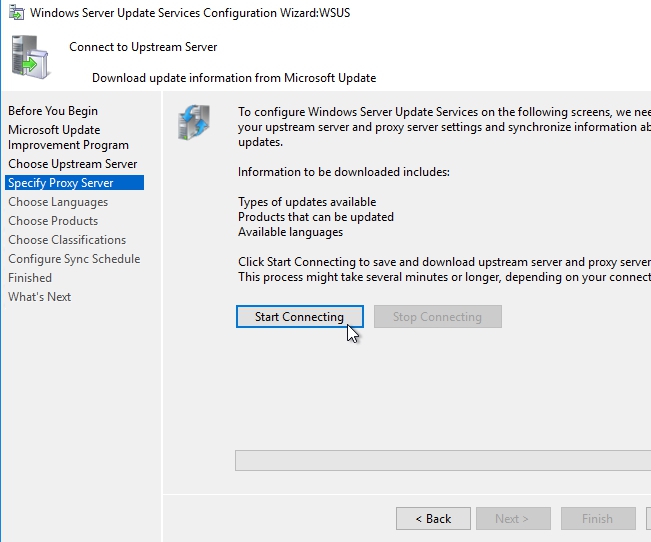
here in the next screen, WSUS will complete an initial synchronization, in order to understand exactly what kind of updates are available, so that I can make the appropriate selections. I’ll click the start connecting button to go through the process of essentially just connecting up with Windows, and figuring out what those new categories are and then once we have that updated metadata, we can use that information to help us determine what exactly it is that we’re interested in updating.
Once done, click next
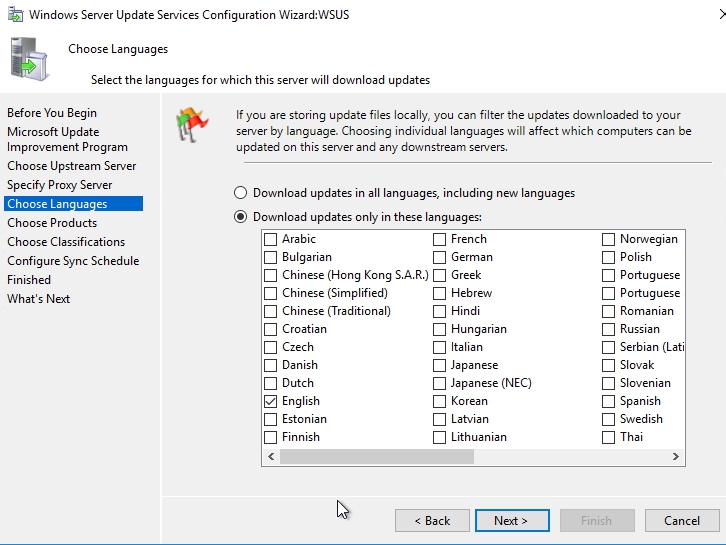
It’s here where we can choose the languages that we’re interested in. Curious little piece of trivia, some of the earlier instances, or versions of WSUS, had far more than just U.S. English as the available language, that was selected by default here in the interface. However, that decision on Microsoft’s part actually created a bit of a problem for early WSUS implementers. Because each additional language you select adds a significant amount of additional data that has to be downloaded every time you download an update. If you think about it, there’s an update for English, there’s an update for French, and another one for German and so on. So be very careful here with this screen. Do not select the top item (Download updates in all languages…), unless you’re absolutely sure that you require it. Because downloading updates only in the languages you require, will greatly reduce the amount of disk space you’ll need to store those updates locally. As you can see here, at least with this version, the English language is the only one that is selected, that’s the only one I’m interested in as well. Click Next
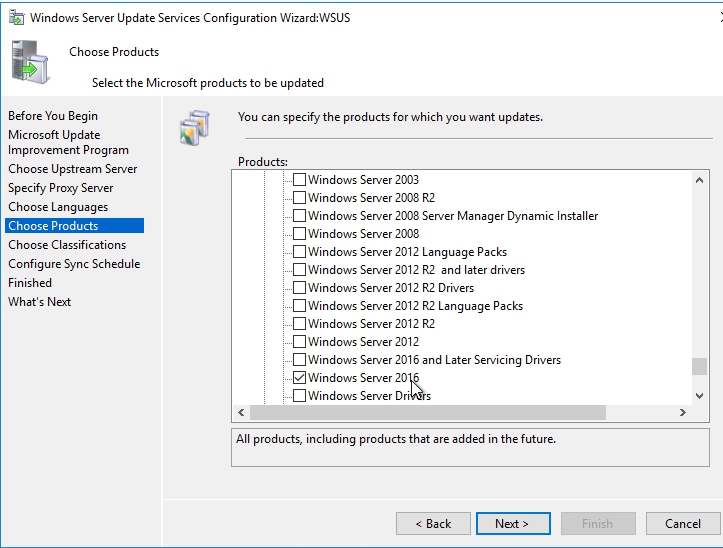
Also in terms of the number of products that you’re interested in downloading, it’s generally a good idea to right-size the number of products that you’re selecting, with the ones that you actually have. And so what this means is that if you don’t have, I don’t know, a BizTalk server in your environment, well then you probably don’t wanna be downloading the updates for BizTalk server. You will notice that all the updates for Windows are selected. I am only interested in Windows 10 and Windows Server 2016 so I will select only those.
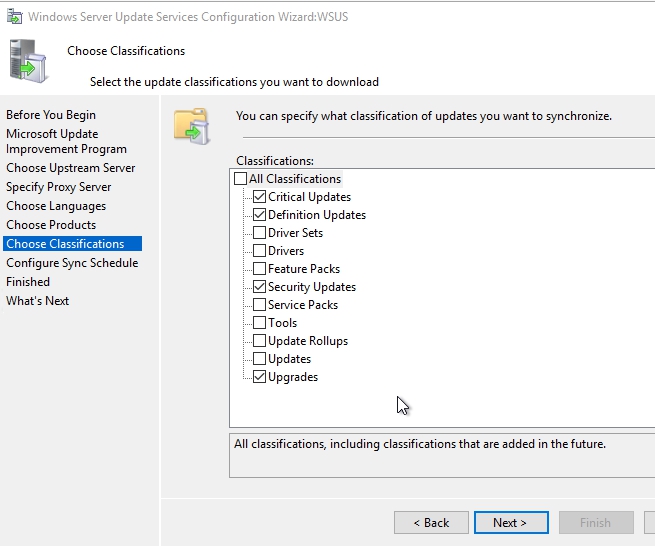
In this next screen I can identify the types of classifications for the kinds of updates that I wanna keep under management. Critical updates, definition updates and security updates here will help you for those MSRC alerts that pop out on every patch Tuesday. If you have a need for, for example service packs or feature packs, you can add them. A lot of people don’t necessarily include the drivers for a lot of very good reasons. A lot of time your manufacturer drivers are gonna be more updated than those you’ll see here in Microsoft Update. But these provide you again, the ability to determine exactly what you’re interested in. I tend to at least at first, leave these as the default, because at least it gets me through that monthly patch cycle that has to do with protecting myself against security-related incidents.
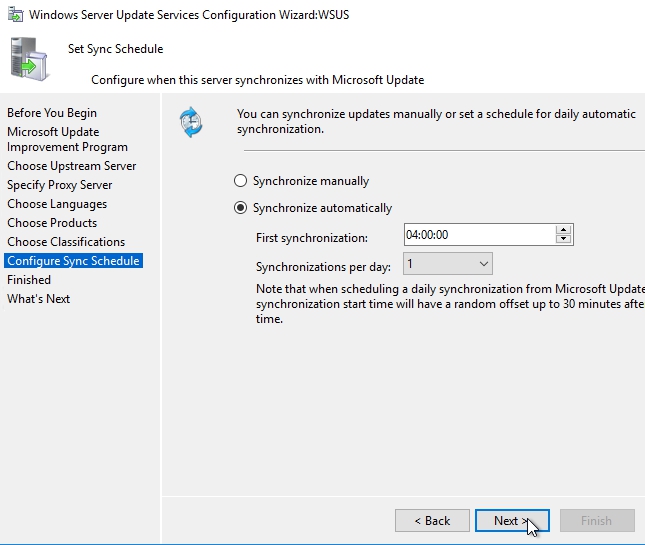
Then lastly here, is where I can identify how often I want WSUS to synchronize itself with Microsoft. It is generally a good idea to go through an automatic synchronization at least once a day, if not more. Microsoft tends to release these updates on an every-month cycle, although in later months and years, there’s been a bit of a sea change for Microsoft releasing updates faster than what has, for many years, been the traditional second Tuesday of the month, Black Tuesday release of new updates. I’ll set our first synchronization here to be sometime early in the morning so it happens when I’m not around, and other people are not attempting to use server. And I’ll set a single synchronization per day at that time.
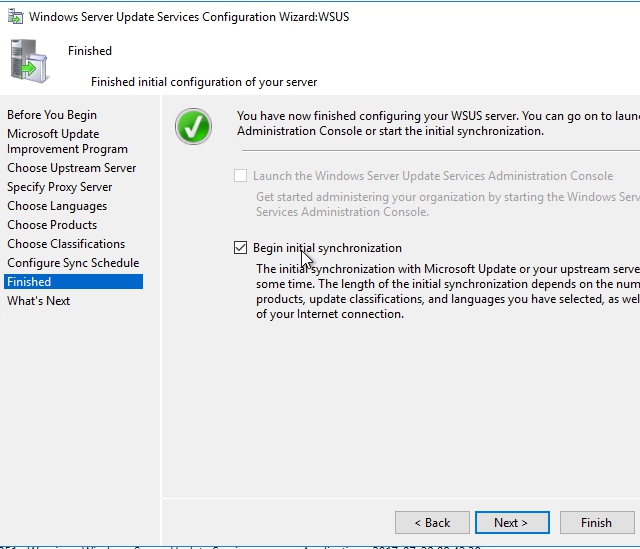
And now we can begin the initial synchronization and click Next and Finish to begin the implementation of WSUS. Sync will take some time so be patient.
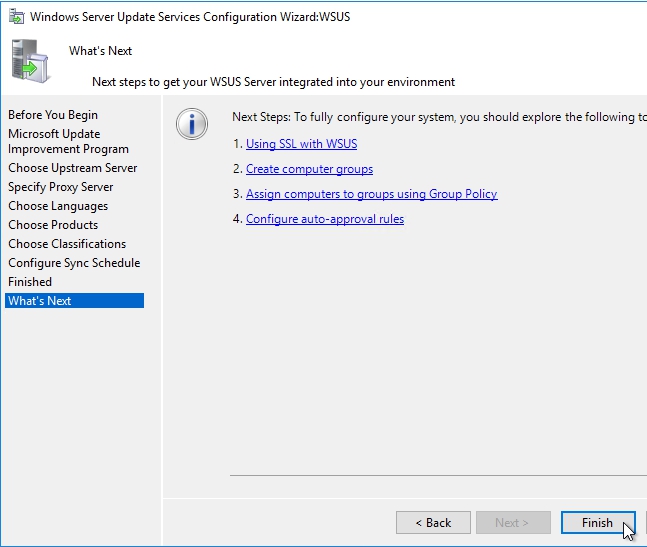
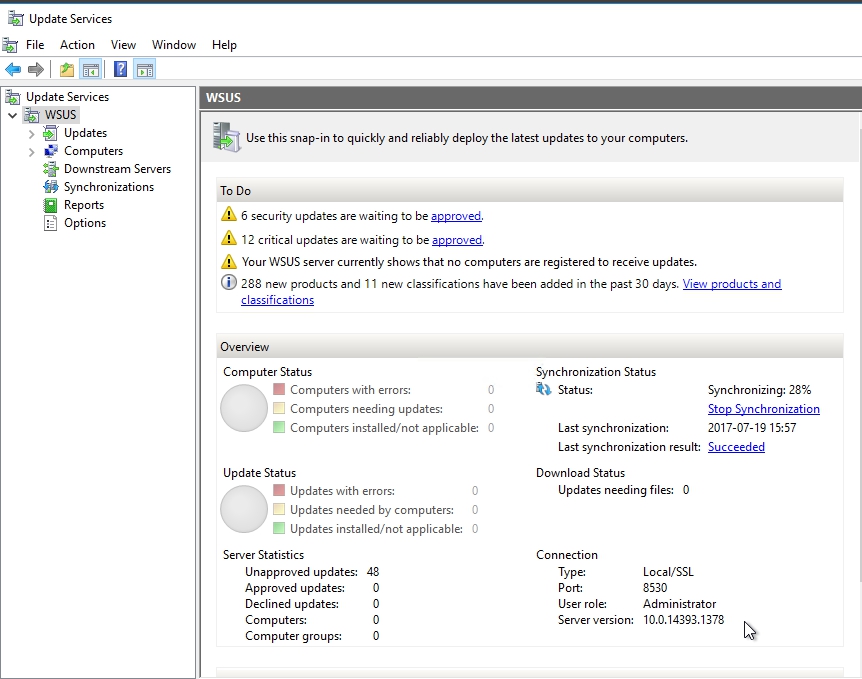
When you open console again you will see sync status. Right now mine is at 28 %. You will have to wait until it finish with sync before you move forward.
That’s it. In the next part we will explore the WSUS console, create groups, configure synchronization and move forward with WSUS and update configuration.
Thanks for reading!
Cheers,
Nedim






 Nedim's IT CORNER
Leave a comment