Even today in early 2026, Intune remains relatively new or under-explored for many organizations and IT teams—particularly those still relying heavily on legacy on-premises solutions or only recently accelerating their shift to cloud-native management. This makes it especially important to cover all its core parts clearly, so teams can understand its full scope and maturity.
I’ve worked with Microsoft Intune for many years, through its various stages of evolution. All started back when System Center Configuration Manager (SCCM) was the undisputed powerhouse for endpoint management, Intune started as a lightweight, cloud-based MDM solution primarily focused on mobile devices (iOS and Android).
For Microsoft-centric organizations today, the story is very different. Intune has matured dramatically into a robust, cloud-native unified endpoint management (UEM) platform. It now handles Windows, macOS, Linux, iOS/iPadOS, and Android at scale, with strong integration into Microsoft Entra ID, Conditional Access, Microsoft Defender for Endpoint, Autopilot for zero-touch provisioning, and the broader Microsoft 365 security ecosystem.
Before we dive in, it is important that we cover 2 terms mobile device management (MDM) and mobile application management (MAM)
MDM –> focuses on managing the device itself. Despite the term mobile, MDM is not limited to smartphones or tablets. It is also widely used to manage Windows 10 and Windows 11 devices. In this context, MDM refers to the standardized management interface that modern management solutions use to configure and control devices. This interface is provided through an MDM provider which is offers software to help organizations centrally manage, monitor, and secure all their mobile devices (phones, tablets, laptops) from a single platform.
MAM –> focuses exclusively on managing applications rather than devices. This approach aligns closely with the concept of modern management, which eliminates the need for traditional methods such as registry modifications or local Group Policy to control application behavior. Modern application management capabilities are built directly into many applications across Windows, iOS, and Android. While not all applications support MAM, a significant number do, most notably Microsoft applications. As a result, MAM plays a critical role in many organizations’ application management strategies.
MICROSOFT INTUNE LICENSING
Microsoft Intune operates on a user-based licensing model, meaning licenses are assigned to individual users rather than devices in most scenarios (though device-only options exist for specific use cases like kiosks, shared hardware, phone-room devices, IoT, and other single-use devices that don’t require user-based security and management features.
Intune license is included with a load of other license bundles and following plans include Microsoft Intune Plan 1:
- Microsoft 365 E5
- Microsoft 365 E3
- Enterprise Mobility + Security E5
- Enterprise Mobility + Security E3
- Microsoft 365 Business Premium
- Microsoft 365 F1
- Microsoft 365 F3
- Microsoft 365 Government G5
- Microsoft 365 Government G3
- Microsoft Intune for Education
Microsoft Intune Plan 2 extends Plan 1 with advanced endpoint security, enhanced compliance policies, and granular access controls for improved device and data protection.
Microsoft Intune Suite provides access to critical advanced endpoint management and security features in Intune. Features included in suite are:
- Endpoint Privilege Management
- Enterprise App Management
- Advanced Analytics
- Remote Help
- Microsoft Tunnel for Mobile Application Management
- Microsoft Cloud PKI
- Firmware-over-the-air update
- Specialized devices management
Unlicensed admins
Do we need to license admins?
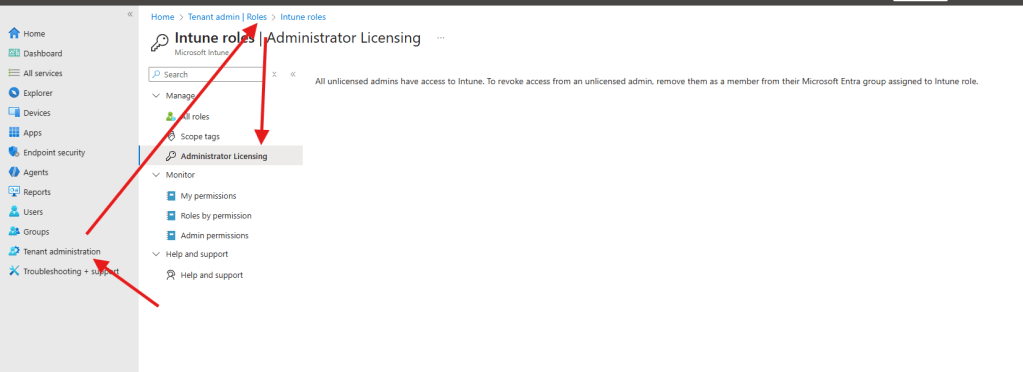
We don’t need to license admins to use intune anymore thanks to Unlicensed admins ability which was introduced in 2020. If you have newer tenant this options is enabled by default. If you are using older tenant you may need to activate this (if you want to use this feature) in Tenant Administration. Once activated it cannot be reverted.
Tenant Administration –> Roles –> Admin Licensing
Accessing Microsoft Intune
Anyone who’s worked with Microsoft cloud services know that there’s a lot of portals. There’s a portal for almost everything, Office, Exchange Online, SharePoint Online, Azure Active Directory etc.
OBS!! Since early 2024, Microsoft has been gradually moving some of its services for both users and administrators to the “*.microsoft” domain so the url may change over the time.
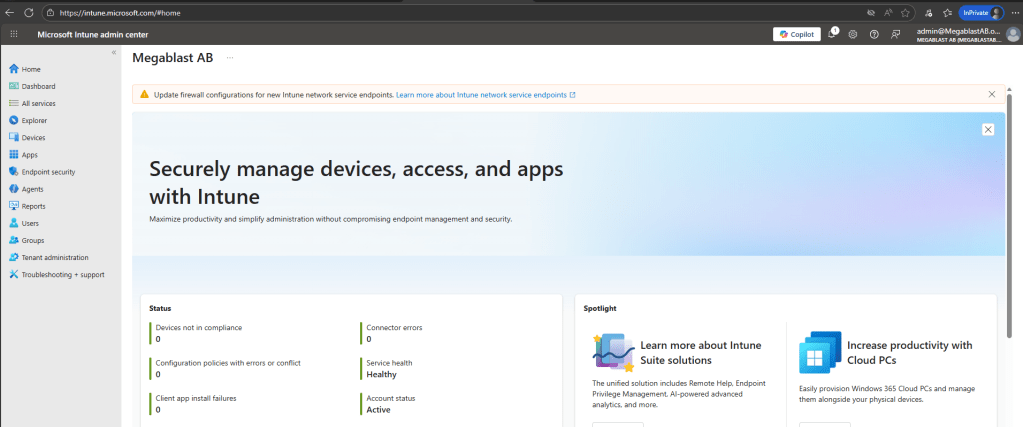
We can access MS Intune directly by browsing to https://intune.microsoft.com/ or by accessing Microsoft 365 Admin Center (admin.cloud.microsoft) –> Admin Centers –> Microsoft Intune
From here, we can see all the features that we can use. We’re able to look at devices, apps, security, reports, users, and groups. Users and groups section links me to the Azure Active Directory portal. We will be configuring and exploring all of these in the future posts.
Following along
To follow along with the scenarios and examples in the Mastering Microsoft Intune content, you will need the following:
- Microsoft 365 tenant. If you do not already have one, you can create a trial tenant using this link Microsoft 365 Business Premium Trial .
- Windows Server environment with Active Directory Domain Services (AD DS) configured.
- Windows 11 virtual machine, which will be used for device enrollment and management scenarios.
These components are required to fully demonstrate the concepts and configurations discussed throughout the material.
In the upcoming posts, we will dive deeper into Intune, exploring its core components, configuration options, and real-world use cases. Thank you for reading, and I look forward to continuing the journey into Microsoft Intune with you.






 Nedim's IT CORNER
Leave a comment