In the previous 4 parts of this series, we’ve taken a deep dive into Desired State Configuration (DSC). We started with the fundamentals, what DSC is and how it works, then moved on to the Local Configuration Manager (LCM), configuration data, and finally put everything into practice by installing a domain controller using DSC.
Up to this point, however, we’ve deliberately taken a shortcut when it comes to security. To keep the focus on learning DSC itself, we used PSDscAllowPlainTextPassword and allowed credentials to be passed in plain text. That approach made the examples easier to follow, but it also meant we avoided an important topic altogether, securing DSC communications and sensitive data. In this part, we’re going to fix that.
Part 5 focuses on securing DSC the Microsoft recommended way. We’ll look at how DSC handles credentials securely, how to protect configuration data, and how to remove the need for plain-text passwords entirely. By the end of this part, our DSC setup will not only work, but will also meet real-world security expectations.
Important!
PSDscAllowPlainTextPasswordshould be enabled only in non-production testing environments, as it allows credentials to be stored in plain text and poses a significant security risk if used elsewhere.
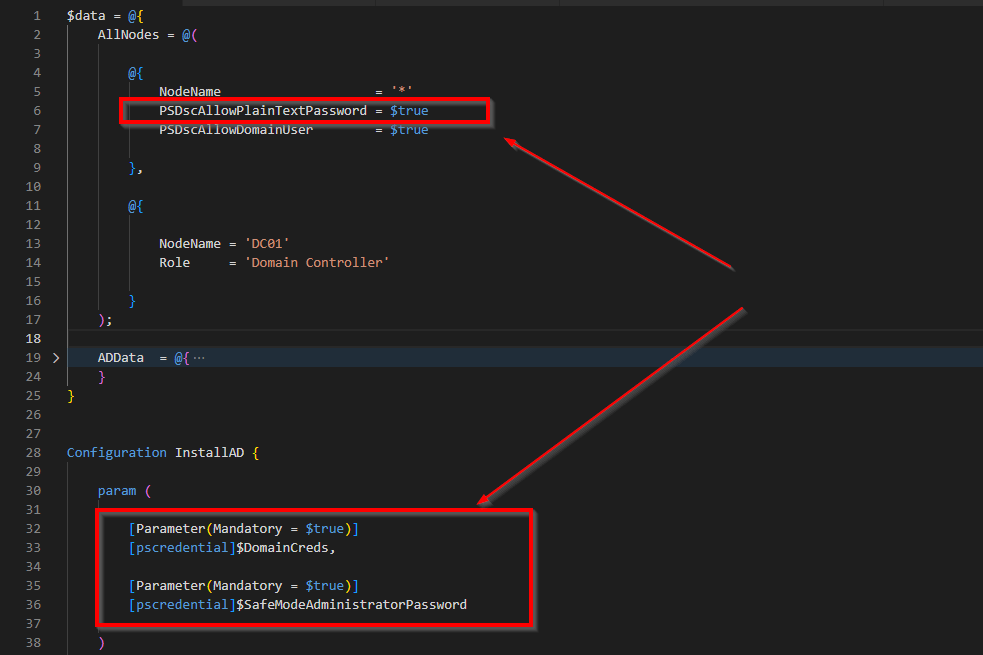
If you recall from the previous posts in this series, we handled credentials by defining the following configuration data and explicitly allowing plain-text passwords:
$data = @{
    AllNodes = @(
        @{
            NodeName                    = '*'
            PSDscAllowPlainTextPassword = $true
        },
    )
}
While this approach kept the examples simple and allowed us to focus on learning DSC, it also introduced the biggest drawback of our earlier configurations, security was effectively disabled. By setting PSDscAllowPlainTextPassword to $true, when a configuration is compiled, any credentials used in that configuration are written directly into the generated MOF file in clear text. Anyone with access to that MOF file, whether on the authoring machine, a pull server, or the target node, can read the username and password without any additional effort.
MOF files are regular files stored on disk and are not protected by default. They are often copied between systems, stored on file shares, or passed around during testing. If those files are exposed, the credentials inside them are exposed as well. In a domain environment, this can quickly become a serious security risk, especially when privileged accounts are involved.
Let’s see how this works in a simple demo. I will use the configuration document from our last part, where we installed the Domain Controller. We will focus on this part.
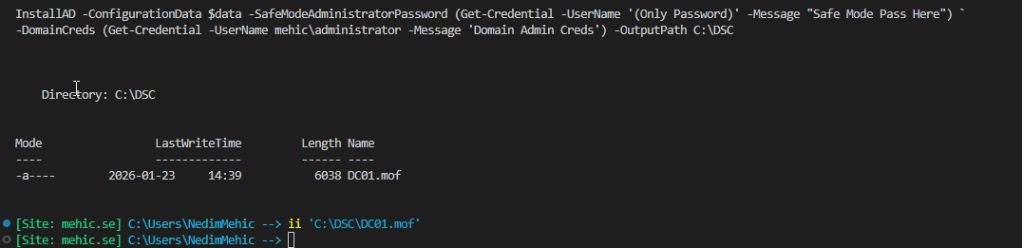
Running the config document again will produce a new MOF file. Let’s open it.
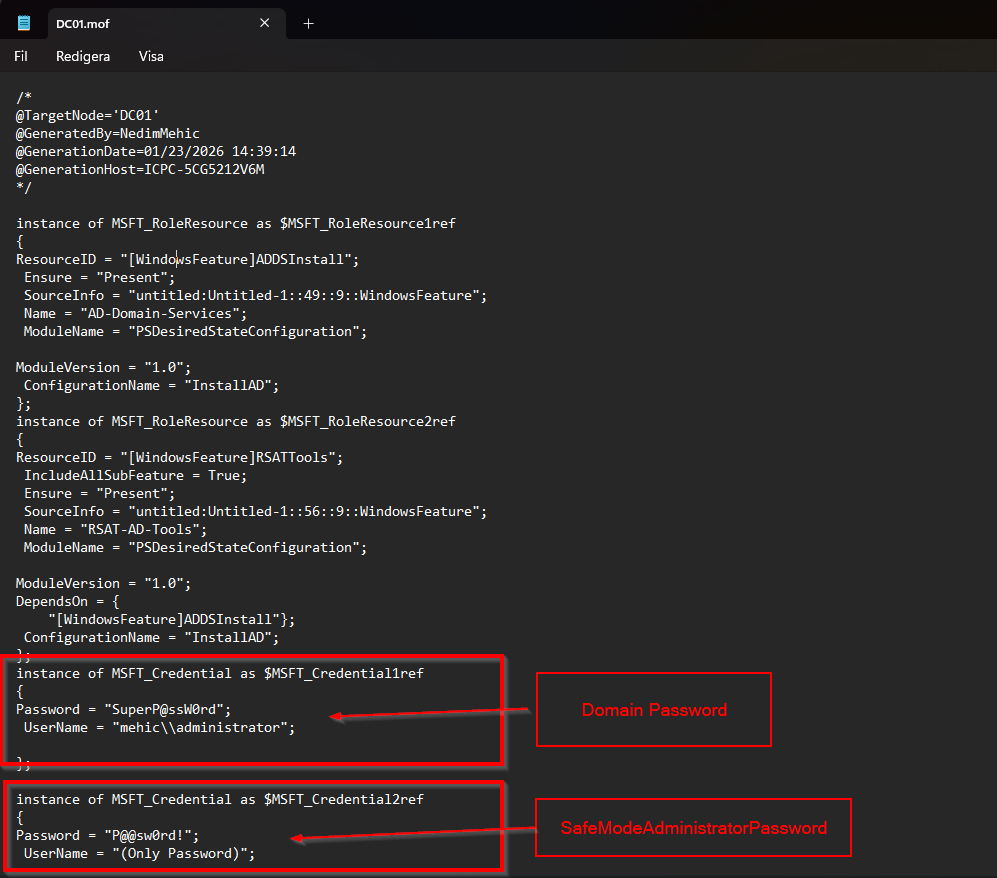
In the generated MOF file, we can see detailed information about the target node, including who created the configuration, what will be installed, and how the system should be configured. Along with all of this metadata, the file also contains the credentials used during compilation.
Because we allowed plain-text passwords, those credentials are written directly into the MOF file in clear text. Anyone who has access to this file can simply open it and read the passwords without any additional effort. This clearly demonstrates why this approach is insecure and unsuitable for anything beyond learning or demo purposes.
Important!
We are using powershell remoting to connect and push the MOF file from our management machine to the target node. By default, WSMan encrypts network traffic, so the password isn’t transmitted in plain text. Once it reaches the target node, the MOF is encrypted, providing some protection, but the password remains in plain text during the local storage phase.
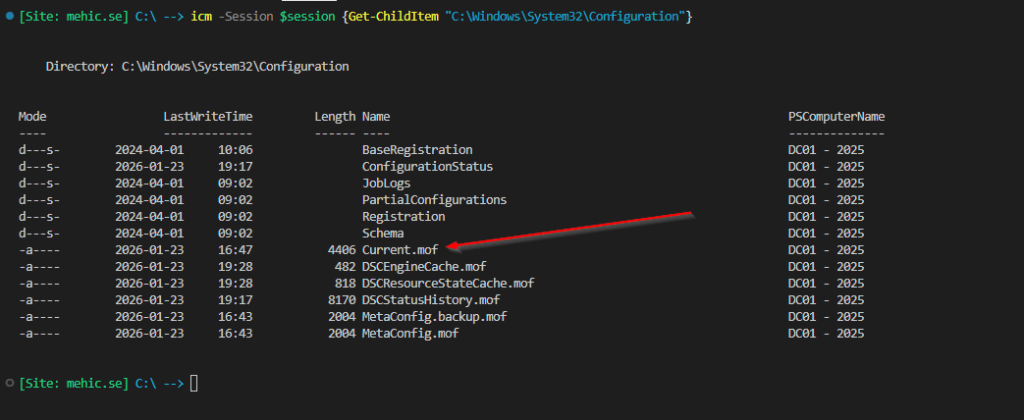
When the configuration is pushed to the target node, it is saved in C:\Windows\System32\Configuration. If you attempt to open Current.mof, the MOF file will not be readable. (We will explore this in future post)
It’s essential to safeguard the credentials on our management systems. Relying on assumptions like “it won’t happen to me,” “I’m careful,” or “I know what I’m doing” is not enough. In a production environment, the use of certificates is mandatory.
Let’s be honest, working with certificates isn’t anyone’s favorite task. Most people only interact with the certificate server when absolutely necessary. Nevertheless, proper certificate management is critical for security and reliability. There is no easy way when it comes to the security.
Prerequisites
First, let us discuss the requirements to encrypt a DSC configuration:
- Active Directory Certification Authority – For production workloads, DSC credential encryption should be implemented using a properly configured Public Key Infrastructure (PKI). When Active Directory Certificate Services is integrated with Group Policy, certificates can be deployed and maintained efficiently using autoenrollment. A common and effective approach is to create a global security group that includes the Active Directory computer accounts of servers requiring encrypted credentials for DSC. Grant this group Allow and Autoenroll permissions on the appropriate certificate template. This group can also be used to scope certificate Group Policy Objects, ensuring certificates are issued exclusively to authorized DSC nodes. Do not even think about using self signed certificates for the production.
- Management device – On the management device responsible for generating MOF files, a copy of the certificate public key from each DSC target node is required, so you must export the public key from all the nodes participating in the configuration and save it on the management device. This key is used to encrypt sensitive data, such as credentials, within the MOF. Once the node receives the MOF file, it uses its locally stored private key to decrypt the encrypted values. As a result, our management device will maintain a collection of public key files for all target nodes. Because public keys do not contain sensitive material, storing them on the build server does not introduce a security risk. The best practice is to use a unique certificate for each node, but in real-world environments, most customers tend to use a single certificate installed on multiple nodes because it is easier to manage.
- Certificate – Certificate used to encrypt the DSC credentials must contain:
- KeyEncipherment and DataEncipherment for the Key Usage.
- Document Encryption for Enhanced Key Usage (It is best practice to use a certificate created specifically for the purpose of securing DSC credentials)
- Should NOT contain: Client Authentication and Server Authentication
- The Provider for the certificate must be “Microsoft RSA SChannel Cryptographic Provider
Because this is just a test environment and for this demonstration I will use self-signed certificate. I will run everything from my management device. So the first step is to connect to my target node and create new certificate.
$Target = "DC01 - 2025"
$VM = Get-VM -Name $target
$VMcreds = Get-Credential -UserName administrator -Message "VM  credentials"
$session = New-PSSession -VMName $VM.Name -Credential $VMcreds

Invoke-Command -Session $session {

$cert = New-SelfSignedCertificate `
    -CertStoreLocation Cert:\LocalMachine\My `
    -DnsName "DSCCredsEncryption" `
    -KeyExportPolicy Exportable `
    -KeyUsage KeyEncipherment, DataEncipherment `
    -KeyAlgorithm RSA `
    -KeyLength 4096 `
    -HashAlgorithm SHA256 `
    -Provider "Microsoft RSA SChannel Cryptographic Provider" `
    -Type DocumentEncryptionCert `
    -NotAfter (Get-Date).AddYears(1)

$cert.Thumbprint
}
This will create new certificate on the target node. Make sure to copy this thumbprint.
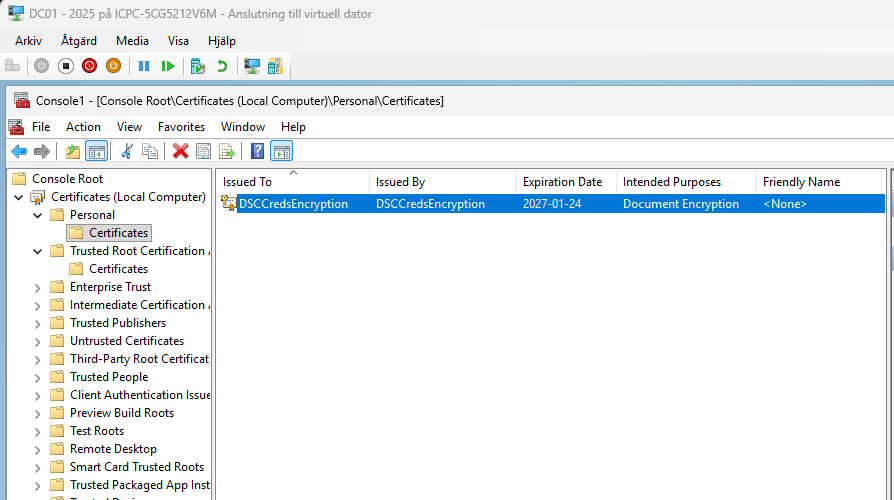
Now, I need to export the certificate and install it on my management device.
#Export the New-SelfSignedCertificate

Invoke-Command -Session $session {

    $cert = Get-ChildItem Cert:\LocalMachine\My\23D658C553CB1642BAACFADFF945B980F74B5185

    Export-Certificate -Cert $cert -FilePath C:\Cert\DSCCredsEncryption.cer
}
I will then copy the certificate from the target node to my management device and install it.
#Copy Certificate from Target Node to the management device

Copy-Item -Path C:\Cert\DSCCredsEncryption.cer -Destination C:\certs -FromSession $session

#Install the certificate

Import-Certificate -FilePath C:\Certs\DSCCredsEncryption.cer -CertStoreLocation "Cert:\LocalMachine\My"
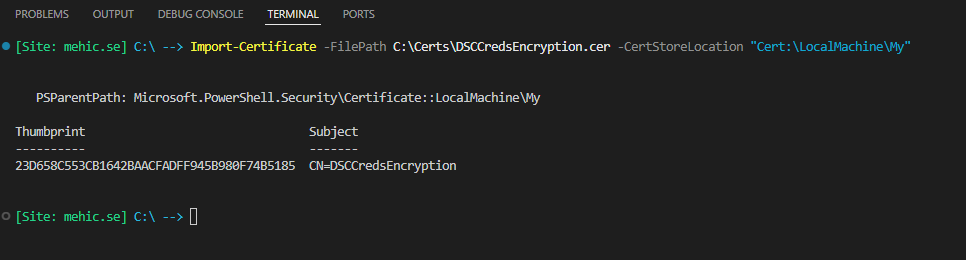
Now that everything is in place, we can proceed with the configuration. I’ll be using the same configuration document from the previous post, however, this time we’ll update the configuration data and change LCM to use certificate on the target node.
What is changed in the configuration.
- We removed the
PSDscAllowPlainTextPassword = $trueentry from the configuration data - We added
CertificateFile, pointing to the certificate file stored locally on the management device - We configured the LCM to use the certificate thumbprint to decrypt credentials on the target node

If we run the configuration document now, it will generate new MOF files, this time with the credentials encrypted.
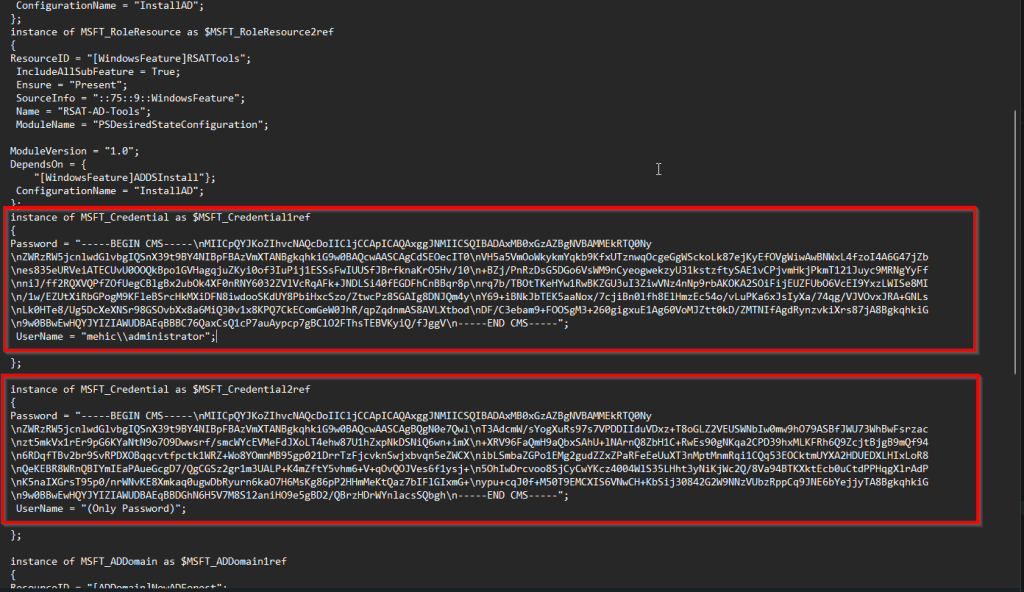
We are now ready to push the configuration to the target node. Once this is done, the LCM will be configured first, after which we can observe the configuration being applied under the LCMStateDetail section.
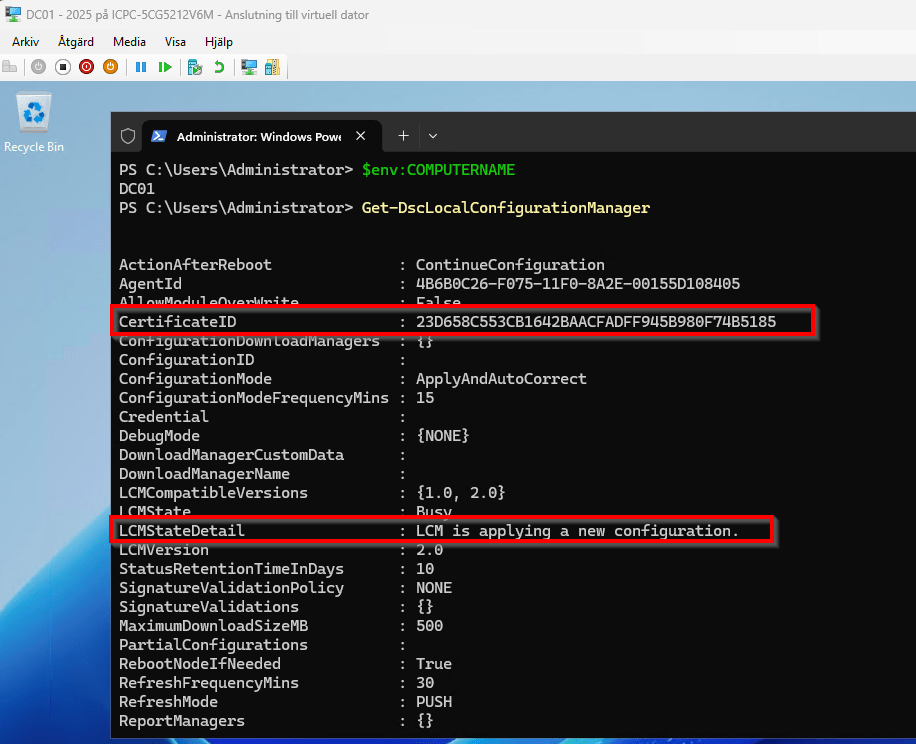
Securing your DSC configurations with certificates is a crucial step in protecting sensitive credentials while keeping your deployments consistent and automated. Removing plain-text passwords, using certificate-based encryption, and configuring the LCM properly ensures your nodes stay both compliant and secure.
I generally advise against sharing certificates, but there are cases where it can be practical. For instance, in a web server farm where all servers need identical configurations, using a single certificate can simplify deployment when applying config across multiple nodes.
However, using one certificate organization-wide is risky. While it eases management, a compromised private key or an unnoticed expiration could have serious consequences.
Thank you for reading.
Cheers,



 Nedim's IT CORNER
Leave a comment