Before installing and configuring DHCP (Dynamic Host Configuration Protocol), it is important to understand how the address assignment process works.
The process begins with a DHCP-enabled client. This refers to any device that is configured in its network settings to automatically obtain an IP address using DHCP.
A DHCP server is also required, which we will configure in this section. The DHCP server maintains a pool of available IP addresses, known as a scope, that it can assign to clients when they request an address.
When a client needs an IP address, it sends a broadcast message to the local network using the address 0.0.0.0. This broadcast message is known as a DHCP Discover. The DHCP server listens for these requests and responds with a DHCP Offer. This offer contains all the necessary configuration information the client needs, including an IP address and subnet mask, ensuring the address is appropriate for the client’s network.
If multiple DHCP servers are present on the network, the client will accept the first DHCP offer it receives. Once the client selects an offer, it sends a DHCP Request to the corresponding DHCP server, indicating that it would like to use the offered IP address. This request also notifies any other DHCP servers that sent offers that their addresses were not selected, allowing those IP addresses to be returned to their available pools.
The DHCP server that receives the request then responds with a DHCP Acknowledgement (ACK), confirming that the client is authorized to use the assigned IP address.
This entire process can also be manually triggered by using the ipconfig /release and ipconfig /renew commands.
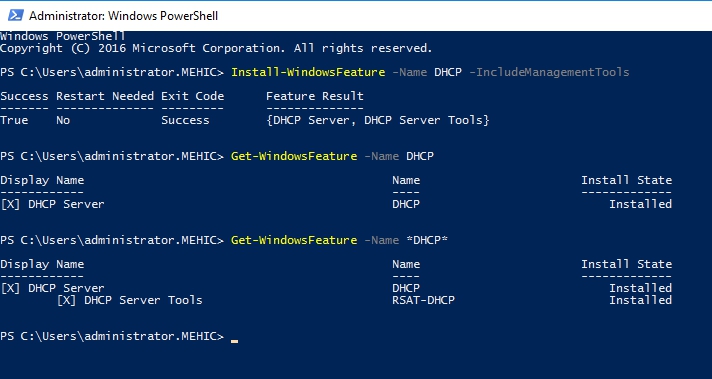
Our configuration process will begin by installing the DHCP role. This can be done using either PowerShell or Server Manager.
Powershell Command
Install-WindowsFeature -Name DHCP -IncludeManagementTools
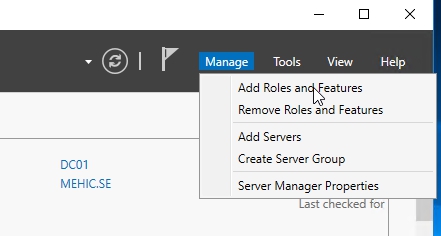
Let’s go ahead and install it through the Server Manager as well. Open Server Manager and click on Manager –> Add Roles and Features
Before you begin page will pop-up. Click Next
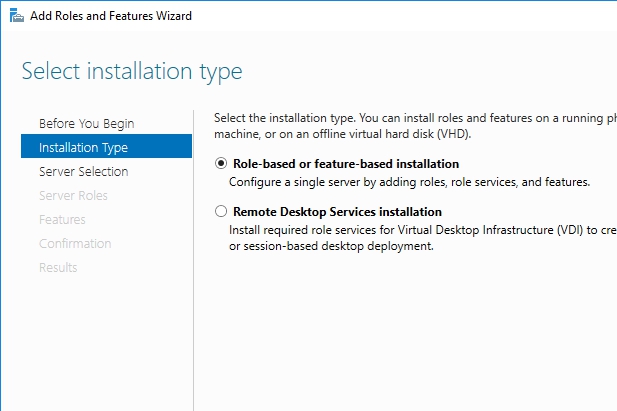
On Select Installation Type page, click next
On Server Selection page, click next

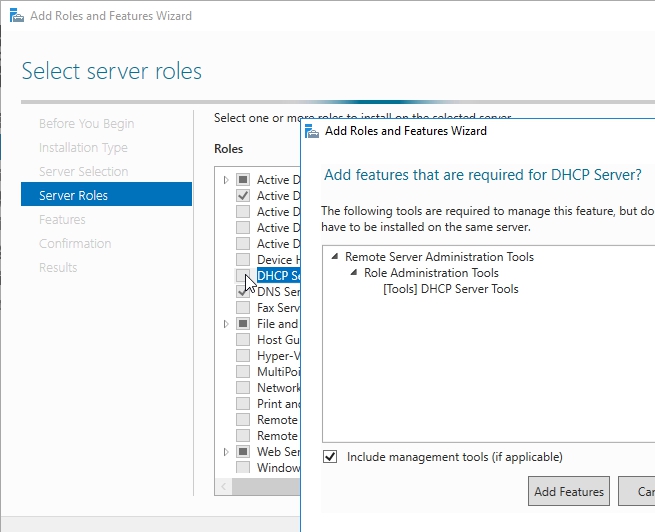
On Server Roles page, click on DHCP Server. Now as soon as I select it, it comes up and says, do you want to include the management tools? Click Add Feature and click Next.
We don’t need anything additional from there, so walk through the wizard accepting the defaults and click Install.
OBS! You don’t need to restart the server after this installation.
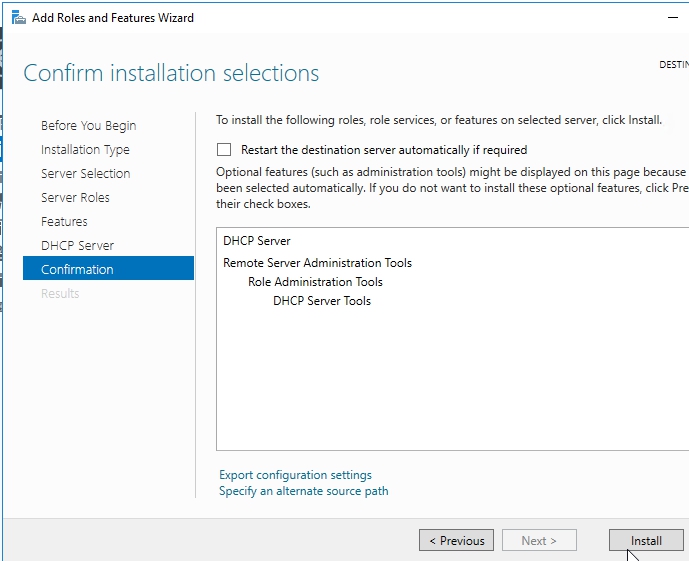
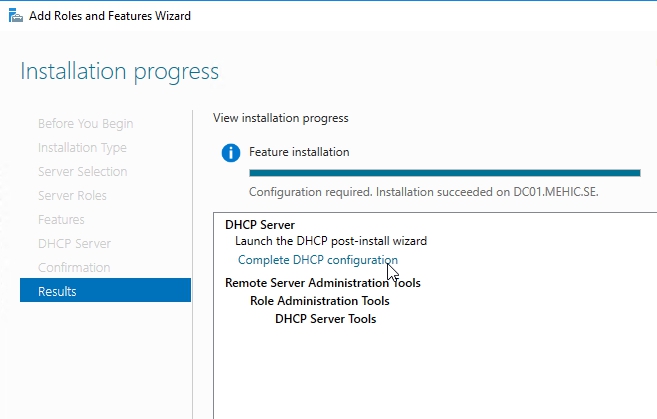
The installation has completed. Notice that it says complete the DHCP configuration.
Go ahead and click on the link.
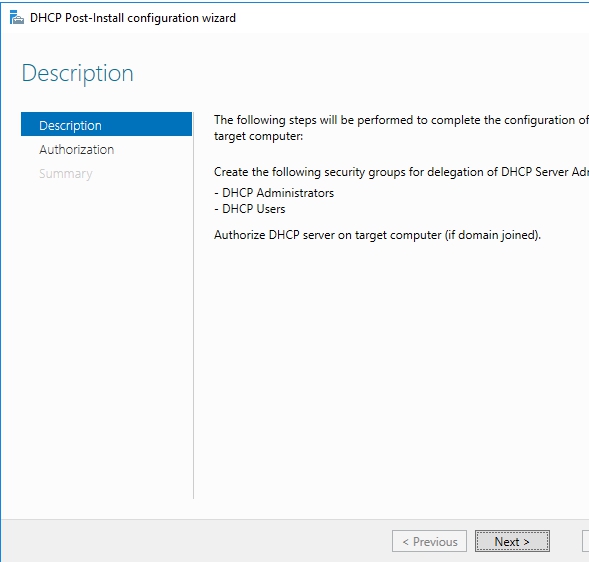
Description page will pop-up. Hit Next
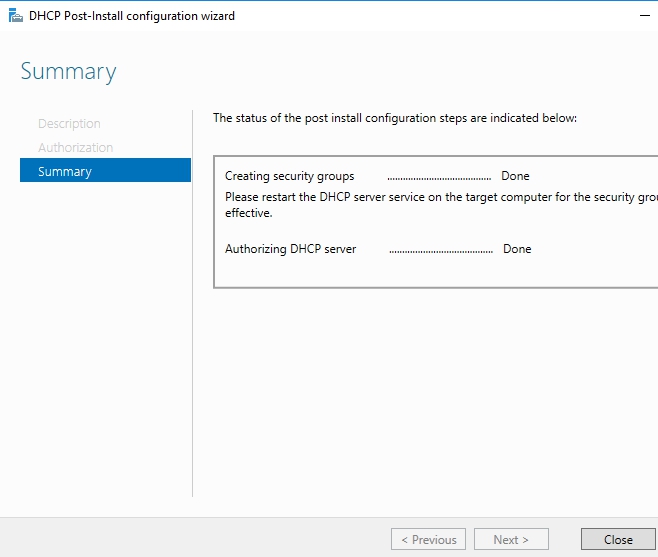
On Authorization page click Commit.

Click Close 2 times. First to close the Summary page and second to close the installation progress page.
Now let’s make sure that I actually got a DHCP server. Open Server Manager and click on Tools –> DHCP

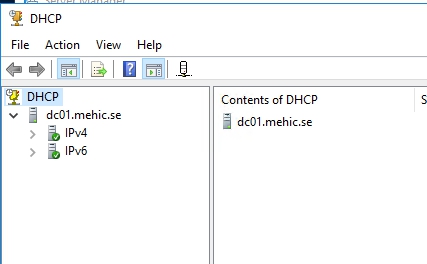
One of the things I like to do is verify that I have a DHCP service and that it’s running.
Open Powershell and type in Get-Service -Name DHCP
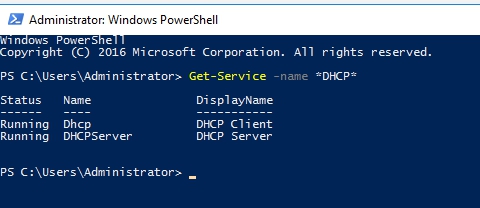
That’s it. Now we are ready to configure our DHCP server. In second part we will move forward and create and configure Scopes.
Cheers,
Nedim




 Nedim's IT CORNER
Leave a comment