Desired State Configuration is built around a simple but powerful idea, infrastructure and system configuration should be described declaratively, in a way that clearly states what the final state should look like rather than how to achieve it. As environments grow in size and complexity, even well-written DSC configurations can become repetitive, difficult to maintain, and hard to reason about.
This is where DSC composite resources come into play.
Composite resources allow you to group multiple DSC resources into a single, reusable unit that represents a higher-level concept. For example, maybe it’s your standard web server setup IIS installation, specific app pools, firewall rules, and SSL bindings all configured together. Or perhaps it’s your SQL Server baseline, service accounts, memory settings, backup jobs, and security configurations that always travel as a package. You’re essentially copy-pasting the same 50 lines of DSC code into every configuration that needs it.
Instead of repeatedly defining the same collection of resources across multiple configurations, you can encapsulate that logic once and expose it as a clean, well-named abstraction. The result is DSC code that is easier to read, easier to reuse, and significantly easier to maintain over time. But composite resources aren’t just about avoiding repetition, though that alone is worth it. They’re about creating reusable, testable, and maintainable infrastructure patterns. When your organization’s standard for a web server changes, you update it in one place, not in twenty different configuration files. When a new team member joins, they don’t need to understand every low-level detail – they just use your well-tested composite resources.
Requirements
- We need to create a DSC configuration, but this one’s different from what you’ve seen before. We’re leaving out the node block entirely, so this will be config without NODE
- We need to save the configuraion as a
.schema.psm1file (we’re going to save this as a module) - We need to build a manifest file.
- We are not going to generate MOF file
Let’s see how this is done.
Create a DSC Configuration without NODE
For this demonstration I will create AD OU structure. I will call it CompanyADOUStructure. Then I will define mandatory parameters and Root OU where I will place all sub OU’s. As you probably notice, the config is without Node.
Configuration CompanyADOUStructure
{
    param
    (
        [Parameter(Mandatory)]
        [string]$CompanyName,

        [Parameter(Mandatory)]
        [string]$DomainDN
    )

    Import-DscResource -ModuleName ActiveDirectoryDsc

    # Root OU
    ADOrganizationalUnit CompanyRoot {
        Name                            = $CompanyName
        Path                            = $DomainDN
        Ensure                          = 'Present'
        ProtectedFromAccidentalDeletion = $true
    }

    # First-level OUs
    $TopOUs = @(
        'Servers',
        'Computers',
        'Users',
        'Service Accounts',
        'Groups'
    )

    foreach ($OU in $TopOUs) {
        ADOrganizationalUnit "OU_$OU" {
            Name                            = $OU
            Path                            = "OU=$CompanyName,$DomainDN"
            Ensure                          = 'Present'
            DependsOn                       = '[ADOrganizationalUnit]CompanyRoot'
            ProtectedFromAccidentalDeletion = $true
        }
    }

    # Server OS OUs
    $ServerOUs = @(
        'Windows Server 2025',
        'Windows Server 2022'
    )

    foreach ($OU in $ServerOUs) {
        ADOrganizationalUnit "Servers_$OU" {
            Name                            = $OU
            Path                            = "OU=Servers,OU=$CompanyName,$DomainDN"
            Ensure                          = 'Present'
            DependsOn                       = '[ADOrganizationalUnit]OU_Servers'
            ProtectedFromAccidentalDeletion = $true
        }
    }

    # Computers OS OU
    ADOrganizationalUnit Windows11 {
        Name                            = 'Windows 11'
        Path                            = "OU=Computers,OU=$CompanyName,$DomainDN"
        Ensure                          = 'Present'
        DependsOn                       = '[ADOrganizationalUnit]OU_Computers'
        ProtectedFromAccidentalDeletion = $true
    }

    # Users – Department OUs
    $Userdepartments = @(
        'Helsingborg',
        'Stockholm',
        'Paris',
        'London',
        'Berlin'
    )

    foreach ($Department in $UserDepartments) {
        ADOrganizationalUnit "Users_$Department" {
            Name                            = $Department
            Path                            = "OU=Users,OU=$CompanyName,$DomainDN"
            Ensure                          = 'Present'
            DependsOn                       = '[ADOrganizationalUnit]OU_Users'
            ProtectedFromAccidentalDeletion = $true
        }
    }
}
Important!
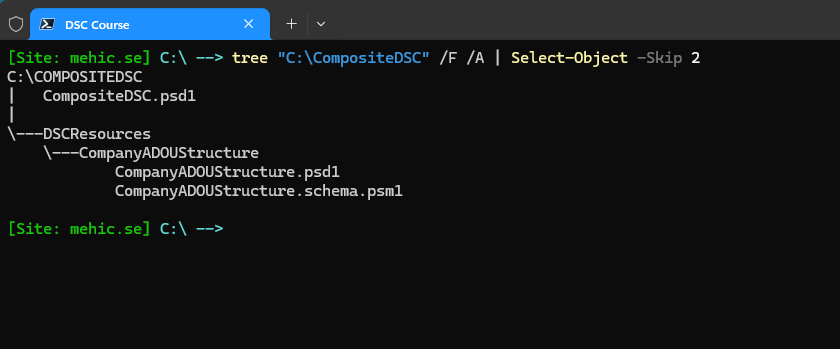
DSC has strict requirements for discovering resources, and DSC composite resources must follow a specific folder structure pattern.
    ModuleName\
├── ModuleName.psd1
└── DSCResources\
    └── ResourceName\
        └── ResourceName.schema.psm1
        └── ResourceName.psd1
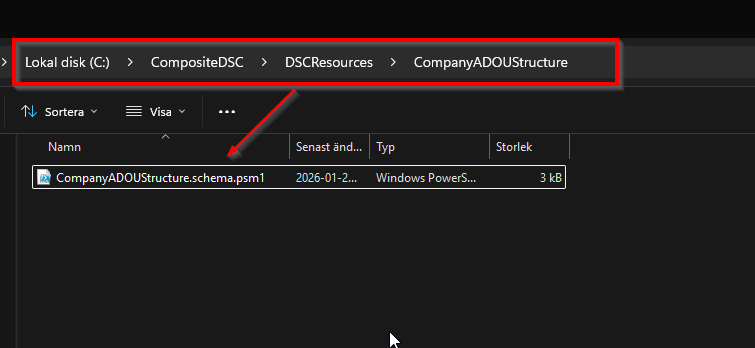
Save it as a schema.psm1 file.
Now we need to save the configuration as a schema.psm1 file.
Create a manifest file
You might be wondering why we need to create a manifest file for our composite resource. The manifest file tells PowerShell and DSC how to properly recognize and load your composite resource as a legitimate DSC resource module. Without it, DSC won’t discover your composite resource when scanning for available resources.
New-ModuleManifest -Path 'C:\CompositeDSC\DSCResources\CompanyADOUStructure\CompanyADOUStructure.psd1' -ModuleVersion 1.0 -RootModule 'CompanyADOUStructure.schema.psm1'
Now we need to create the manifest for the nested module (the module manifest for all resources under the CompositeDSC).
New-ModuleManifest -Path 'C:\CompositeDSC\CompositeDSC.psd1' -Guid ([guid]::NewGuid()) -ModuleVersion 1.0 -Author 'Nedim Mehic' -CompanyName 'Megablast AB' `
-Description "Active Directory nested resource module"
When you are done, the folder structure should be as follows.
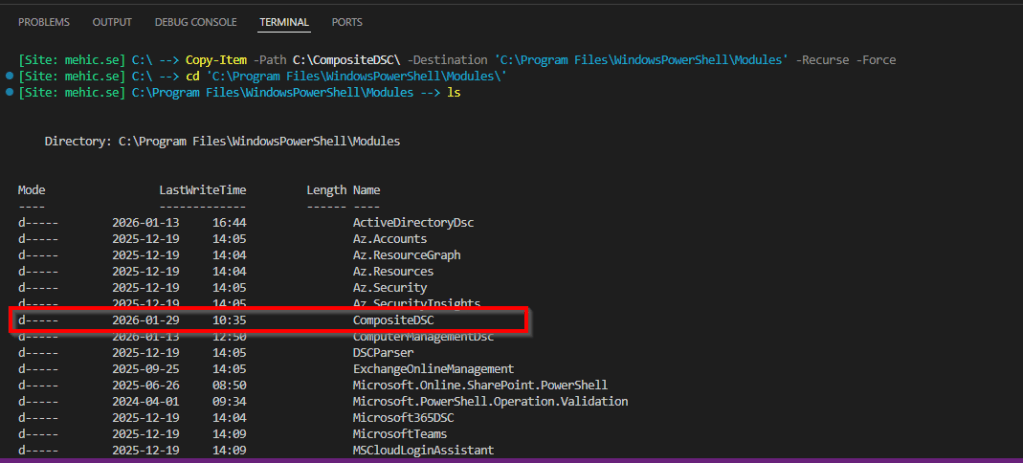
Now the last step is to copy the module to the module folder in C:\Program Files\WindowsPowerShell\Modules
Copy-Item -Path C:\CompositeDSC\ -Destination 'C:\Program Files\WindowsPowerShell\Modules' -Recurse -Force
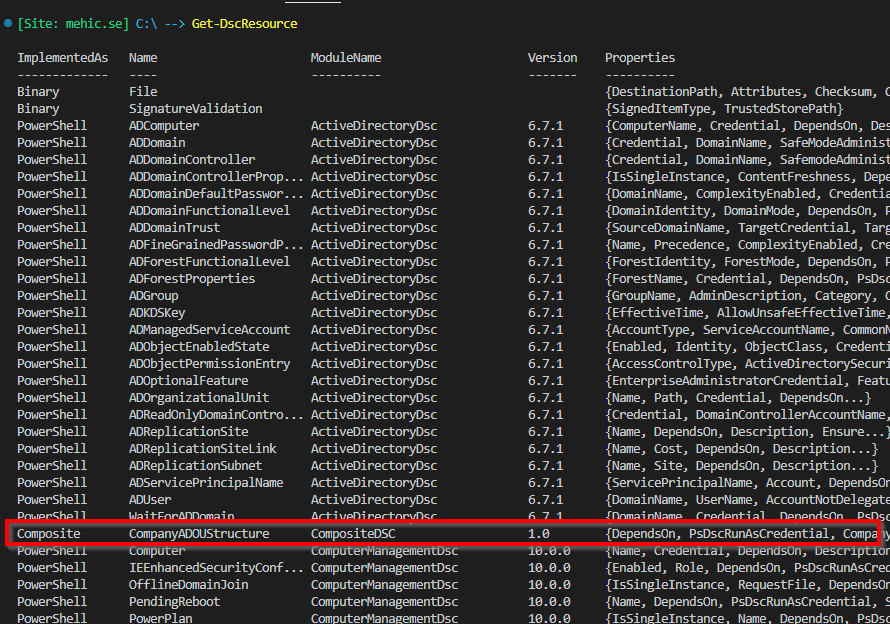
If we run the Get-DscResource command, we will be able to see our module in the list of the available DSC resources.
What we need to do now is to make sure that we have CompositeDSC module and all the other required modules on our target node. When that is done, we need to edit our configuration document and add our new module under the Import-DscResource section.
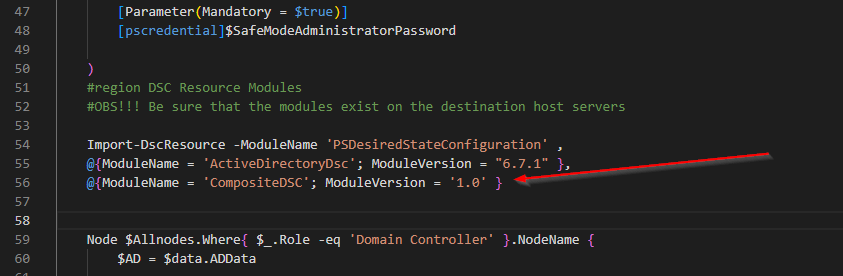
Now let’s see how this works in practice. In this example, I’ll reuse the same configuration document from the previous post, where we installed the domain controller, and extend it by incorporating our newly created composite resource. As you may recall from the beginning of the post, building the Organizational Unit structure required multiple individual DSC resources. By using a composite resource, that complexity is reduced to just two parameters in the configuration document, resulting in a significantly cleaner and more readable configuration.

Code
$data = @{
    AllNodes = @(

        @{
            NodeName                    = '*'
            PSDscAllowDomainUser        = $true

        },

        @{

            NodeName        = 'DC01'
            Role            = 'Domain Controller'
            CertificateFile = 'C:\Certs\DSCCredsEncryption.cer'
        }
    );

    ADData   = @{

        DomainName        = 'mehic.se'
        DomainNetBiosName = 'MEHIC'

    }

}


Configuration InstallAD {

    param (

        [Parameter(Mandatory = $true)]
        [pscredential]$DomainCreds,

        [Parameter(Mandatory = $true)]
        [pscredential]$SafeModeAdministratorPassword

    )
    #region DSC Resource Modules
    #OBS!!! Be sure that the modules exist on the destination host servers

    Import-DscResource -ModuleName 'PSDesiredStateConfiguration' ,
    @{ModuleName = 'ActiveDirectoryDsc'; ModuleVersion = "6.7.1" },
    @{ModuleName = 'CompositeDSC'; ModuleVersion = '1.0' }


    Node $Allnodes.Where{ $_.Role -eq 'Domain Controller' }.NodeName {
        $AD = $data.ADData

        LocalConfigurationManager {

            RebootNodeIfNeeded = $true
            ConfigurationMode  = 'ApplyAndAutoCorrect'
            CertificateID      = '23D658C553CB1642BAACFADFF945B980F74B5185'
        }

        WindowsFeature ADDSInstall {

            Name   = "AD-Domain-Services"
            Ensure = 'Present'

        }

        WindowsFeature RSATTools {

            Name                 = 'RSAT-AD-Tools'
            IncludeAllSubFeature = $true
            Ensure               = 'Present'
            DependsOn            = "[WindowsFeature]ADDSInstall"

        }

        ADDomain NewADForest {

            Credential                    = $DomainCreds
            DomainName                    = $AD.DomainName
            DomainNetBiosName             = $AD.DomainNetBiosName
            SafeModeAdministratorPassword = $SafeModeAdministratorPassword
            DependsOn                     = "[WindowsFeature]ADDSInstall"
        }

        CompanyADOUStructure ADStructure {

            CompanyName = 'Megablast AB'
            DomainDN    = 'DC=mehic,DC=se'
            DependsOn   = "[ADDomain]NewADForest"

        }

    }

}


InstallAD -ConfigurationData $data -SafeModeAdministratorPassword (Get-Credential -UserName '(Only Password)' -Message "Safe Mode Pass Here") `
    -DomainCreds (Get-Credential -UserName mehic\administrator -Message 'Domain Admin Creds') -OutputPath C:\DSC
If we run the code again we will get our new Domain Controller with the whole OU structure.
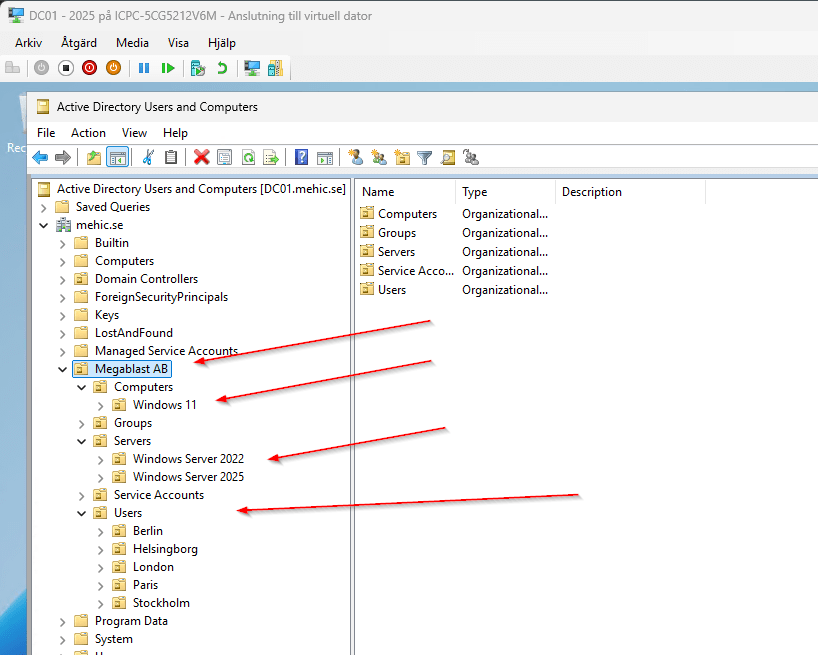
In this post, we explored DSC composite resources and how they help simplify complex configurations by introducing meaningful abstraction and reuse. Instead of managing large numbers of individual resources directly in every configuration, composite resources allow us to encapsulate common patterns and expose them through a clean, intentional interface.
By taking this approach, we can build configurations for services such as Active Directory, SQL Server, or Remote Desktop Services in a way that is easier to read, easier to understand, and far easier to maintain over time. Changes are made in one place, configurations become more consistent across environments, and the overall intent of the configuration is much clearer to anyone reviewing the code.
As environments continue to grow in size and complexity, treating DSC configurations as modular, well-structured code becomes essential. Composite resources are a key step toward mastering DSC and building scalable, maintainable infrastructure-as-code solutions. In the next posts of this series, we will continue building on these concepts and explore additional techniques that further improve structure, reuse, and reliability in DSC configurations.
Thank you for reading.
Cheers





Leave a comment