In this section, we will discuss configuring high availability for DHCP. There are two approaches to achieve this: the traditional method using split scopes and the modern approach known as DHCP failover. Both methods address the same goal ensuring that DHCP can continue to assign IP addresses even if one server becomes unavailable, but they do so in slightly different ways, which we will explain in detail.
We will also cover Superscopes, Multicast Scopes, DNS registration, and DHCP name resolution to provide a complete overview of advanced DHCP configuration options.
Let’s get started.
Split-Scope
The concept of a highly available DHCP configuration has evolved over the years. In the past, split scopes were commonly used to achieve DHCP high availability. However, this approach is not particularly sophisticated. As the name suggests, a split scope simply divides a DHCP scope between two different servers.
One of the major drawbacks of split scopes is that each server maintains its own separate database of leased addresses, and the two databases do not communicate with each other. This means that addresses leased by one server are not known to the other. If a server that was offline comes back online, there is a risk of address conflicts, and addresses issued by the second server may need to be reconciled back into the first server’s database.
Additionally, implementing high availability with split scopes requires reserving approximately 20% of the IP addresses on the secondary server, essentially “holding them in reserve” in case the primary server fails. In networks with limited address space, this 20% reservation can be significant and may force administrators to implement superscopes earlier than originally planned.
The most common approach for split scopes is an 80/20 configuration, where Server 1 handles 80% of the IP addresses and Server 2 handles the remaining 20%. The rationale behind this setup is that Server 2 is intended to act as a backup, only taking over in the event that Server 1 becomes unavailable for a period of time.
Next, we will go through the steps to configure a split scope.
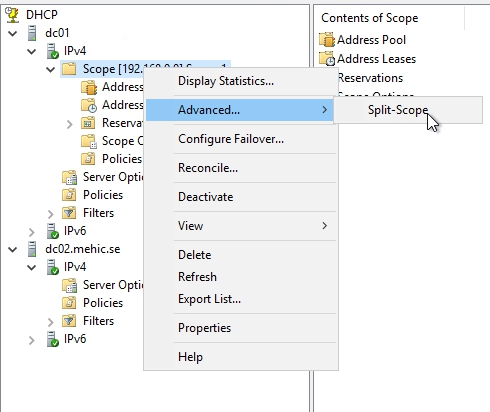
Right click on the scope that is to be split and press the advanced menu item and split scope menu item.
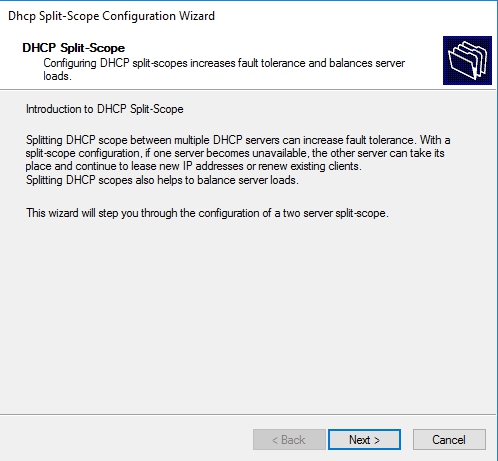
DHCP Split-Scope Wizard will pop-up. Click Next
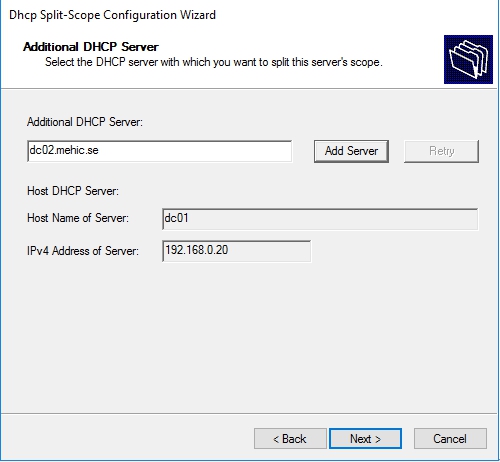
Now we need to determine what the additional DHCP server would be, in my case, will be the DC02. Choose Next
Now we need to identify what we want the percentage, essentially the split between these two servers to be. The best practice for years and years has been 80/20, but you can literally drag this slider to whatever you want, 50/50, or some other configuration. Click Next

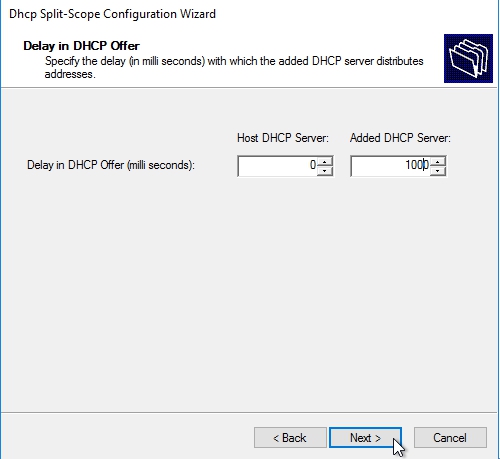
On Delay on DHCP Offer, allows you to control how DHCP servers respond to client requests in a split-scope configuration. You can choose whether both servers will offer IP addresses simultaneously, or if you want to implement a failover scenario where the secondary server responds only if the primary server does not.
To implement the failover behavior, you can set a DHCP delay, typically around 1 second (1000 ms). This ensures that if the primary server is unavailable, the secondary server will wait for the specified delay before offering an IP address to the client.
Once you have configured the delay, click Next, then Finish to complete and close the setup.
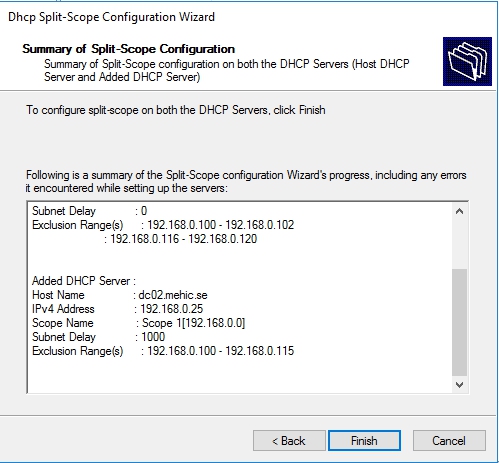
The scope is now added to the 2nd server, to finish the setup, right click the scope and choose activate

That’s it.
DHCP Failover
One of the limitations of split scopes is that each server maintains its own separate database, with no knowledge of what addresses the other server has leased. To achieve true DHCP failover, you can use the Configure Failover option under IPv4.
DHCP failover is configured on a per-scope basis, similar to the Split Scope Wizard. However, instead of simply dividing the address pool, you establish a partner server, in this example, DC02, that will share lease information with the primary server. This ensures that both servers have synchronized knowledge of IP address assignments, allowing either server to continue issuing addresses seamlessly if the other server becomes unavailable.
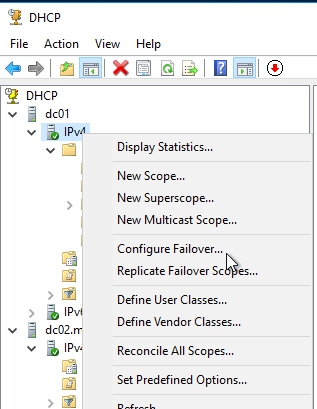
Right click on IPv4 of primary DHCP and select Configure Failover.
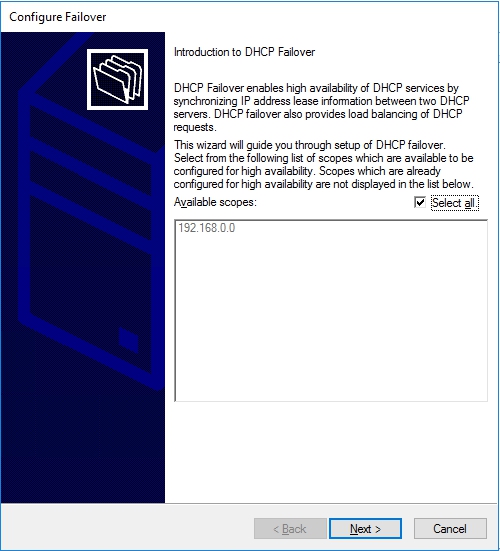
On the welcome page of Configure Failover select Select all (or select your scope which you want to configure for HA) and click Next.
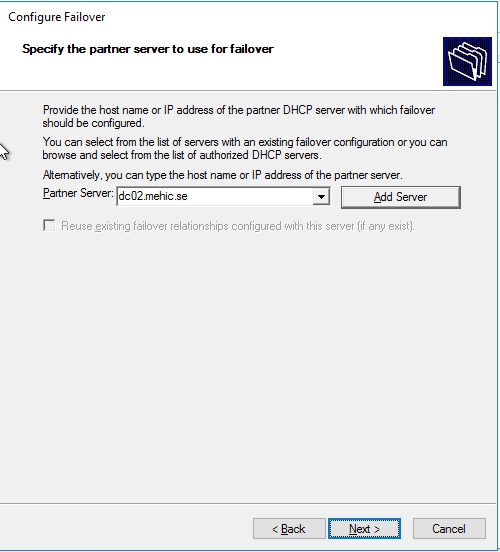
On Specify the partner server… Add the second DHCP server and click Next.
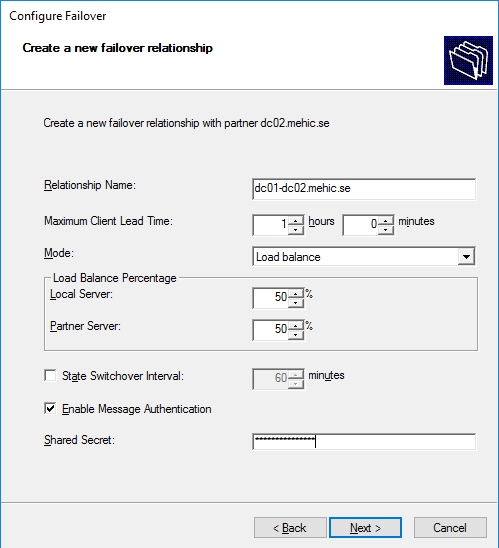
On the Create a new failover relationship page, the Relationship Name identifies the two servers participating in the failover. You can also configure the Maximum Client Lead Time (MCLT), which determines how long a DHCP server can extend a lease on behalf of its partner.
Most importantly, you select the Mode for the failover relationship: Load Balance or Hot Standby.
-
Load Balance allows both servers to actively service client requests. You can specify what percentage of the scope each server should handle. By default, this is typically 50/50, but you can adjust it if one server has greater resources or capacity than the other.
-
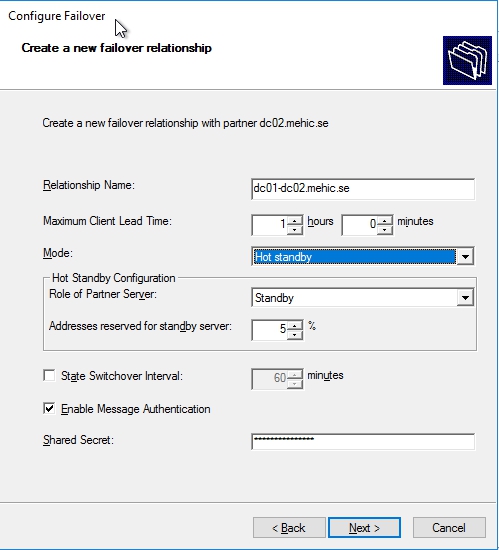
Hot Standby configures one server as the primary, with the secondary server only responding if the primary becomes unavailable.
This flexibility ensures that your DHCP environment can be optimized for either performance or redundancy based on your network needs.
When you select Hot Standby mode, you determine which server will act as the primary (active) and which will act as the secondary (standby). By default, the standby server is allocated 5% of the scope for emergency use, though this percentage can be adjusted based on your network requirements.
You can also configure the State Switchover Interval, which specifies the amount of time that must pass before the DHCP servers are allowed to fail over or fail back. For example, setting this to 60 minutes ensures that the servers wait one hour before activating the failover process.
Once these settings are configured, click Next to proceed.
Finally click Finish to set up failover between two servers. Make sure the process should be finished successfully.

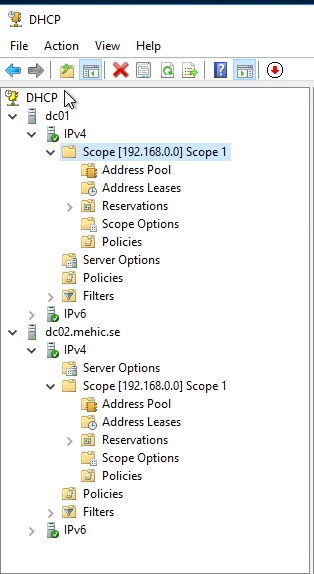
Close the page and go to see the changes on DHCP management console.

Refresh the DHCP console to see the final result. Now the DHCP servers are ready to work as DHCP load balancing service.
Super-Scope
A DHCP superscope allows you to combine multiple individual DHCP scopes into a single, larger pool of IP addresses for clients. Superscopes are particularly useful when a single subnet does not provide enough addresses to meet the needs of a location.
For example, with a 24-bit subnet mask (255.255.255.0), only 254 usable IP addresses are available. In environments with more devices than this limit, you may run out of addresses.
To address this, one common approach is to define separate subnets by geographic location or logical grouping. This allows a single DHCP server to manage multiple scopes while keeping track of the machines in each location.
However, there are situations where reducing the subnet mask (for example, moving to a 23-bit subnet) is not an option, and the network must remain on a standard 24-bit subnet. In these cases, multiple subnets can be consolidated using a superscope, effectively allowing a DHCP server to treat several smaller scopes as a single larger network. This may also involve configuring the router with multiple IP addresses so that clients on different subnets can communicate as if they are on the same logical network.
Another alternative to configuring routers with multiple addresses uses a little trick called DHCP relays, and built into a lot of Enterprise routers these days is the ability for the router to be configured with what is called a DHCP relay agent.
So let’s create one.
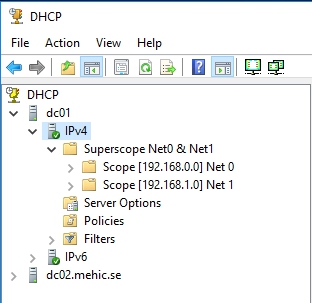
Right-Click on IPv4 and select New Superscope
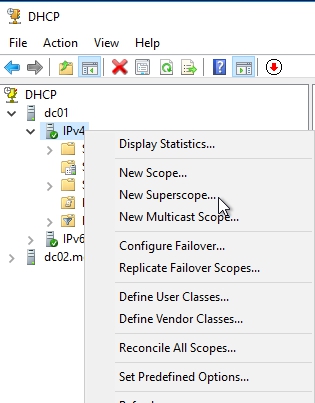
Welcome Wizard will pop-up. Click Next
On Superscope name page, type in the name and click next

On Select Scopes page, select scopes and click next and Finish

You’ll notice here that in creating the superscope that the Properties for configuring the scopes themselves are still, those Properties still exist in the individual scope, but these two are now consolidated together into this Superscope object with really not that many properties that are associated. So again, use this for the distribution of addresses, take care of the individual management down here with these two individual scopes by themselves.
Multicast Scope
While creating a superscope is something you may do occasionally, setting up a multicast scope is much less common. This is because multicasting is inherently traffic-intensive, sending data to multiple recipients simultaneously rather than to a single client.
Many network teams restrict multicast traffic or limit its routing across the network to prevent congestion, so deploying a multicast scope is typically done only in specialized scenarios, such as real-time video or audio streaming within controlled segments of the network.
Right-Click on IPv4 and Select New Multicast scope

Welcome Wizard will pop-up. Click Next
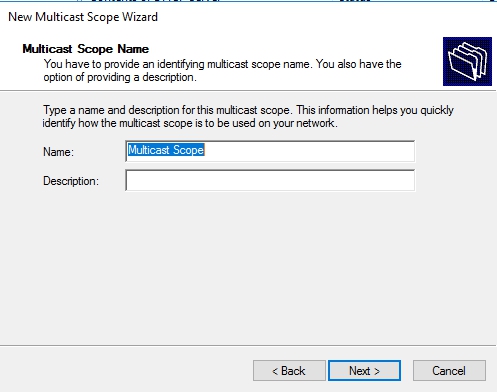
On Multicast Scope name page, give it a name and click next
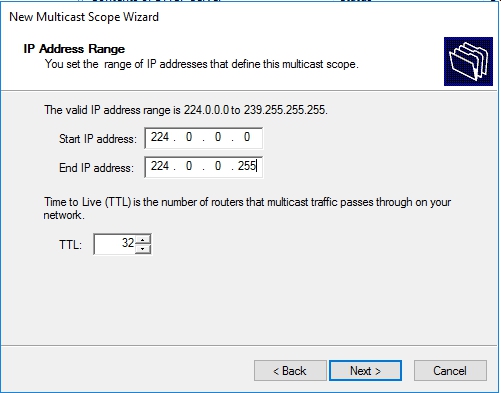
On IP Address Range page, type in start and end ip.
TTL time to live, or in other words, the number of hops through routers that this address can actually pass through. Click Next
On Add Exclusion page, add IP addresses which you would like to exclude and click next

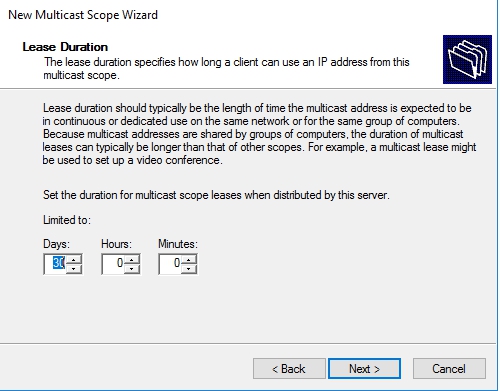
On Lease Duration page, I will leave it as default
On Activate Multicast scope page, click next and finish
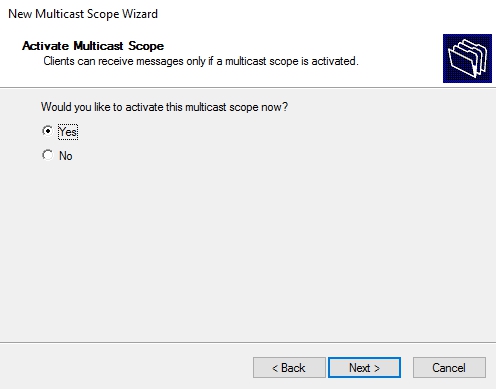
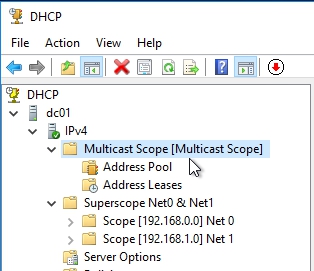
When you are creating these multicast scopes, multicast is a one to many transaction. You lease the content onto the network in one time, and multiple machines pick it up at the same time. This can be used for streaming any kind of content. Out in the real world, the most common use we find these days of multicast has to do with the deployment of operating systems through Windows Deployment Services
DHCP Name Resolution
In an all-Windows environment, DHCP name resolution is typically straightforward and rarely an issue. However, in mixed environments with non-Windows devices, problems can arise. Some non-Windows clients may attempt to register a DNS name that is already in use by a Windows machine, potentially causing name conflicts.
For example, if a Linux client tries to register the same hostname as an existing Windows desktop, it could overwrite or interfere with the Windows machine’s DNS entry. To prevent this, DHCP provides a feature called DHCP Name Protection, which safeguards DNS entries for Windows clients and prevents non-Windows devices from “squatting” on those names.
Let’s turn on DHCP Name Protection
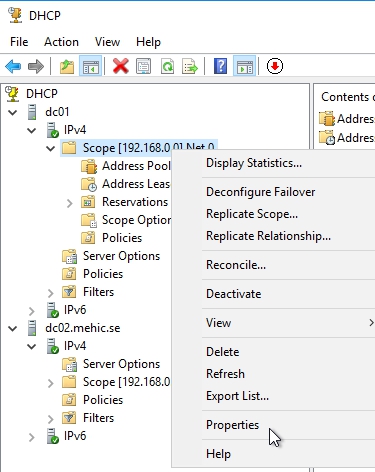
Right-Click on Scope and select Properties
On DNS tab click Configure
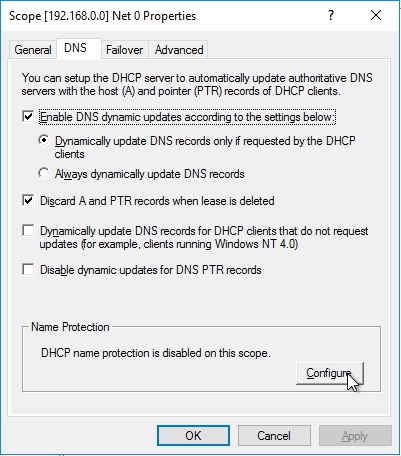
Select Enable Name Protection checkbox and click OK
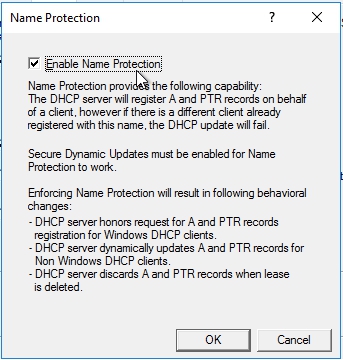
What we’re doing is adding a dynamic host configuration identifier, or DHCID, onto our DHCP server, and we’re adding in a resource record for that identifier over into DNS. That resource record in DNS is going to map names to prevent duplicate registration by allowing DHCP to watch for potential duplicate names, and refuse the registration of a computer with a different address that’s attempting to register a name with the existing record.
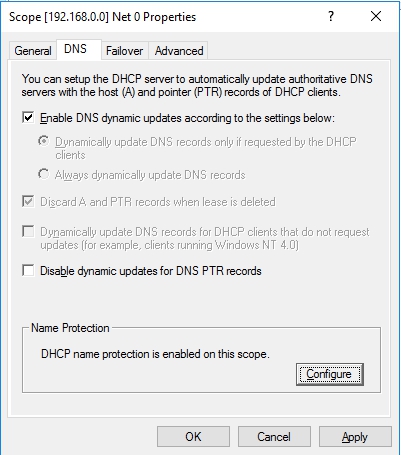
DNS Registration
Your Windows-based DHCP server also has the ability to automatically register entries into DNS on behalf of clients either that cannot automatically register by themselves, or for all clients that are coming through DHCP, and the way that you actually accomplish that is a relatively simple configuration up here under the Properties of the scope.
If I take a look here at the DNS tab, this is where I can determine whether or not DNS dynamic updates are going to be made by the DHCP server when that request is made by the DHCP client.
Dynamically update DNS records for DHCP clients that do not request updates …check this box if you have mixed environment with both Windows and Linux machine
Disable dynamic updates for DNS PTR records… be careful with this one, because some aspects of Active Directory, a couple of items in group policy, actually require clients to have reverse records in DNS, so be careful with implementing this, because you might find yourself actually wanting those reverse records in your DNS.
That’s it.
What we covered in this part.
- How to configure Split-Scopes and what is the difference between Split-Scope and DHCP Failover
- How to configure Superscope
- How to configure Mulitcast scope
- How to configure DNS Registration
- How to configure DHCP Name Resolution
Cheers,
Nedim




 Nedim's IT CORNER
Leave a comment