In Part 1 we’ve had a chance to explore the zones that got created when Active Directory was setup, so let’s take a look at creating our own zones.
There are various reasons you might need to set up your own zones. For instance, if you have namespaces that aren’t related to Active Directory, such as those used by web servers, SharePoint applications, or other services, you’d want a way to handle name resolution for them. Let’s walk through how to create one.
I will configure it on my DC01 (which is domain controller and DNS is integrated)
Right-Click on Forward Lookup Zones and select New Zone

Welcome to the New Zone Wizard will pop-up, Click Next
Zone Type page, the first decision we need to make is what type of zone we want to create, and this is a crucial choice. In this case, I’ll be creating a Primary Zone. A primary zone acts as the read/write copy, meaning it allows us to add, modify, and delete records within it.
I also want to store this zone in AD. Now what’s the primary benefit to Active Directory Integrating your zones? It is much more secure. Click Next
(I will also show you what will happen if I uncheck that, later in this post)
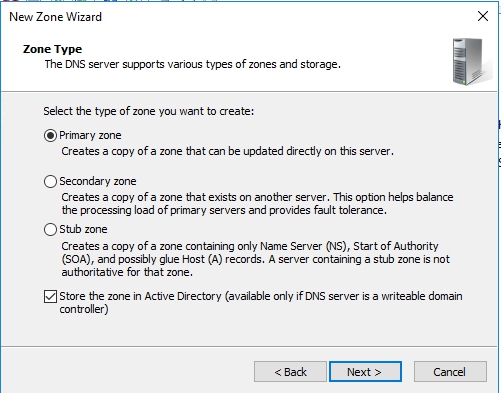
On Active Directory Zone replication scope page, we need to specify who do we want this replicated to. I will leave the defaults and click next
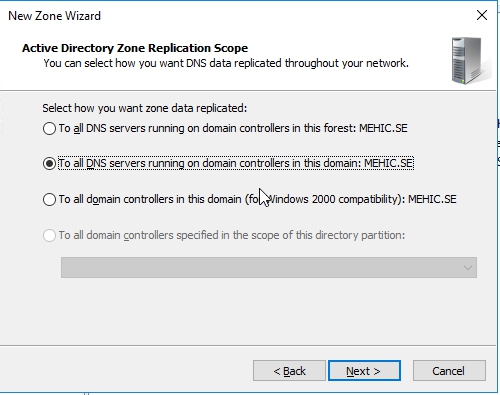
On Zone Name page, type in the name and click Next

On Dynamic Updates page, we need to determine whether we want to allow dynamic updates and, if so, how we want to handle them. Dynamic updates make life easier by allowing clients to automatically update their IP addresses, which is especially helpful when DHCP is assigning new IPs.
However, we also need to consider security. The most secure option is Only secure dynamic updates, meaning the client must be authenticated to perform the update. This ensures only trusted clients can make changes.
That said, not all of your machines may be able to authenticate, especially if they’re not domain members. In that case, you might need to opt for Allow both non-secure and secure dynamic updates. While this is less secure, it could be necessary in some environments. It does introduce vulnerabilities, as unauthorized clients might make updates without you knowing. Another option is to Disable dynamic updates, but that limits flexibility.
For now, I’ll go with the middle option and click Next.

and now it’ll create the zone. Click Finish
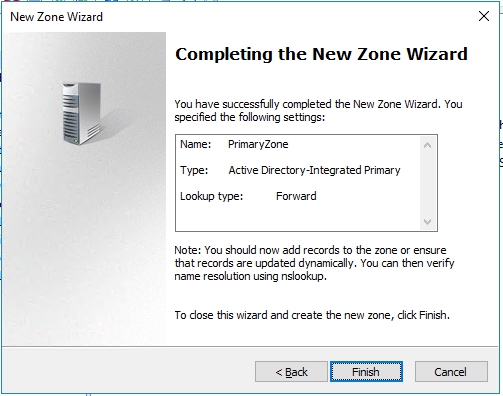
And that’s it. Our zone is created.
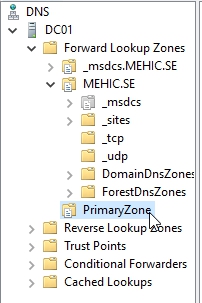
Let’s create another Primary Zone but this time I will uncheck Store the zone in Active Directory….
Right-Click on Forward Lookup Zones and select New Zone
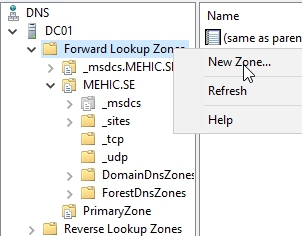
Welcome to the New Zone Wizard will pop-up, Click Next
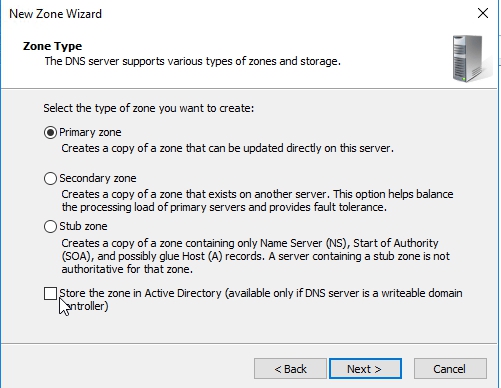
On Zone Type page, Leave Primary Zone but uncheck Store the zone in AD….Click Next
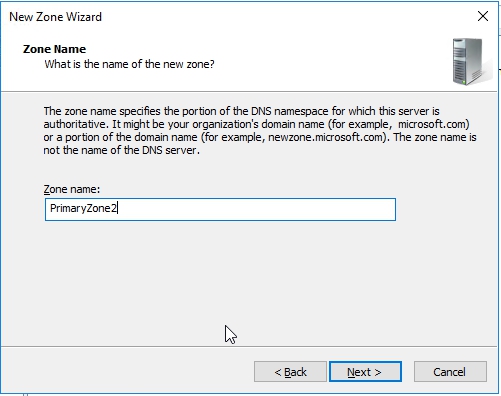
On Zone Name page, type in the name and click Next
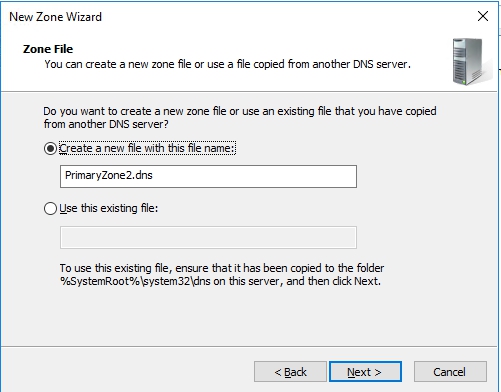
On the Zone File page, things get interesting. Here, we’re creating a file to store all the zone information. This file will be located in the Windows\System32\DNS directory (and we can always navigate to it if we want to check it out).
It’s important to note that this file is stored locally on your machine, not in Active Directory, and it won’t be replicated across other servers. This means there’s no built-in fault tolerance for this zone. While it’s not the most modern or fault-tolerant approach (especially if you’re using Active Directory), it’s still the standard method for creating a zone if you don’t have Active Directory or don’t want it integrated.
So, with that in mind, I’ll go ahead and click Next.
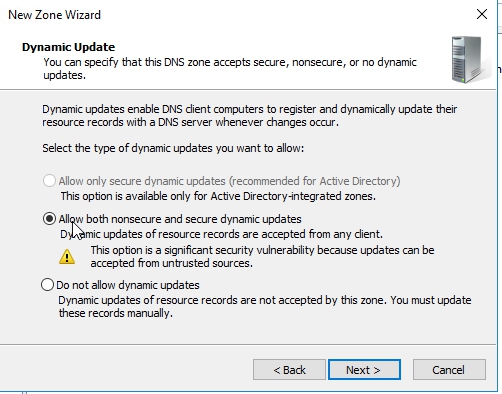
Once again, we’re presented with the dynamic update options, with the default set to Do not allow dynamic updates. You’ll also notice that the option to Allow only secure dynamic updates is unavailable. That’s because secure dynamic updates only work when the zone is integrated with Active Directory.
In this case, I’ll choose the middle option, proceed by clicking Next, and then select Finish to complete the setup.
and it will create the zone and the zone pretty much looks and works the same way only now if I go into the Properties of this zone it’s not Active Directory Integrated, it’s a primary zone and it’s running.
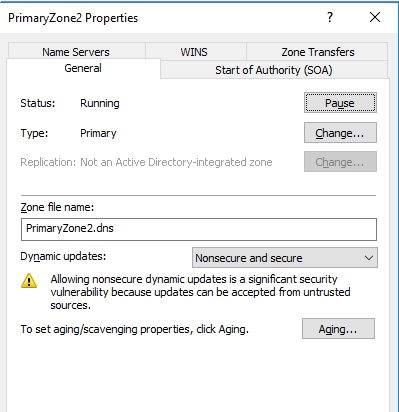
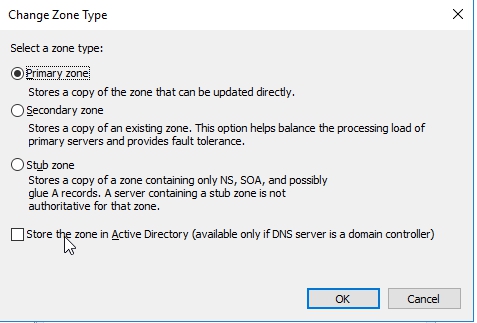
If we want to integrade this zone in AD we can click on Change

and select Store the zone in Active Directory….
SECONDARY ZONE
We’ve now finished creating primary zones—both an Active Directory–integrated primary zone and a standard primary zone. Keep in mind that primary zones are the master copies. They are read/write, meaning we can modify them and add or remove records as needed.
As mentioned earlier, Active Directory–integrated zones make administration much easier because they automatically replicate to other DNS servers. This replication effectively provides built-in fault tolerance. However, when a primary zone is not integrated with Active Directory, it exists only as a local file on the DNS server. In that case, there is no automatic backup or replication of the zone.
In real-world environments, this limitation is usually addressed by creating a secondary copy of the zone. To do this, we configure another DNS server to host a secondary zone, which provides redundancy and helps ensure availability if the primary DNS server goes down.
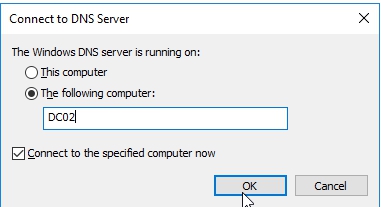
Let’s create secondary zone. Before that, I will add my second DNS server DC02 to this console, which is not Domain Controller.
Right-Click DNS and select Connect to DNS Server

Type in your second DNS server and click OK

DC01
Let’s configure zone transfer first. Right-Click on zone you want to transfer (MEHIC.SE) in my case and select properties. Switch to Zone Transfers tab and click Only to servers listed on the Name Servers tab
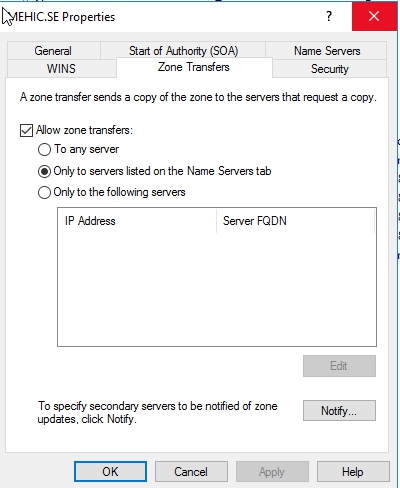
Notify –> When you click on this button you can configure notification so that secondary server knows when records are changed/modified
Click on it and select Automatically notify (if not selected) and choose Servers listed on the Name Servers tab

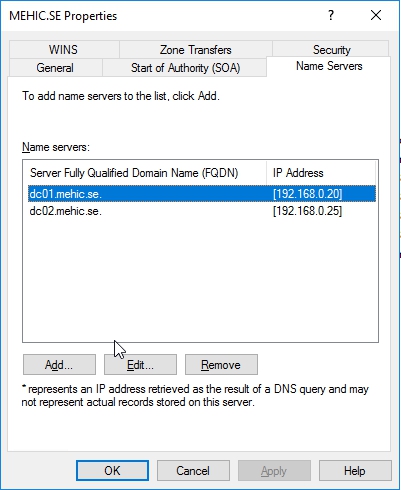
Switch to Name Servers Tab and add our second DNS server into the list
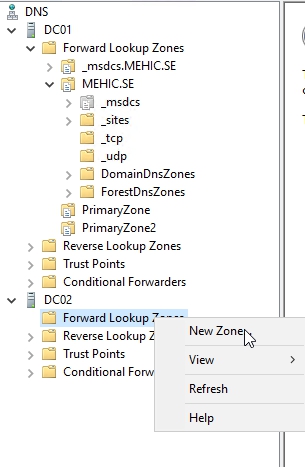
Now switch to your second DNS server and right-click on Forward Lookup Zones and select New Zone
Welcome to the New Zone Wizard will pop-up, Click Next
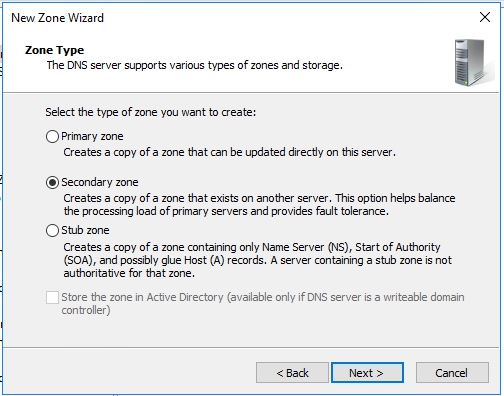
On Zone Type page, Select Secondary Zone. Store the zone in AD option is disabled . You can’t have secondary’s that are integrated with Active Directory and it tells you right here that this is going to create a copy of that primary. Click Next
On Zone Name, give you zone a name and click next
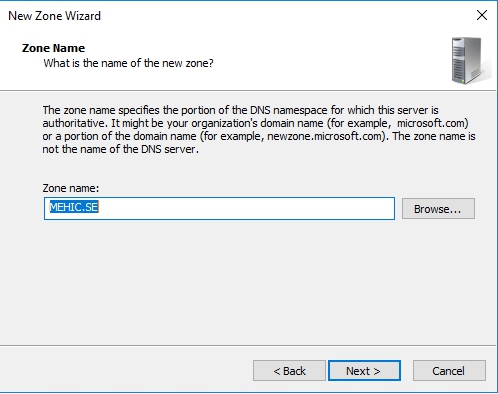
On Master DNS Servers page, put in your Primary DNS server name or IP address, this is where you tell your secondary DNS where to copy all the DNS info from. When you type in the IP use tab button to resolve it. Click next
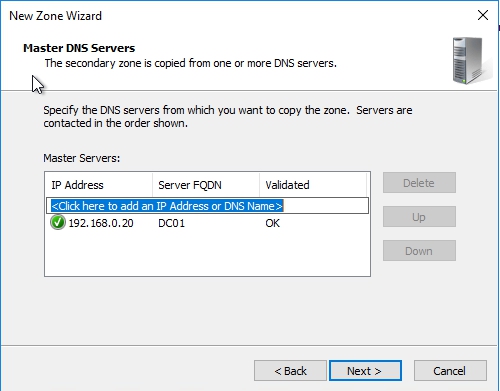
Click next and finish. Wait for few seconds and that’s it.
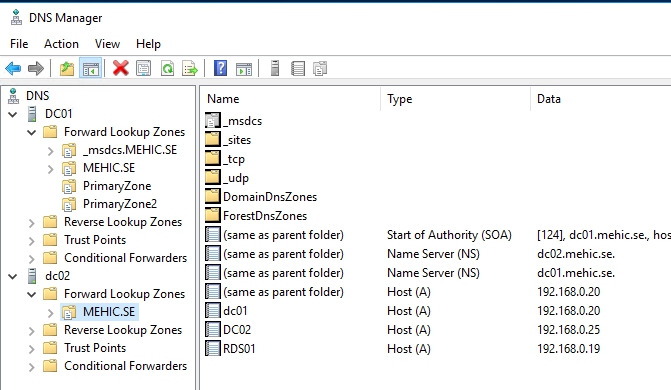
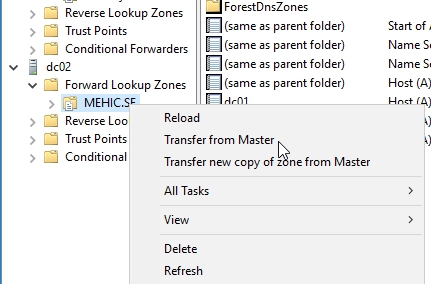
If you don’t see records on your second dns you can right-click on zone and select transfer from Master
Remember –> You can not make any DNS changes from your secondary DNS. Secondary DNS is a read-only DNS, Any DNS changes have to be done from the primary DNS.
STUB ZONE
Like I said secondary zone is a read-only copy of a primary zone. Basically, we can use them to offload some of DNS traffic like queries, from areas in our network that are more heavily used. If your primary zone were to become unavailable, the secondary zone could provide name resolution until the primary zone is restored.
Stub zone is another type of zone copy, but it contains only essential records—specifically the SOA (Start of Authority) and name server (NS) records. Because it holds limited information, a stub zone helps reduce network traffic. Stub zones are dynamic, meaning they automatically update when changes occur in the parent zone.
Stub zones can also be integrated with Active Directory, allowing them to be replicated across the domain or even the entire forest, depending on the replication scope you choose.
In practice, stub zones are especially useful when working with partner organizations. Rather than maintaining a full secondary zone for a partner’s domain, you can configure a stub zone on your DNS server. This way, when clients make DNS queries, your server can direct them to the most current and authoritative name servers for that external zone, ensuring efficient and up-to-date name resolution.
Let’s create Stub zone
I have one primary zone called StubZone on my second DNS server DC02.
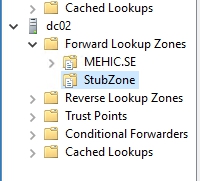
I will create Stub zone on my primary dns server dc01 and point to that one.
On your second DNS server (DC01 in my case) right-click on Forward Lookup Zones and select New Zone
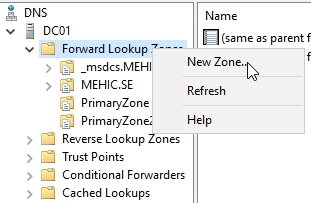
Welcome to the New Zone Wizard will pop-up, Click Next
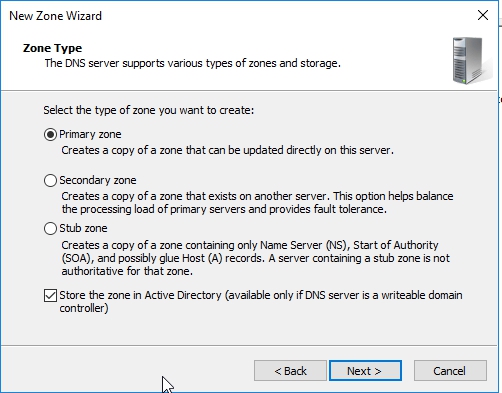
On Zone Type page, Select Stub Zone and I will store my in AD, Click Next

On Active Directory Zone replication scope page, we need to specify who do we want this replicated to. I will leave the defaults and click next

On Zone Name, give you zone a name (You can click on Browse and browse to the zone on second DNS server which hosts that zone you want to copy) and click next.
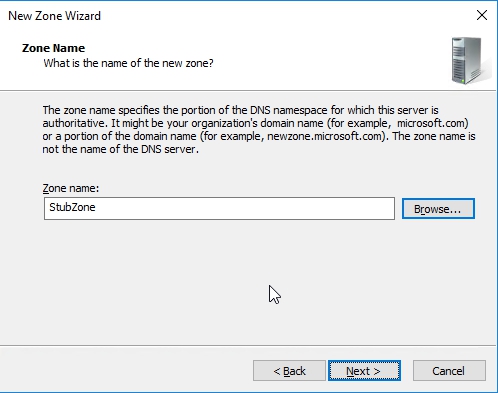
On Master DNS Servers page, put in your Primary DNS server name or IP address (In my case DC02), this is where you tell your secondary DNS (DC01) where to copy all the DNS info from. When you type in the IP use tab button to resolve it. Click next and Finish
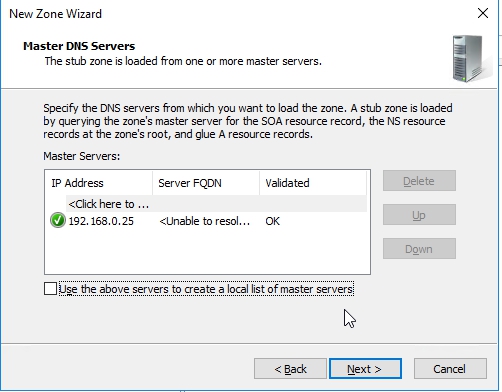
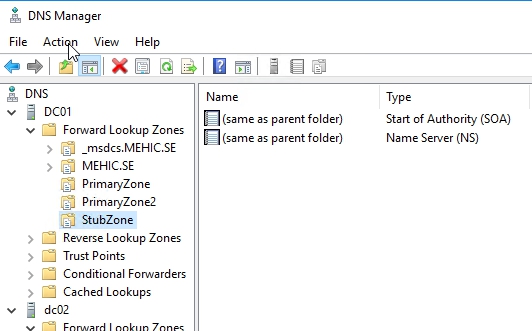
Notice that we have no records on DC01. If I check on DC02 I will find 2 A records.

If you refresh or if you right-click and choose transfer from master nothing will happen.
If I try to ping for example 192.168.0.50 from my dc01 it will find IP.
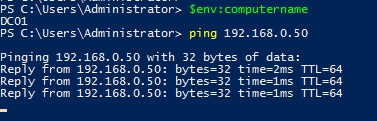
It found it because of stub zone on DC01, my DNS server said, look, I should be able to resolve this, so I’m going to go over to this guy DC02 where the records really exist, and pick the answer out of there and then give it back to the client who just asked for it. What this does is it means that let’s say I’m that DNS server, these records are getting updated frequently. Rather than having a stored copy on my side that might get out of date, this always gets you to the latest and updated records, so those are the three primary zone types and remember, you can have a primary that’s Active Directory Integrated or not, you have a stub zone that’s Active Directory Integrated or now, however, when you have a secondary from some other DNS server’s primary that can’t be Active Directory Integrated.
REVERSE LOOKUP ZONE
Reverse lookup zone is mostly created and configured if the network is very large, and/or for testing purposes. The reverse lookup zone’s a special type of primary or secondary zone that’s used to resolve IP addresses to fully qualified domain names, instead of fully qualified domain names to IP addresses. And you can configure, using a Windows server DNS, either an IPv4 reverse lookup zone, or an IPv6 reverse lookup zone.
Reverse lookups are possible because of a special domain called the in-addr.arpa domain, which provides a separate fully qualified domain name for every possible IP address on the Internet.
To create reverse lookup zone open dns manager, easiest way is to run powershell as admin and type in dnsmgmt
In DNS Manager, right click on Reverse Lookup Zone and select New Zone

Welcome to the New Zone Wizard will pop-up, Click Next
I will create Primary zone and I will also store it in AD, click next
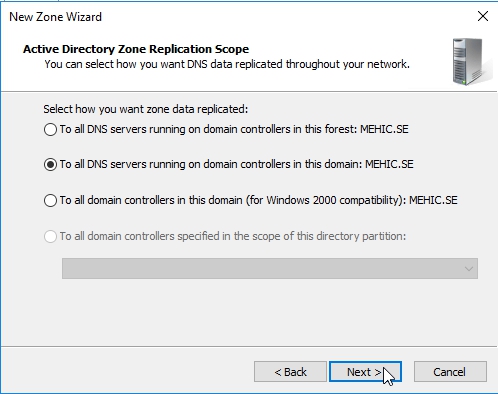
On Active Directory Zone replication scope page, we need to specify who do we want this replicated to. I will leave the defaults and click next
On reverse Lookup Zone Name page, I will leave the defaults and click next
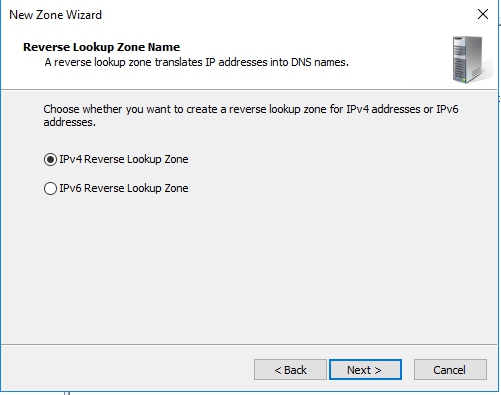
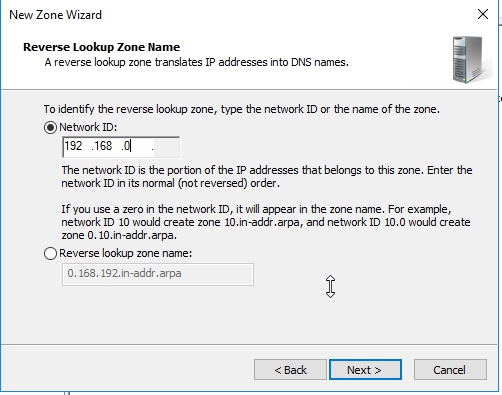
On Reverse Lookup Zone Name page, In the available field, type the network ID that the current DNS domain uses. In my case 192.168.0, and click next
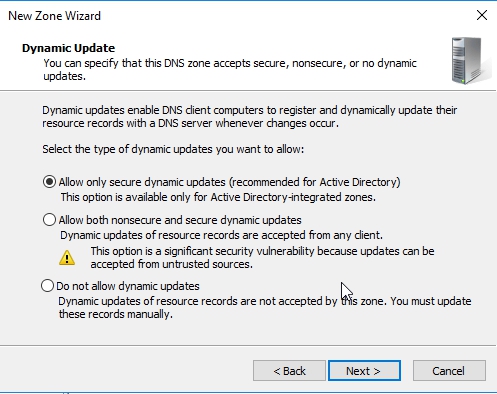
On the Dynamic Update window, leave the default settings, and click Next
On the Completing the New Zone Wizard window, click Finish to finally create a new reverse lookup zone for the selected domain.
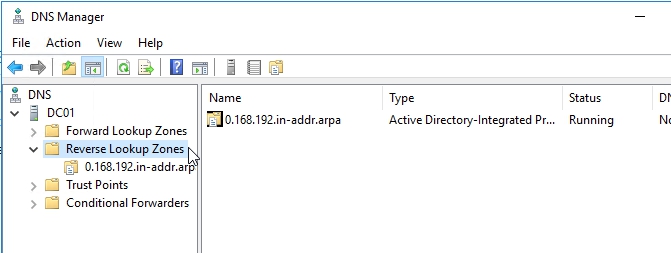
To enable a reverse lookup for a particular IP address, all you have to do is create a PTR record in a reverse lookup zone (a zone that is authoritative for a portion of the in-addr.arpa domain). The PTR record maps the in-addr.arpa domain name for the address to the host’s actual domain name.
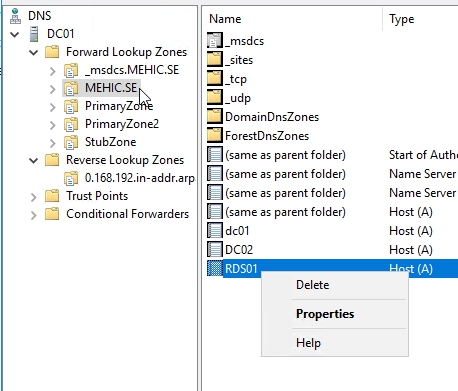
Right-Click on some A – record in Forward Lookup Zone and choose properties.
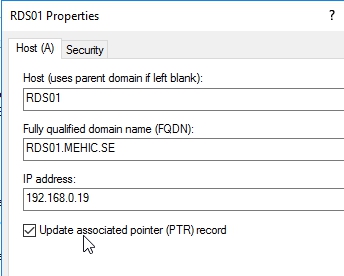
Tick the Update associated pointer (PRT) record box and click OK
Switch back to reverse lookup zone and hit refresh (F5) if you don’t see record.

What we covered!
- What is Primary Zone
- What is Secondary Zone
- What is Stub Zone
- What is Reverse Lookup Zone
- Difference Between zones
- How can we create those zones
In the next part we will take a look on Conditional Forwarders (Difference between Stub zone and conditional forwarder), DNS Server Properties, Root Hints etc.
Cheers,
Nedim






 Nedim's IT CORNER
Leave a reply to Marcus Cancel reply