Part4 of our little mini-series here on DNS focuses our attention not just on the zones but also on the records you can create inside those DNS zones.
The most basic type of DNS record is an A record, or an AAAA record if you’re working with IPv6. Beyond these, there are many other record types designed for specific purposes, such as PTR, SOA, NS (name server), SRV (service), CNAME, and MX (mail exchanger) records. Each one serves a distinct role, and we’ll cover when and why you would use them.
Beyond selecting the record type itself, there are additional configuration settings that need to be considered. These include the Time to Live (TTL) value, along with parameters such as priority and weight, which may not be visible here. These settings determine how long a record is cached, help remove records that are no longer required, and allow you to optimize traffic distribution—particularly when using mechanisms like DNS round robin for load balancing.
DNS supports a wide range of record types, but only a smaller subset is especially important to understand. These are the records most commonly used in a Windows-based environment, and they’re the ones you’ll work with most often in day-to-day administration.
Let’s get started.
A and AAAA records (The A in A record stands for Address)

The most important records to understand are A and AAAA records. An A record maps a hostname to an IPv4 address, allowing clients to locate a computer or server on the network. An AAAA record serves the same purpose but is used for IPv6 addresses.
When you create a DNS record for a server, it’s typically an A or AAAA record. These records act as the primary entry point that clients use to find and connect to that server. By default, when a name server lookup is performed, it ultimately relies on the server’s A (or AAAA) record to resolve the address.
Now if we look at these 2 records DC02 and RDS01 we will see the word Static

This means the record was created manually. As a result, if that machine’s IP address changes, I would need to update the record myself. In contrast, the other addresses were assigned automatically—either through the computer configuring its own address or by DHCP assigning one.
To create a new A record you will need to right-click on the zone and select New Host (A or AAAA)
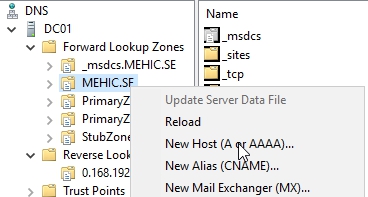
New Host Window will pop-up. Type in the Name and the IP address of the client machine. If you have Reverse Lookup Zone you can tick Create associated pointer (PTR) record. If you opt not to create a PTR record when you create an A record, you can create the PTR later as necessary.
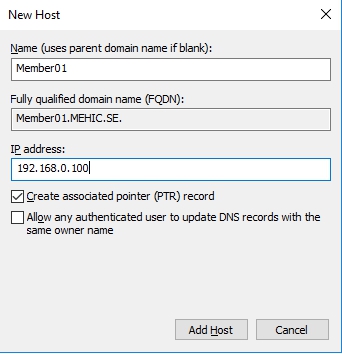
The Allow any authenticated user to update DNS records with the same owner name option should be selected only if you want other authenticated users to be able to modify this record or any other records that share the same host name. This option should remain unchecked to maintain better control and security over DNS records.
Click ADD HOST and that’s it.

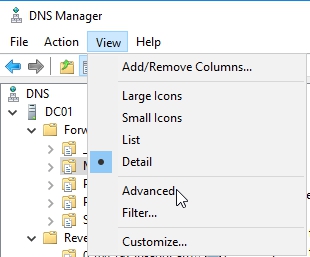
There are hidden options in DNS and to access them you will need to click on View –> Advanced
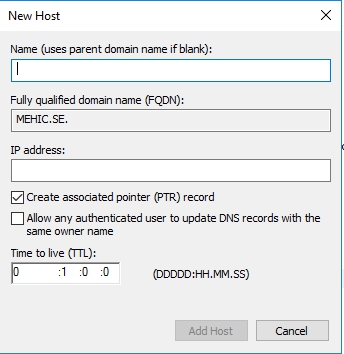
Now if we go and create a new A record we will get a new option TTL.
If you click on existing A record
Without Advanced Options / With Advanced Options
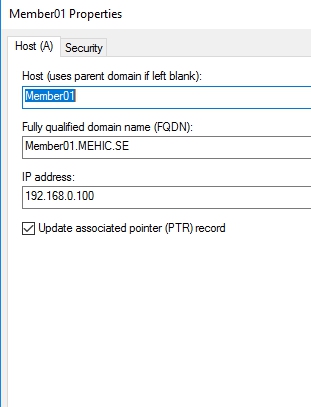
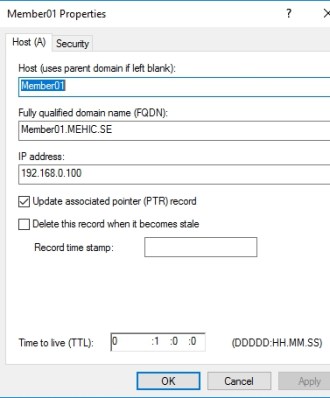
TTL (Time to Live) is a setting applied to each DNS record that defines how long a DNS resolver should cache the result of a query before it expires and must be queried again. For example, if the TTL is set to one hour and you attempt to reconnect to the same machine within that time frame, the resolver can use the locally cached information instead of contacting the DNS server again.
You might wonder why the TTL is often set to something like one hour. While individual DNS queries do consume time and resources, the impact is usually minimal. More importantly, a shorter TTL helps protect against scenarios where a server’s IP address changes. With a one-hour TTL, if a server fails over to another site and receives a new IP address, clients will typically recognize the change within about an hour, refresh the DNS information, and reconnect to the server at its new location.
Delete this record when it becomes stale – You will see timestamp only on the dynamic records. Static records have a timestamp of 0 indicating do not scavenge. We will talk more about Scavenging later.
CNAME (CANONICAL NAME RECORD)
CNAME, which stands for Canonical Name, is used to create an alias that points to an existing DNS record. In simple terms, it allows one name to reference another name that already exists.
In many environments, servers are given long or descriptive names that make sense to IT staff, such as MEHIC/server01/…. While these naming conventions are helpful for administration, they’re often not very user-friendly. End users usually prefer shorter, simpler names.
A CNAME record solves this problem by letting you assign an easy-to-remember “nickname” to a server. For example, instead of users needing to remember a long server name, you can create a CNAME like www that points to it. CNAMEs are commonly used when you want to keep the server’s original name unchanged but still provide a simpler, more convenient name for users to access.
To create CNAME record you will need to right-click on the zone and select CNAME
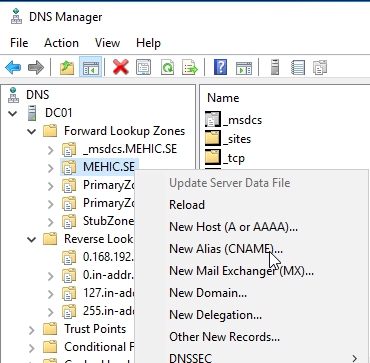
New Resource Record Window will pop-up.
Alias name: Type in the name you would like to use (webserver in my case)
Fully Qualified domain name: click Browse, double-click DC, double-click Forward Lookup Zones, double-click mehic.se and select the target server. Click OK.
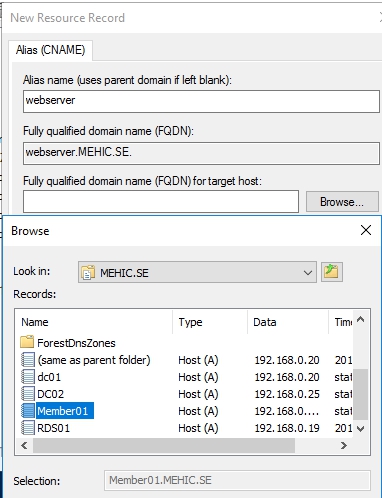
When I click OK, that creates the CNAME Record and notice how there’s not actually an IP address associated with that because we’re essentially creating an additional hop from our webserver to member01, and then from member01 to its actual IP address.

This creation and use of CNAMES allows you to go about changing IP addresses under the covers and swapping out servers without having to retell your users that there’s a completely different name of a computer that they need to find.
MX RECORD (MAIL EXCHANGE)
MX stands for Mail Exchange. MX records specify which servers are responsible for receiving and delivering email for a domain. While we won’t go into too much detail here, MX records are essential when working with systems like Microsoft Exchange, SMTP-based mail services, or other email routing solutions.
An MX record typically exists alongside an A record and informs incoming mail servers that a particular system is designated to handle email. You’ll only see MX records in environments where email services are configured on a server.
MX records also support redundancy by allowing you to define multiple mail servers with different priorities. This ensures reliable email delivery, even if one server becomes unavailable.
To crete one you will need to right-click on the zone and select New Mail Exchanger (MX)
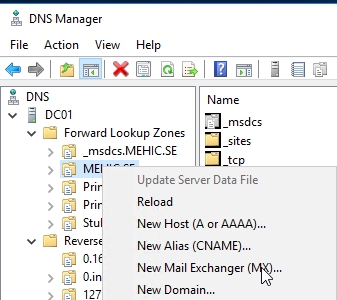
New Resource Record will pop-up.
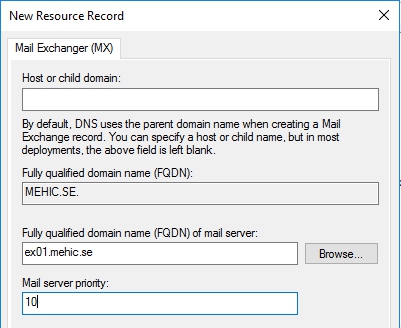
Mail Server Priority: This indicates the priority this mail server will receive. Each MX record has a prioroty. The lower priority MX records are tried first. If the e-mail server can not contact the server with the lowest mx priority it will try the next one.
NS (NAME SERVER RECORD)
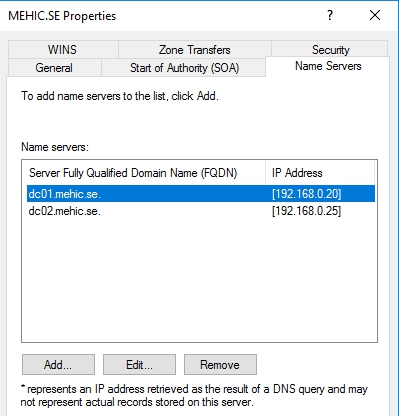
NS Record and also a Start of Authority Record are used to define which machine is responsible for a particular zone. The Name Server is just literally a DNS Name Server. So that can be a machine, that is a Name Server and can respond to any requests.
these 2 NS records are associated with the two name servers that are currently hosting this zone, mehic.se

If I double click on one of them it will open DNS server properties (Name Servers Tab)
You’ll see that the name servers, there’s just a little bit of additional information here associated with the record. We configured this back in Part2 when we talked about adding in that other DC2 machine as a secondary name server for this zone.
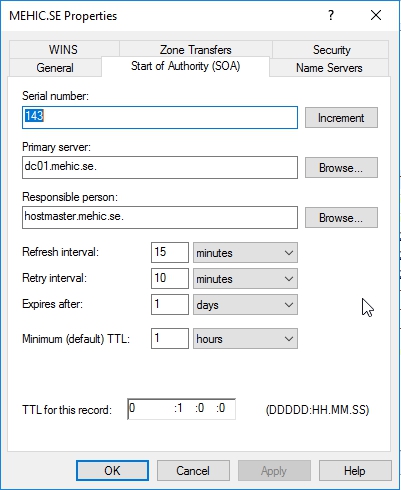
SOA (Start of Authority Record)

The SOA (Start of Authority) record contains essential information about a DNS zone. This includes the name of the server that provides the zone data, the contact information for the zone administrator, and the current version (or serial number) of the zone file. It also defines how secondary DNS servers interact with the zone, such as how often they should check for updates, how long they should wait before retrying a failed zone transfer, and how long they can continue using the data before it expires.
In addition, the SOA record specifies a default Time to Live (TTL) value for resource records in the zone. I covered the SOA properties in Part 1, so be sure to review that section for a more detailed explanation of what each of these settings means.
PTR Records (Pointer Record)
While the A record points a domain name to an IP address, the PTR record resolves the IP address to a domain/hostname.
If they’re not created automatically, you can create them by to expanding Reverse Lookup Zone –> Right-Click on the zone and select New Pointer (PTR)
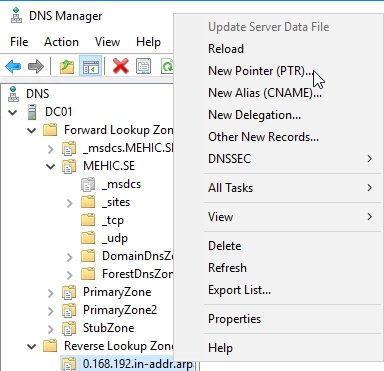
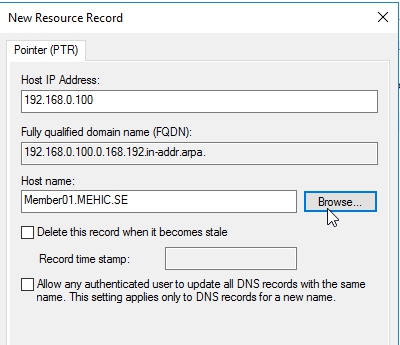
Click on Browse and find the server and click OK.

SRV Record
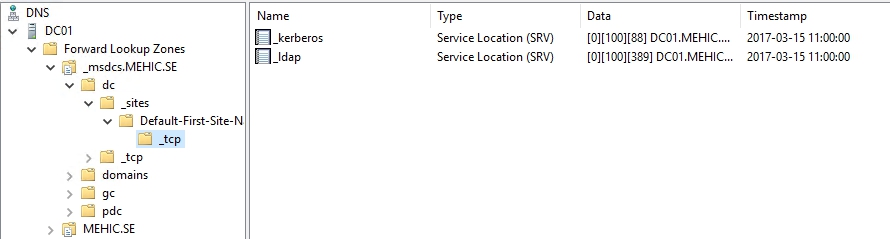
SRV records are most commonly used in Active Directory environments. While some applications create their own SRV records, the ones associated with Active Directory are specifically designed to help clients locate the various directory services provided by domain controllers.
For example, if you browse through the domain controllers and their associated sites, you’ll see the Active Directory site for the domain—typically the default site. Within that site, you can view the different services supported by Active Directory. In this case, services such as Kerberos and LDAP are present. These services are defined using SRV records that effectively tell clients, “If you’re looking for Kerberos or LDAP, this service is available on this server at this location.”
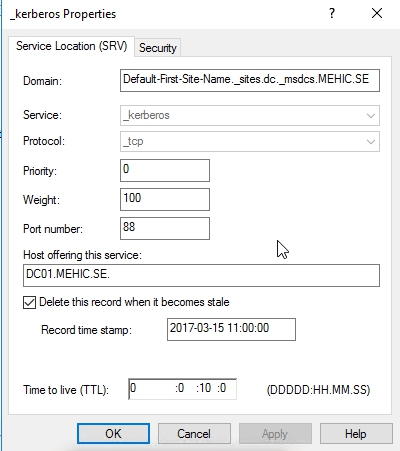
Looking at the SRV records themselves, you’ll notice that they include values such as priority, weight, and port number. These settings help clients determine which server to contact and how traffic should be distributed when multiple servers provide the same service.
OTHER RECORDS
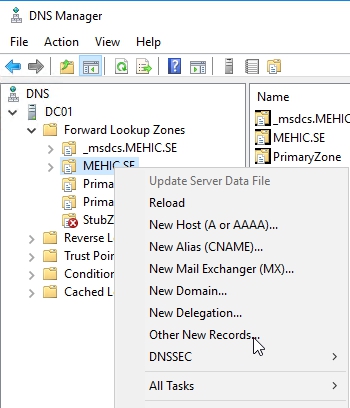
Now what if you need a particular record for a specific application or some situation and it’s not a CNAME record or an MX record? Well if you right-click on the zone you can go down and see Other New Records
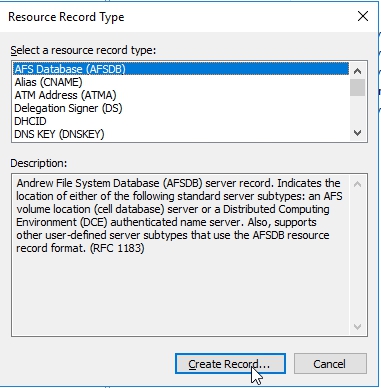
and here is the list of all of the standard types of records that are available and it’s a pretty long list, plus the ones that we just went over, like the MX record that you can create in your environment.
UNKNOWN RECORD SUPPORT
Something supported for the first time in Windows Server 2016 DNS is unknown record support. Now, what unknown record support does is it provides support for unusual or unknown or records that basically Windows Server 2016 doesn’t know about based on RFC 3597. So, what you can do is you can actually go and add an unsupported record type. Let’s say that you’ve come up with a new protocol, or you’ve come up with a special kind of DNS record, or your developers have because they’re very creative people, and you need to provide information across the wire that will come out of the DNS server. Well, the Windows Server 2016 DNS server will not perform any special processing but will respond to record queries of this type if they receive them and if you have configured these records and they’re stored in the zone.
That’s it.
In the next part we will take a look on Zone Scavenging, DNSSEC, Delegated Administration and DNS Advanced Solutions.
Stay Tuned!
Cheers,
Nedim






 Nedim's IT CORNER
Leave a reply to Bruce Cancel reply