In our last 2 parts of How to Deploy and configure DNS 2016 we will continue with advanced DNS options and security.
What this part covers
- Configure DNS Socket Pool and DNS Server Cache Locking
- Configure DNS Logging
- Response Rate Limiting
- Selective Recursion & DNS Query Filtering
- DNS Performance Tuning
Configure DNS Socket Pool and DNS Server Cache Locking
- DNS Socket Pool
The DNS Socket Pool is a security feature that enables a DNS server to use source port randomization when performing DNS queries. Instead of always sending queries from a fixed source port, the DNS server selects a random port for each query. This makes it significantly more difficult for attackers to perform DNS cache poisoning attacks.
By default, this feature is enabled on Windows Server 2016 and later.
DNS queries typically use well-known ports: TCP 53 and UDP 53. Both clients and servers send requests over these ports, but the source port randomization provided by the DNS Socket Pool ensures that even while using these standard ports, queries are much harder to spoof.
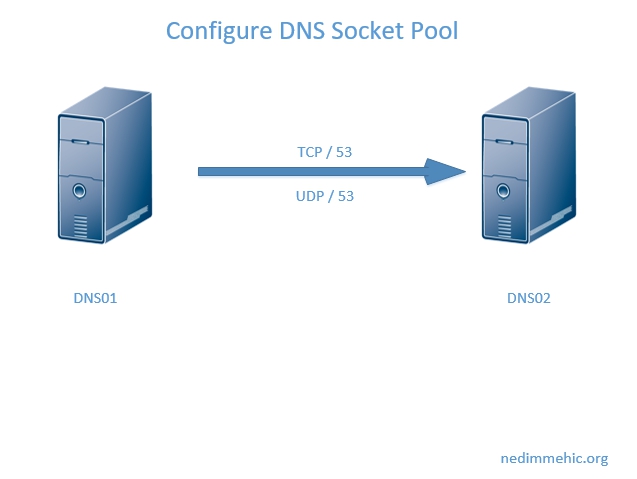
It’s important to distinguish destination ports from source ports in DNS communication. The well-known ports—TCP 53 and UDP 53—are the destination ports on the server receiving the query. For example, if DNS01 sends a query to DNS02, it targets DNS02’s TCP/53 or UDP/53 port.
Prior to the introduction of DNS Socket Pooling, the source port on DNS01 was often predictable or fixed. This predictability made it relatively easy for an attacker monitoring the network to inject malicious responses back to DNS01, potentially poisoning the DNS cache.
By randomizing the source port for outgoing queries, DNS Socket Pooling mitigates this risk, making it far more difficult for attackers to predict and exploit the source port to inject fraudulent DNS responses.
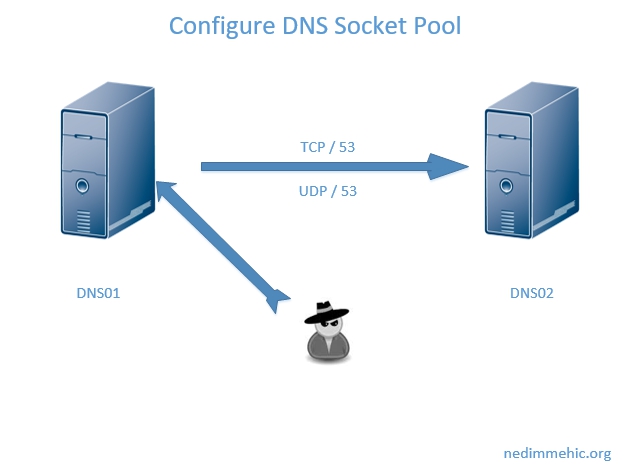
DNS Socket Pooling allows a DNS server to randomize the source port for outgoing DNS queries. Rather than using a single, predictable port, the server can select from a pool of possible ports—ranging from a few to thousands—making it much harder for an attacker to inject malicious responses. To successfully spoof a DNS response, an attacker would need to know the exact source port and other transaction details, which greatly increases the difficulty of a cache poisoning attack.
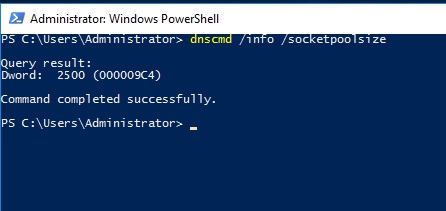
By default, DNS Socket Pooling is enabled on Windows Server 2016 and later, with a default pool size of 2,500 ports. Administrators can configure this pool size to increase the number of potential source ports, further improving security.
The socket pool size can be checked and configured using the dnscmd utility. Command: dnscmd /info /socketpoolsize
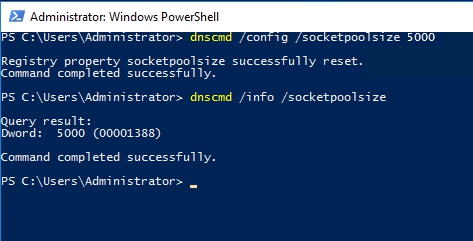
If you would like to change this you can do it by running dnscmd /config /socketpoolsize —> for exemple 5000
- DNS Server Cache Locking
Cache locking is a security feature designed to protect the DNS server’s cache from being tampered with after a record has been stored. Before cache locking was implemented, DNS caches were vulnerable to attacks where a malicious actor could overwrite valid cached entries, such as delegations.
The issue stems from the way DNS works: when a client queries a DNS server and receives a response from its cache, the client typically assumes that the cached information is accurate. Each cached record has a Time-to-Live (TTL) value that determines how long it remains valid. Without cache locking, an attacker could inject false information into the cache before the TTL expires, potentially redirecting clients to malicious destinations.
By enabling cache locking, the DNS server prevents cached records from being modified for a configurable portion of their TTL, ensuring that once a record is stored, it remains trustworthy until it naturally expires. This helps maintain the integrity of DNS responses and protects clients from cache poisoning attacks.
Before cache locking, an attacker could exploit DNS caching in two main ways. They could overwrite a cached record before its Time-to-Live (TTL) expired, or they could repeatedly query the DNS server to monitor when a TTL was about to expire and then inject a malicious record at the right moment. Both methods posed a significant risk for DNS cache poisoning.
Cache locking mitigates this risk by preventing cached entries from being overwritten for a configurable portion of their TTL. By default, the lock is applied for 100% of the TTL, meaning that once a record is added to the cache, it cannot be modified until it naturally expires. Administrators do have the option to reduce this percentage if desired, allowing for some flexibility while still maintaining a strong level of protection.
The current cache locking configuration can be checked using command-line utilities.
dnscmd /info /cachelockingpercent
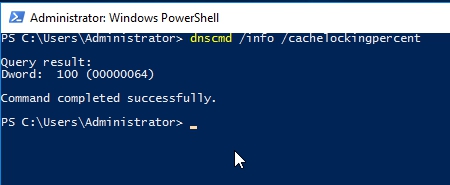
In most environments, there’s no need to adjust cache locking, as the default configuration already provides strong protection. By default, the cache locking is set to 100% of the TTL, meaning cached records cannot be overwritten until they naturally expire.
However, if you do need to modify this behavior, the cache locking duration can be adjusted using the dnscmd utility. For example, the following command sets the cache locking percentage to a specific value, such as 50% or 75% of the TTL:
dnscmd /config /cachelockingpercent <value>
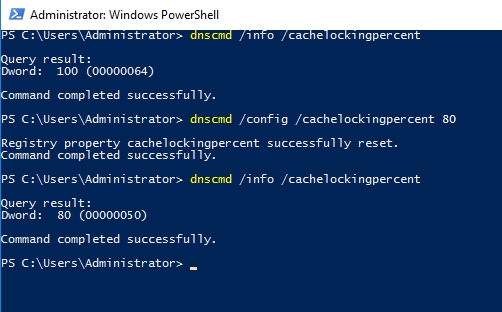
So, long and short of it is that cache locking is a feature that exists that you should know about, but will probably never adjust.
Configure DNS Logging
DNS servers can be configured to record events whenever key changes occur—such as modifications to server settings, zone configurations, or individual resource records. In high-security environments, enabling DNS logging is essential for tracking changes and monitoring server activity.
There are two main areas for configuring DNS logging, both accessible through the Properties of the DNS server:
Event Logging Tab – This controls logging of administrative and high-level events on the DNS server. You can choose to log:
- All events
- Events and warnings
- Only errors
- Disable logging entirely
These events are recorded in the Windows Event Log on the server running the DNS service. This logging captures large-scale, administrative-level changes, providing visibility into significant DNS operations.

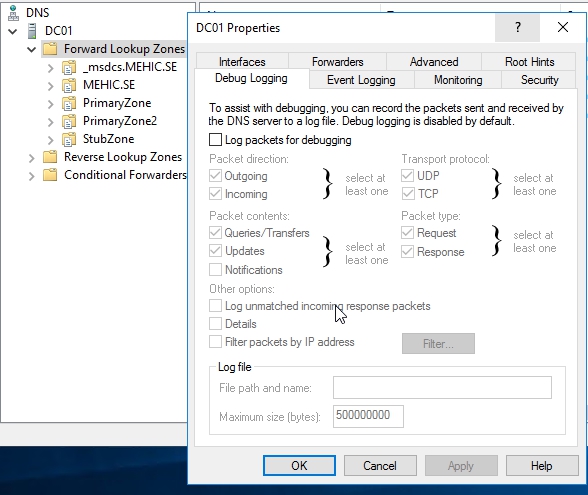
Debug Logging
For situations where you need a deeper view of the communication between DNS clients and servers, the Debug Logging tab provides detailed logging capabilities. Unlike standard event logging, debug logs are written to a file rather than the Windows Event Log.
Debug logging is disabled by default, as it generates a large volume of data and can quickly become overwhelming. When enabled, it allows you to capture specific details such as packet direction, protocol type, and message contents. You can also filter the logs to specific IP addresses to keep the data manageable and relevant.
This feature is particularly useful in scenarios such as:
- During migrations, to verify that clients are still communicating correctly with the DNS server
- When assessing whether a zone is no longer in use, to determine if any clients are still querying resources before decommissioning it
By providing a detailed view of which clients are requesting which records, debug logging helps administrators make informed decisions about server and zone management, troubleshooting, and decommissioning unused zones.
Response Rate Limiting
DNS clients cache responses from DNS servers for the duration of the record’s Time-to-Live (TTL). Under normal circumstances, a client should not repeatedly request the same record in a short period. Excessive requests for the same record can indicate abnormal or potentially malicious activity.
Response Rate Limiting (RRL) allows a DNS server to limit responses when a client—or a group of clients from a specific subnet—requests the same record excessively within a short timeframe. By doing so, RRL helps protect the server from abuse and prevents amplification attacks.
By default, RRL is disabled on Windows Server 2016 DNS. If it is not enabled, the DNS server will respond to all requests, even those that may be part of suspicious or malicious behavior.
RRL is configured using the Set-DNSServerResponseRateLimiting cmdlet, which provides several parameters to fine-tune how the server limits responses. Before applying changes, you can check the current RRL configuration using the Get-DNSServerResponseRateLimiting cmdlet.
After running the Get-DNSServerResponseRateLimiting command, you can verify the current configuration. In this case, the DNS server’s mode is set to Disabled, indicating that no response rate limiting policy is currently in effect.

ResponsesPerSec –> specifies the maximum number of times a DNS server will send the same response per second to clients within a defined subnet. The default value is 5 responses per second, which serves as the threshold for triggering the response rate limiting policy.
ErrorPerSec –> defines the maximum number of error responses a DNS server will send per second. The default value is 5 errors per second.
This parameter is important because even when a server is responding with error messages, it still consumes processing resources. During a denial-of-service (DoS) attack, excessive error responses can contribute to server overload. By limiting the number of error messages sent per second, ErrorPerSec helps the server maintain stability and resist being overwhelmed by malicious traffic.
WindowInSec –> determines the time period over which the DNS server calculates the average number of responses and error messages sent when enforcing Response Rate Limiting (RRL). The default value is 5 seconds.
Rather than evaluating each second in isolation, the server looks at traffic over this rolling window. For example, with a default window of 5 seconds and a ResponsesPerSec limit of 5, the server allows up to 25 responses during that period. These responses do not need to be evenly distributed; the server could send 20 responses in the first second and 5 responses across the remaining four seconds.
This approach ensures that RRL decisions are based on traffic trends over time rather than on a strict per-second basis, providing more accurate and flexible rate limiting while protecting the server from excessive or malicious query loads.
IPv4PrefixLength / IPv6PrefixLength –> are used to define the subnet scope when applying Response Rate Limiting (RRL) policies. These parameters determine the size of the network block that the server monitors for excessive queries.
By default, the IPv4 prefix length is 24 bits (equivalent to the traditional Class C subnet), and the IPv6 prefix length is 56 bits. This means the server evaluates query rates for clients within a /24 IPv4 subnet or a /56 IPv6 subnet and assumes that excessive queries from the subnet may be malicious.
Administrators can adjust these prefix lengths to make the subnet larger or smaller depending on network structure and security requirements, allowing for precise control over how RRL applies to different segments of the network.
LeakRate –> allows a DNS server to continue responding to some queries even when a Response Rate Limiting (RRL) policy is in effect. Once the number of responses per second exceeds the threshold for a given subnet and window, the leak rate determines how many queries will still receive a response, under the assumption that some of the traffic may be legitimate.
By default, the leak rate is 3, meaning the server will respond to one out of every three queries once RRL is triggered. Administrators can adjust this value between 2 and 10, or set it to 0 to block all responses during RRL enforcement. For example:
- A leak rate of 2 allows one response for every two queries.
- A leak rate of 10 allows one response for every ten queries.
- A leak rate of 0 blocks all responses while RRL is active.
This parameter provides flexibility to balance security and availability, ensuring that legitimate clients can still receive responses even when some traffic is being rate-limited.
TruncateRate –> is how often a truncated response will be sent to a client in a blocked subnet when rrl is in effect.
MaximumResponsesPerWindow –> sets an upper limit on the total number of responses a DNS server will send to a client (or subnet) during the RRL evaluation window. Even with a LeakRate in effect—such as responding to only one out of every three queries—very high query volumes during a denial-of-service attack could still generate a large amount of outgoing traffic.
By default, MaximumResponsesPerWindow is set to 1,024 responses per five-second window. Administrators can adjust this value to be more restrictive, such as 100, 10, or even 0, depending on how aggressively they want to limit responses during suspected attacks.
This parameter provides an additional layer of control, allowing DNS servers to continue responding to legitimate queries while preventing excessive traffic from overwhelming the server under extreme conditions.
Mode –> determines whether Response Rate Limiting (RRL) policies are actively enforced on the DNS server. There are three possible settings:
- Enable – The RRL policies are actively applied, and the server will limit responses according to the configured parameters.
- Disable – This is the default setting. No RRL policies are enforced, and the server responds to all queries normally.
- LogOnly – The server does not enforce RRL, but it logs information about queries that would have been rate-limited. This mode is useful for testing and monitoring potential attack scenarios without actually blocking or limiting responses.
Let’s turn response rate limiting on by running Set-DNSServerResponseRateLimiting -Mode Enable
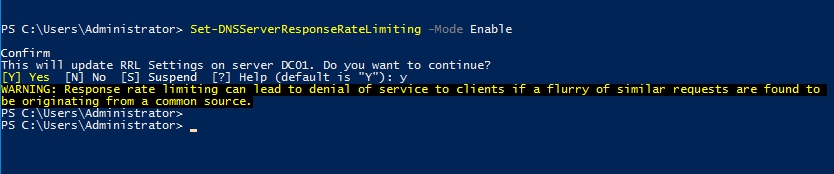
We can also change those default setting. Let’s change for example leak rate. I will change it to 5. So what setting the leak rate to 5 will do is that it means that the DNS server will respond to one out of every 5 queries on the subnet that is subject to response rate limiting

Set-DNSServerResponseRateLimiting -MaximumResponsesPerWindow i will change it to 512. So I’ve changed that from 1024 to 512. That means that when response rate limiting is in effect over a 5 second period, the DNS server will send a maximum of 512 responses to the RRL applied subnet.
Let’s run Get-DNSServerresponseratelimiting command again to see if those changes are in effect and if the mode is enabled.

Response Rate Limiting Exceptions
When Response Rate Limiting (RRL) is enabled, administrators can configure exceptions to the policies for specific networks or subnets. This is useful in environments where a DNS server serves multiple networks—such as an internal network and a perimeter network.
For example, you might allow higher query volumes from your internal network, assuming the traffic is legitimate, while applying RRL to traffic originating from external or untrusted networks.
Exceptions can be defined based on:
- Subnet – Specify the IP range for which RRL should not apply.
- Network Interface – Apply exceptions to traffic arriving on a specific DNS server interface.
These exceptions are managed using the Add-DnsServerResponseRateLimitingExceptionList cmdlet. You can also review existing exceptions with: Get-DnsServerResponseRateLimitingExceptionList
Now at the moment there are no subnets that are being excepted.

I’m going to configure a subnet so that it is exempt from response rate limiting policies. I’m going to call this subnet My Network and I’m going to define the subnet on the basis of server interface and I’m saying if the server interface is 192.168.0.20 then any queries coming from there are going to be exempt from response rate limiting policies and to do that I need to run Add-DnsServerResponseRateLimitingExceptionlist -Name “My Network” -ServerInterfaceIP “EQ,192.168.0.20”
If I run Get-DnsServerResponseRateLimitingExceptionList I can see now that if any queries are coming in from 192.168.0.20 that will be defined as the My Network.

Selective Recursion Control & DNS Query Filtering
- Selective Recursion Control
When recursion is enabled, a DNS server can resolve queries for information it does not store locally by querying other DNS servers and returning the results to the client. When recursion is disabled, the server will only respond to queries for zones it is authoritative for. For example, a server hosting the mehic.se zone could answer queries for www.mehic.se, but for any other domain, it would return no response.
Selective Recursion Control provides a middle ground: you can allow recursive queries for a specific set of clients—typically internal or trusted networks—while refusing recursion for all other clients, such as external users on the internet.
This approach is particularly useful in environments where a DNS server serves both internal networks and a perimeter network. Internal clients can use the server for full recursive resolution, while external clients are prevented from using the server to perform recursive lookups. By limiting recursive access, selective recursion control helps reduce the risk of amplification attacks and denial-of-service attacks.
- Query Filtering
Query Filtering is a DNS security feature that allows administrators to control which queries a DNS server will accept and resolve. By defining query resolution policies, you can prevent the server from responding to specific types of requests, enhancing overall security.
Query filtering can be applied in several ways, including:
- Domain-based filtering – Block queries for specific domains or zones that should not be accessible to certain clients.
- Client-based filtering – Restrict queries from specific subnets or IP ranges.
- Record-type filtering – Allow certain types of records, such as A records, while blocking others, such as SRV records used for internal services.
By implementing query filtering, administrators can ensure that sensitive DNS information remains protected, reduce exposure to potential attacks, and maintain tighter control over which clients can resolve which resources.
Let’s see how this works.
You manage selective recursion control using Set-DNSServerRecursionScope, Add-DNSServerRecursionScope, and then Add-DNSServerQueryResolutionPolicy. So basically you set up the recursion scopes, you say right for the default scope, I’m not going to enable recursion but for a very specific internal scope of IP addresses, I will allow this DNS server to actually resolve recursive queries.
Let’s see if recursion is enabled. Open powershell and run Get-DnsServerRecursionScope and we can see that the recursion is enabled for the default recursion scope which is named . (dot)
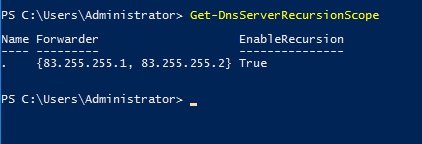
So what I’m going to do is I’m going to configure this server to not handle recursion by default and I’m going to configure an exception to that where I’m going to allow it to perform recursion for a specific set of IP addresses.
First thing what I am going to do is, I am going to disable recursion for the default scope . (dot)
Set-DnsServerRecursionScope -Name . -EnableRecursion $false
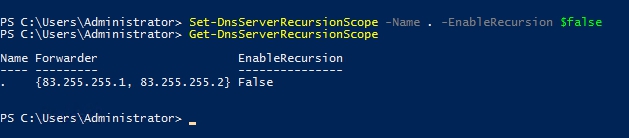
Next step is to configure exception.
Add-DNSServerRecursionScope -Name “Internal Network” -EnableRecursion $True
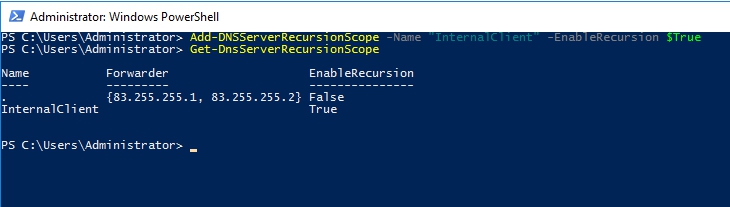
After configuring a recursion scope, you can create a DNS server query resolution policy to control which clients are allowed to perform recursive queries. For example:
- Policy Name: RecursionControl
- Action: Allow
- Apply on Recursion: Enabled
- Recursion Scope: InternalClient (the scope you created)
- Server Interface: 192.168.0.20 (internal network interface)
This configuration ensures that recursive queries are only allowed for clients connecting through the internal network interface (192.168.0.20). Queries coming from any other interface—such as one connected to the perimeter network—will not be resolved recursively.
In other words, if this DNS server serves both the internal network and the perimeter network, internal clients can use it for full recursive resolution, while external clients are prevented from leveraging the server for recursion. This approach helps protect the server from being exploited for DNS amplification or other attacks originating from untrusted networks.
Add-DnsServerQueryResolutionPolicy -Name “RecursionControl” -Action Allow -ApplyOnRecursion -RecursionScope “internalclient” -ServerInterfaceIP ” eq,192.168.0.20″

DNS Performance Tuning
While Windows Server DNS is capable of handling most organizational workloads out of the box, performance tuning becomes relevant when a server is processing tens or hundreds of thousands of queries per second. For standard environments with a few hundred or thousand queries per second, the default configuration is sufficient. However, for high-performance scenarios, Microsoft provides several recommendations:
- Disable Recursion (if possible) – Disabling recursion can reduce server load, especially if the server is only intended to answer queries for authoritative zones.
- Optimize Firewall Rules – Create an explicit firewall rule that allows UDP traffic on port 53 for the DNS server interface. The default firewall rule is broader and may allow unnecessary TCP traffic, which can increase CPU usage. By creating a precise rule for UDP port 53, the firewall can more efficiently drop irrelevant traffic, reducing CPU utilization on the DNS server.
- Adjust UDP Thread Count for High-Core Servers – or DNS servers with more than 12 processor cores, set the UDP thread count to 8 to optimize handling of incoming queries (Servers with fewer than 12 cores should leave this value at the default.). This can be done by modifying the registry key:
- HKLM\System\CurrentControlSet\Services\DNS\Parameters\UdpRecvThreadCount
- Maximize Network Adapter Buffers: Configure your network adapter to use maximum receive buffers to improve packet handling. In PowerShell, this can be done with:
Set-NetAdapterAdvancedProperty -Name “<InterfaceName>” -DisplayName “Receive Buffers” -DisplayValue “Maximum”
Increasing the receive buffers helps the server handle a high volume of DNS queries more efficiently.
By applying these optimizations, a Windows DNS server can sustain significantly higher query loads while maintaining responsiveness and stability.
That’s it!
Cheers,
Nedim






 Nedim's IT CORNER
Leave a comment