DKIM (DomainKeys Identified Mail) is a method, similar to SPF, designed to prevent spammers from spoofing your domain. It helps protect not only outgoing emails from your domain but also incoming messages, by detecting attempts to impersonate your domain. DKIM works by adding a digital signature to the header of each email. This process involves DNS records and asymmetric cryptography to verify that messages are authentic. While DKIM is not strictly required, it is strongly recommended for improving email security.
In Office 365, DKIM signing is managed using the tenant domain—the unique onmicrosoft.com domain assigned when a tenant is created. Microsoft controls the DNS for this domain, which is a key part of the DKIM process. While DKIM is enabled by default for the onmicrosoft.com domain, Microsoft recommends enabling it for custom domains as well to ensure consistent email protection.
Requirements for DKIM
To enable DKIM for a custom domain, you first need to create two CNAME records in your public DNS zone. Once these records are in place, DKIM can be activated.
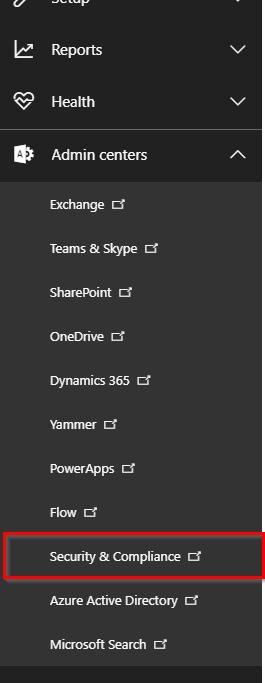
Before accessing your external DNS, you need to determine the exact values required for the CNAME records. To find these values, log in to your Office 365 tenant. Navigate to Admin Centers → Security & Compliance.
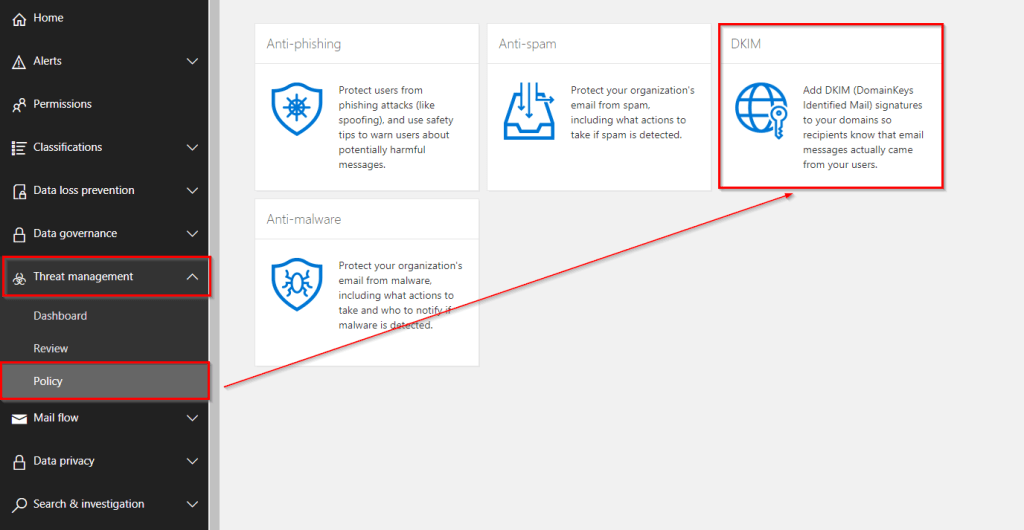
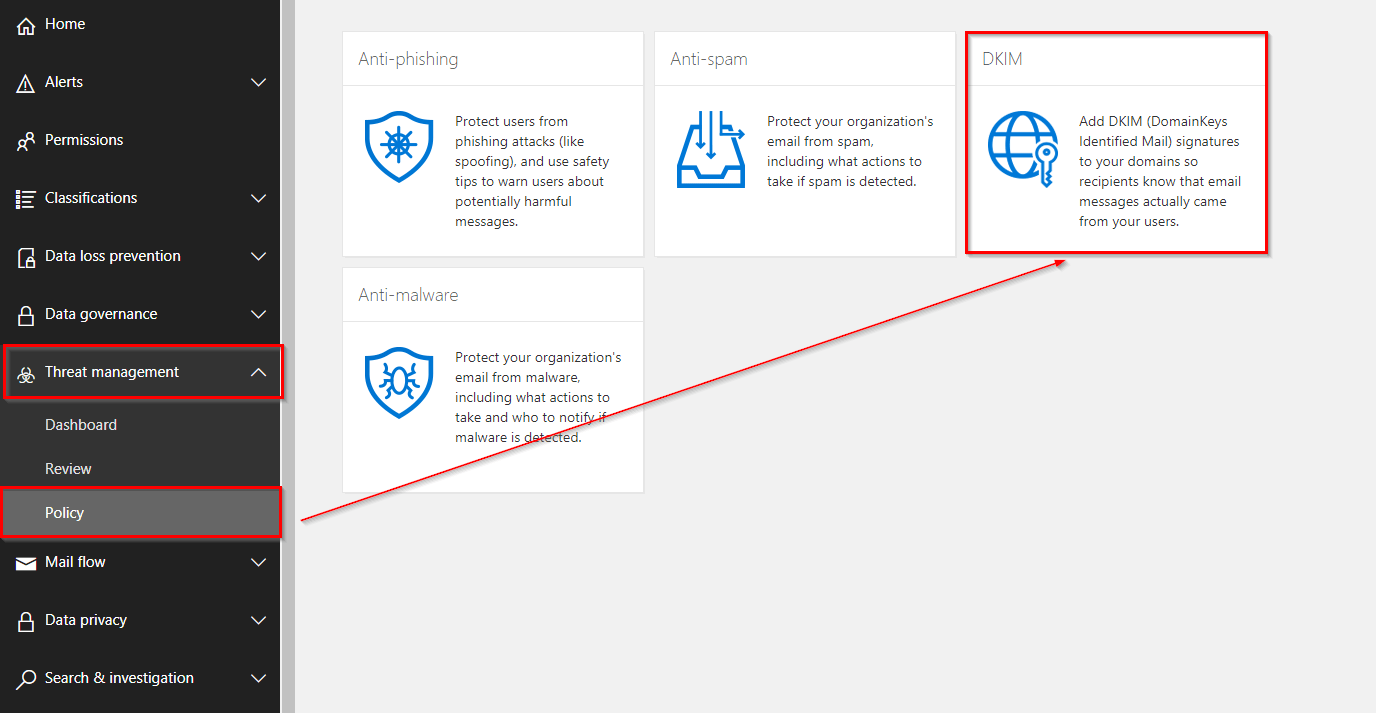
Click on Threat Management –> Policy –> DKIM
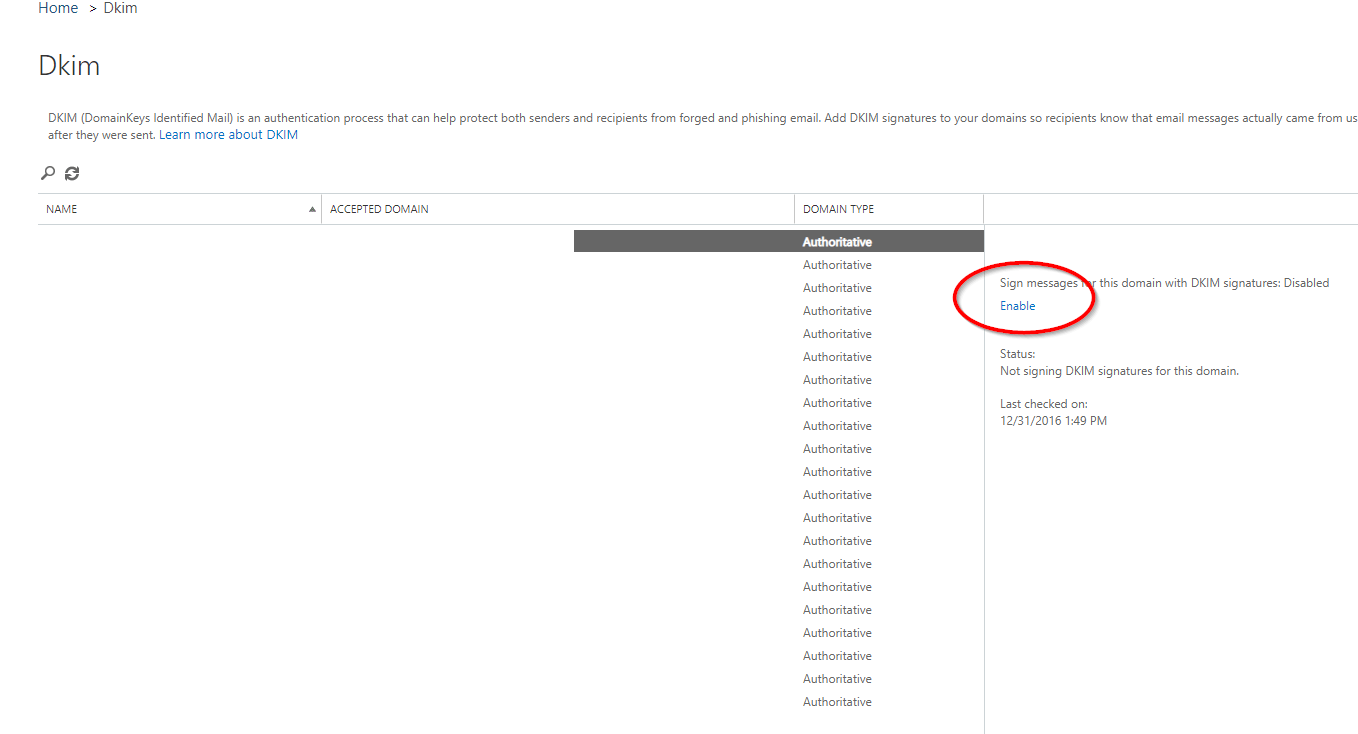
Select the custom domain for which you want to enable DKIM and click Enable. If the required CNAME records have not yet been created, you will receive a warning message. This message provides the information you need, including the exact values and instructions for creating the two CNAME records in your DNS.
The selector is the specific DNS record used to retrieve the public key required to verify an email’s DKIM digital signature (for example, selector1-domain-com).
_domainkey: protocol
Domain: domain.onmicrosoft.com
The selector and domain are included in the DKIM signature. The _domainkey label is a standard component of the DKIM protocol. Together, these three elements form the full DNS record name that will be queried to retrieve the public key for verifying the email’s digital signature.
selector1-domain-com._domainkey.tenantdomain.onmicrosoft.com
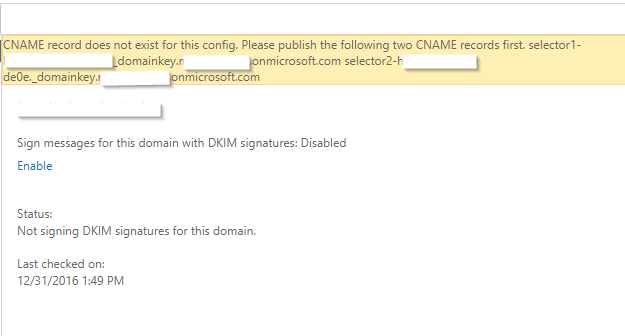
After identifying the required values, log in to your external DNS provider to create the two CNAME records. Exchange Online uses two selectors for DKIM signing to facilitate key rotation. This process allows old keys to expire while new keys are activated, enhancing email security. Exchange Online typically rotates between these selectors approximately once per week.
When configuring the CNAME records, each selector must point to the corresponding DKIM record provided by Office 365 for your domain. This ensures that the DKIM signing and verification process functions correctly.
Name: selector1._domainkey
Type: CNAME
Value: Here you specify that whole thing you see in the warning message so for the first record you will type in selector1-domain-com._domainkey.tenantdomain.onmicrosoft.com
Do the same for the second record. Once done, go back to your office 365 portal and click on the enable. If you don’t see that the DKIM is enabled right away, keep in mind that it may take a few minutes.
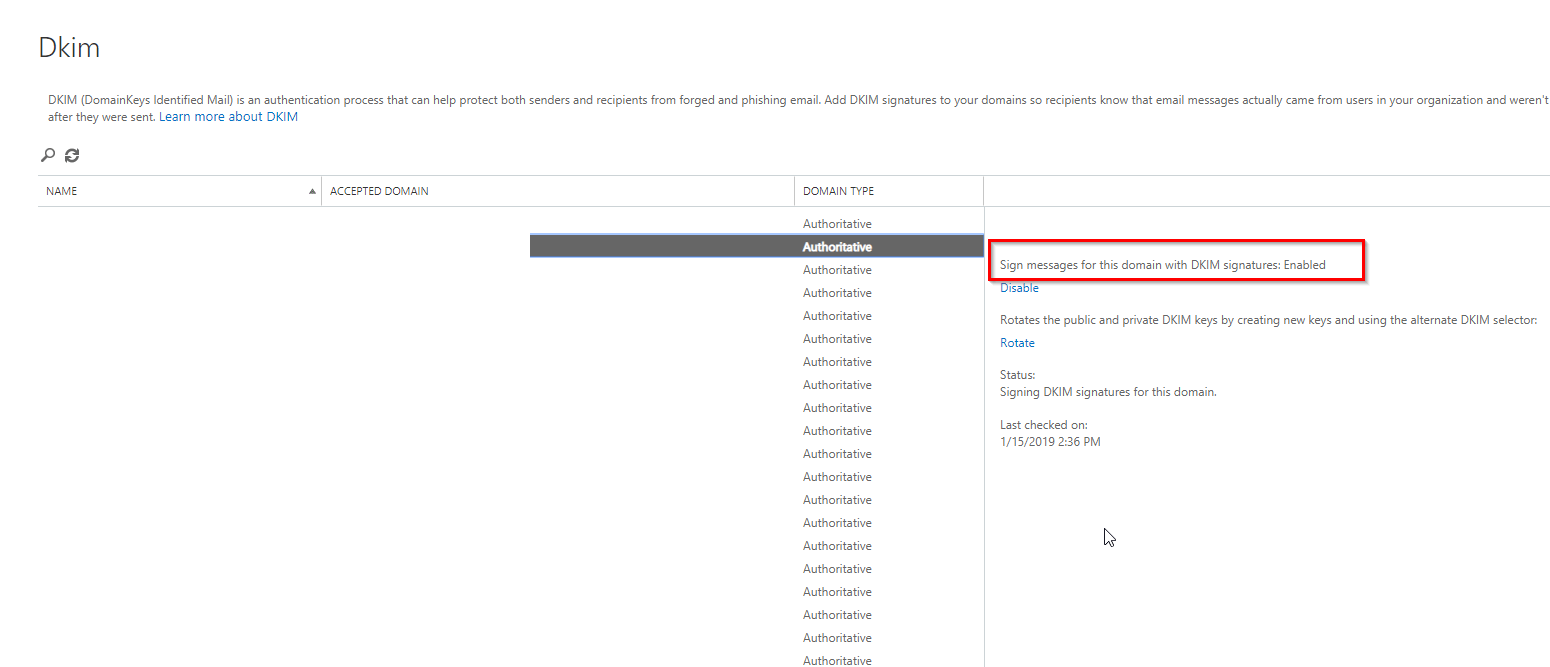
Once DKIM signing is configured for a custom domain, you can proceed to implement DMARC for additional email protection.
NO DKIM KEYS SAVED FOR THIS DOMAIN
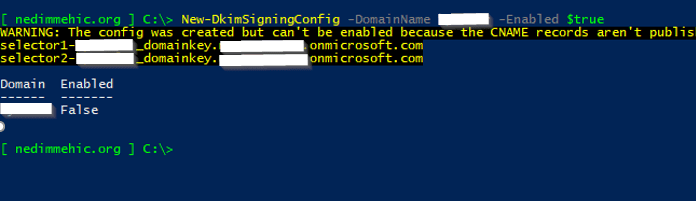
Sometimes, when selecting your custom domain, you may see the status: “No DKIM keys saved for this domain”, and the Enable button is unavailable. In this case, even using Exchange Online PowerShell and running Get-DkimSigningConfig may not display the domain.
To resolve this you will need to connect to Exchange online with powershell and run New-DkimSigningConfig -domain <your custom domain> -Enabled $True
Once done, you will be able to enable DKIM on your custom domain.
DMARC (Domain-based Message Authentication, Reporting, and Conformance)
DMARC gives domain owners a way to tell receiving mail servers how to handle messages that fail authentication. When an email does not pass SPF or DKIM validation, a DMARC policy defines whether that message should be delivered, quarantined, or rejected. Like SPF and DKIM, DMARC is configured through a DNS TXT record, making deployment relatively straightforward.
One of the key advantages of DMARC is its reporting capability. It enables domain owners to receive feedback from mail servers about how their messages are being processed, providing valuable insight into authentication failures and potential abuse. It’s important to note that DMARC cannot function on its own—you must first have SPF and DKIM properly configured for your domain, such as when using Office 365.
So why is DMARC so important in preventing email spoofing?
DMARC works by ensuring consistency between the various sender-related addresses used in an email. By validating and aligning these identifiers, DMARC helps receiving servers confirm that a message truly comes from the domain it claims to represent, significantly reducing the risk of impersonation and spoofed emails.
MAIL FROM
The first address involved is the Mail From address, formally referred to as the RFC 5321 MailFrom. This address represents the technical sender of the message. When an email is sent directly by a user from an email client, the Mail From address typically matches the user’s visible email address. However, messages generated by applications or bulk email systems often use system-generated addresses that may look unfamiliar.
The Mail From address is primarily used for handling delivery-related responses, such as bounce messages or non-delivery reports. While it appears in the message headers, it is generally hidden from the recipient and is not shown in the email client’s interface.
FROM
The second address involved is the From address, formally defined as the RFC 5322 From address. This field identifies the apparent author of the message—the person or entity presented as having written and sent the email. Even when messages are delivered through marketing platforms or bulk mailing systems, organizations typically choose a recognizable sender name, such as an individual’s name or a “no-reply” address.
This is the address that recipients see in their inbox and that most email clients display as the sender of the message.
Now, let’s walk through an example to understand why DMARC is both important and effective in protecting against email spoofing.
Spoofed email example
MAIL FROM: accounts@nastyhackers.com
FROM: accounts@swedbank.se
TO: finance@mehic.se
Subject: Urgent action required to verify your account.
In this example, the message uses accounts@nastyhackers.com as the Mail From address, while the visible From address is accounts@swedbank.se. On its own, this mismatch is not necessarily suspicious, since the Mail From and From addresses are often different in legitimate emails. This is why anti-spoofing mechanisms such as SPF, DKIM, and DMARC are essential.
SPF:
The message could still pass an SPF check because SPF validation is typically performed against the Mail From domain. There is nothing preventing the attackers from publishing a valid SPF record for nastyhackers.com, which would allow their messages to authenticate successfully under SPF.
DKIM:
The email may also pass DKIM verification. The attackers can digitally sign the message using their own domain, which is similar to how Microsoft signs outbound mail for Office 365 tenants before DKIM is enabled on a custom domain.
DMARC:
This is where the attack fails. DMARC validation depends on the domain shown in the From address—the domain being impersonated. Because you control the DNS records for your own domain, you also control its DMARC policy. An attacker cannot satisfy DMARC alignment unless they have control over that domain’s DNS. As a result, spoofed messages are identified and handled according to the policy you have defined.
So how we can enable this. Once we have SPF, DKIM in place we need to publish DMARC policy in DNS and this is a TXT record.
DMARC TAG OPTIONS
DMARC tags are the language of the DMARC standard. They tell the email receiver to check for DMARC and (2) what to do with messages that fail DMARC authentication. I will focus only on these tags.
v = This is the version tag that identifies the record retrieved as a DMARC record. It’s value must be DMARC1 and be listed first in the DMARC record
p = This indicates the requested policy you wish mailbox providers to apply when your email fails DMARC. Options are none, reject , quarantine
- none – means “take no action, just collect data and send me reports”
- quarantine – means “treat with suspicion”
- reject – mean “block outright”.
pct = The percentage of messages to which the DMARC policy is to be applied
rua = This is a tag that lets mailbox providers know where you want aggregate reports to be sent. Aggregate reports provide visibility into the health of your email program by helping to identify potential authentication issues or malicious activity.
ruf = This tag lets mailbox providers know where you want your forensic (message-level) reports to be sent.
On your custom domain external DNS create new TXT record and for values type in
Name: _dmarc
Type: TXT
Value: v=DMARC1; p=none; pct=100; rua=mailto:support@domain.com; ruf=mailto:support@domain.com
You can verify this by going to ex https://dmarcian.com/dmarc-inspector/
Warnings / Errors
You may receive this warning message when you run DMARC lookup
Missing authorization for External Destination.
What does this mean, is that domain that is going to send reports (your source domain) don’t have permission to send reports to the destination domain.
Let’s say that we have a domain named nm.com that want to send reports to mehic.com. Mehic.com must have TXT record which will allow nm.com to send reports to it.
So we need to create a TXT record on the destination DNS (mehic.com) with these values
Name: nm.com._report._dmarc
Type: TXT
Value: DMARC1
We can use wildcard as well to accept DMARC reports from any domain.
*._report._dmarc
That’s it.
Cheers,
Nedim






 Nedim's IT CORNER
Leave a comment