In our previous 2 posts we have been dealing with introduction to DSC and LCM. If you missed those 2 posts, links below will get you to those 2 parts.
PART 1 – Desired State Configuration (DSC) – Part 1 – Getting Started
PART 2 – Desired State Configuration (DSC) – Part 2 – Local Configuration Manager (LCM)
Before we go and configure our VMs, we need to cover something called CONFIGURATION DATA. It is important to understand this before we go into advanced configuration.
Desired State Configuration (DSC) is built with a DevOps mindset. In DevOps, the goal is to configure your development, test, and production environments using as much of the same code as possible. To achieve this, you separate the configuration for each environment from the common logic that applies across all environments. Microsoft designed DSC specifically to support this approach.
The idea is to distinguish between structural information, which is consistent across environments, and configuration data, which is specific to each environment. Configuration data is kept separate from the script itself and is supplied when the script runs. You can store it in a separate file or include it in the same file as your configuration code.
At a basic level, configuration data is structured as a hash table with two main elements: AllNodes and NonNodeData.
- AllNodes is an array containing the information unique to each node.
- NonNodeData serves as a “global” section. Later, we’ll explore how to use this effectively and why you might consider renaming it to better reflect its purpose.
NodeName = You can specify servername or you can specify IP address of the server
Role = is a custom, user-defined field—you can name it anything you like. However, it’s recommended to use Role for clarity and consistency. Similarly, the value assigned to this property can be anything meaningful to you, but it’s best to use a descriptive label that reflects the role you are configuring.
For example, if you are setting up a domain controller, you might set the value to DC or DomainController. This property does not affect the configuration itself, it is purely metadata that is meaningful to you for identifying or organizing nodes.
![2019-07-16 15_57_55-● Untitled-13 - Visual Studio Code [Administrator].png](https://mehic.se/wp-content/uploads/2019/07/2019-07-16-15_57_55-e2978f-untitled-13-visual-studio-code-administrator.png?w=590&h=479)
To understand this, let’s say that we would like to configure RDS standard deployment with 3 servers. The top config data would look like this. I’ve defined three nodes, and for each, I’ve defined a “Role” property. These will be search tags and you will see later in this post where we are going to use them.
![2019-07-17 09_55_05-● Untitled-13 - Visual Studio Code [Administrator].png](https://mehic.se/wp-content/uploads/2019/07/2019-07-17-09_55_05-e2978f-untitled-13-visual-studio-code-administrator.png?w=533&h=700)
As you begin building your environment, you’ll notice that some properties are shared across multiple hosts. Instead of repeating the same value under each individual node, you can use a special All-Nodes entry to define shared properties.
For example, all three of my nodes require the PSDscAllowPlainTextPassword property. Defining it under the All-Nodes section has the same effect as manually specifying it for each node, but it reduces duplication and keeps the configuration cleaner.
In this context, the * character is used as a placeholder for all nodes. Don’t think of it as a typical wildcard—other wildcard expressions are not allowed here. Any property you want to apply to all hosts should be placed under NodeName = '*'.
![2019-07-17 20_17_05-● Untitled-13 - Visual Studio Code [Administrator].png](https://mehic.se/wp-content/uploads/2019/07/2019-07-17-20_17_05-e2978f-untitled-13-visual-studio-code-administrator.png?w=850&h=553)
NONNODEDATA SECTION
Many people find this section confusing, often because of the term NonNodeData. The purpose of this section is to hold role-specific settings that don’t apply to every node. It’s not meant for machine-specific information.
For example, when configuring a domain controller, you wouldn’t put unique values like the DC log file path or the domain name under NodeName or Role. Instead, these kinds of settings belong in NonNodeData, which allows you to manage role-specific configuration separately from properties shared across all nodes.
![2019-07-17 23_23_04-● Untitled-13 - Visual Studio Code [Administrator].png](https://mehic.se/wp-content/uploads/2019/07/2019-07-17-23_23_04-e2978f-untitled-13-visual-studio-code-administrator.png?w=633&h=541)
Let’s say that we want to configure rds deployment with 3 servers. In our top level config hash table we have nodename and the role and we want to keep that as small as possible. All unique data we will put under nonnodedata. Key to point is that you do not have to call the section “NonNodeData”, and second, you can have multiple NonNodeData sections. If you are configuring RDS, instead of NonNodeData you could call it RDSData or just RDS.
Example
![2019-07-17 23_31_37-● Untitled-13 - Visual Studio Code [Administrator].png](https://mehic.se/wp-content/uploads/2019/07/2019-07-17-23_31_37-e2978f-untitled-13-visual-studio-code-administrator.png?w=910&h=680)
You may wonder how would you access data placed in “NonNodeData” or in this case RDSData? When you configure this, you will have the special $ConfigurationData variable, and $ConfigurationData.<NonNodeData> will access the “global” NonNodeData keys.
Let’s start with our configuration. I will not talk about configuration keyword and how to begin with the configuration. If you are not familiar with it, please check my first post about DSC.
The first problem I notice when people start with DSC is the Node $AllNodes.Where part…
![2019-07-17 23_55_50-● Untitled-14 - Visual Studio Code [Administrator].png](https://mehic.se/wp-content/uploads/2019/07/2019-07-17-23_55_50-e2978f-untitled-14-visual-studio-code-administrator.png?w=759&h=411)
The Node{} construct wants you to provide a list of node names. That’s it – just computer names, and no other data. So we’re taking $AllNodes, which contains everything. We’re using its special Where method to grab only those nodes whose Role property is set to Connection Broker. Remember that I made up the Role property, right? So I really could have filtered on any property that I’d put into the data block. Having done that filtering, I’m left with two nodes. Each node has a NodeName and a Role property – but the Node{} block here in the script only wants the names. So that’s why the “.NodeName” is there – it takes the filtered nodes and grabs just the contents of the NodeName property. Within the Node{} construct, PowerShell will automatically run the contents once for each node you’ve given it. It’s kind of like an invisible ForEach wrapped around the whole thing.
![2019-07-18 00_01_19-● Untitled-14 - Visual Studio Code [Administrator].png](https://mehic.se/wp-content/uploads/2019/07/2019-07-18-00_01_19-e2978f-untitled-14-visual-studio-code-administrator.png?w=1439&h=400)
ACCESSING NON NODE DATA
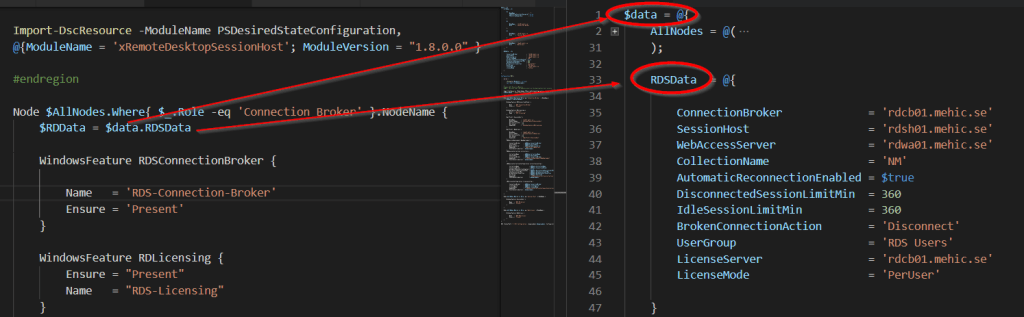
Let’s see in an example how would this look like. Is you can see under RDSData we have properties like Connection Broker, Session Host etc.
To access nonnodedata or in this case RDSData you would need to type in $data.rdsdata.connectionbroker. This could be very long specially if you use $configurationdata or any other longer word so I decided to place those values in a different variable called $RDData. Now I can type $RDData.ConnectionBroker which is much better.
![2019-07-17 23_47_25-● Untitled-14 - Visual Studio Code [Administrator].png](https://mehic.se/wp-content/uploads/2019/07/2019-07-17-23_47_25-e2978f-untitled-14-visual-studio-code-administrator.png?w=1494&h=463)
![2019-07-18 00_07_39-● Untitled-14 - Visual Studio Code [Administrator].png](https://mehic.se/wp-content/uploads/2019/07/2019-07-18-00_07_39-e2978f-untitled-14-visual-studio-code-administrator.png?w=632&h=183)
When you are done with the configuration you would run it with configurationdata parameter.
![2019-07-18 00_28_49-● Untitled-14 - Visual Studio Code [Administrator].png](https://mehic.se/wp-content/uploads/2019/07/2019-07-18-00_28_49-e2978f-untitled-14-visual-studio-code-administrator.png?w=1637&h=578)
Doing things like this (separating unique data from the Node/Role Section) will make your configuration much cleaner and it will be easier to maintain it. You could have multiple nonnodedata sections. One for DC, another one for DNS, DHCP RDS etc. We will see all of this in the future posts. In the next post we will build our environment from scratch.
I hope this has been informative for you.
Stay Tuned!
Cheers,
Nedim





 Nedim's IT CORNER
Leave a comment