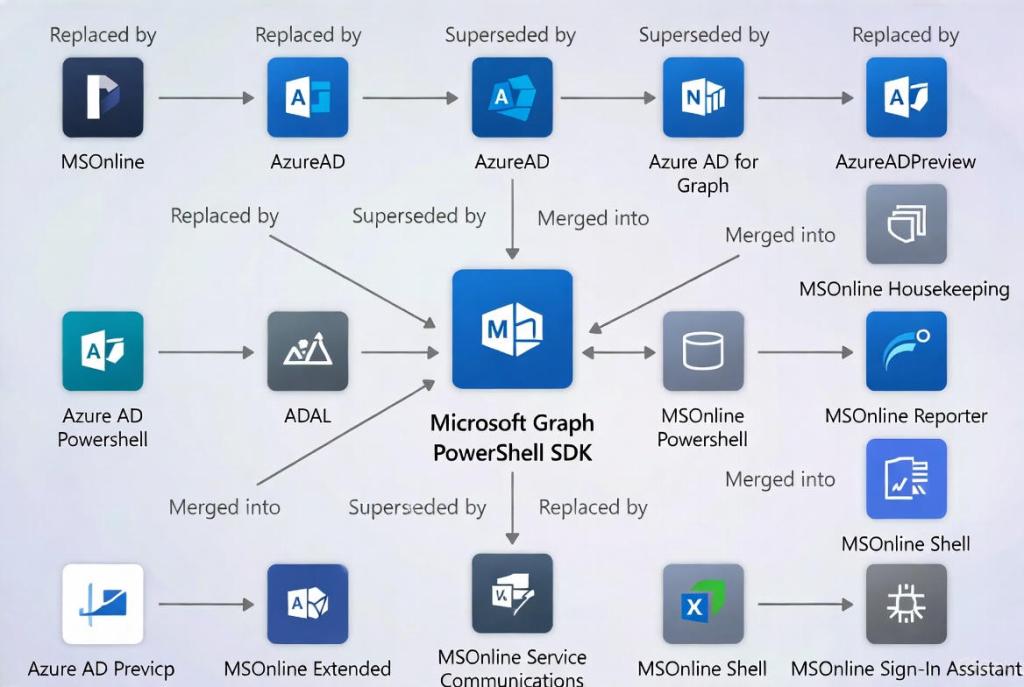
To begin, the Microsoft Graph PowerShell SDK is an application programming interface (API) that serves as a PowerShell-based wrapper for Microsoft Graph. It provides a comprehensive set of cmdlets designed to automate tasks at scale by leveraging Microsoft Graph APIs. Through this SDK, administrators can connect to and manage one or multiple Microsoft 365 and Azure Active Directory tenants.
At its core, the SDK operates on top of the Microsoft Graph API, which is a unified RESTful endpoint that integrates Microsoft’s cloud services into a single platform. Microsoft has heavily invested in this framework, making it a central component for service integration and management. As new features and services are introduced within Microsoft Graph, corresponding updates are typically made to the PowerShell SDK, allowing administrators to take advantage of new capabilities with minimal delay.
The SDK offers several key capabilities:
- It grants complete access to Microsoft Graph APIs
SDK directly leverages the Microsoft Graph API, a robust and heavily invested platform that unifies Microsoft cloud services through a single RESTful endpoint. The PowerShell SDK builds on this foundation, enabling administrators to interact with these services efficiently through PowerShell. As Microsoft continues to introduce new features and enhancements to the Microsoft Graph API, corresponding updates are typically incorporated into the PowerShell SDK. This ensures ongoing alignment with the latest capabilities and reduces the need for separate tooling.
Through Microsoft Graph, the SDK enables interaction with key services such as Azure Active Directory, SharePoint Online, Exchange Online and Microsoft Teams. While these services are accessed through object-based endpoints—such as users, groups, or devices—they are all managed through the same underlying platform. A key advantage of this approach is the use of a single access token and endpoint, simplifying authentication and connectivity. Rather than establishing multiple connections to individual services, administrators can access all supported workloads through a unified entry point.
- It works across multiple platforms
Runs Everywhere: You can install and use the SDK on Windows, macOS, Linux, Azure Cloud Shell.
Consistent Commands: The commands and scripting logic remain the same regardless of the OS you’re using.
- It is compatible with Windows Powershell 5.1
PowerShell 7 and later is the recommended PowerShell version for use with the Microsoft Graph PowerShell SDK but there may be situations where you need to use powershell 5.1 or there may be times where you’re combining functions together and you’ll need to go backwards and forwards.
- Provides support for modern authentication methods
The SDK leverages the Microsoft Authentication Library (MSAL), which provides enhanced security and flexibility compared to the legacy Azure Active Directory Authentication Library (ADAL). By using MSAL, authentication is consistent across Microsoft services and aligns with current security best practices. It supports multiple authentication methods, including username and password, multifactor authentication, and certificate-based authentication. This modern approach ensures secure access while accommodating a wide range of authentication scenarios.
- It is released as open-source software
Finally, the Microsoft Graph PowerShell SDK is an open-source project. While it is officially managed and maintained by Microsoft, it also benefits from active community involvement. Users can participate by providing feedback, submitting issues, and contributing to the codebase. This collaborative model allows both Microsoft and the broader community to continuously improve the SDK and ensure it meets real-world needs.
Microsoft Graph PowerShell SDK Modules
The Microsoft Graph PowerShell SDK comes in two modules, Microsoft.Graph (Published Version 1.0) and Microsoft.Graph.Beta, that you’ll install separately. These modules call the Microsoft Graph v1.0 and Microsoft Graph beta endpoints, respectively. You can install the two modules on the same PowerShell version.
Important!
When developing scripts, the stable Microsoft Graph v1.0 endpoint should be the default choice. In certain situations, the beta endpoint may be useful for evaluation or early access to new capabilities that have not yet been released to v1.0. However, APIs exposed through the beta endpoint are considered preview features and are subject to change. As a result, they are not suitable for production environments, as updates may introduce breaking changes without prior notice.
INSTALLING MICROSOFT GRAPH POWERSHELL SDK
PowerShell 7 and later is the recommended version for working with the Microsoft Graph PowerShell SDK across all platforms. No additional prerequisites are required when using the SDK with PowerShell 7 or newer.
To install it on Windows Powershell 5.1 you will need to have:
- .NET Framework 4.7.2 or later
- Install the NuGet provider (In many cases, no action is required. If this is your first time installing it, you’ll be prompted to install the NuGet provider. Simply confirm the prompt, and the installation will continue.)

- Execution policy – When using the Windows platform, the execution policy must be set to RemoteSigned or a less restrictive option. This is required to allow the installation of the necessary components and to enable their execution.
Important!
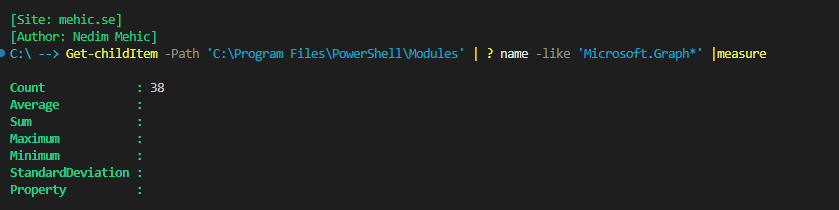
When you install the main Microsoft.Graph module, it also installs approximately 38 additional submodules. Because of this, the installation may take some time. The process does not complete instantly, it starts with the core Microsoft.Graph module and then installs each submodule sequentially, such as Microsoft.Graph.<Component>. Each submodule corresponds directly to a specific set of functions, actions, or service categories within Microsoft Graph.
If you choose not to install all the modules and install only the one you plan to work with, keep in mind that the Microsoft.Graph.Authentication submodule must be installed, as it is required to connect to the Graph. Even if you don’t need the entire package, it can be difficult to know in advance which components you will need, so in many cases, it is easier to install the full set.
Note!
If you are planing to use both Windows Powershell 5.1 and Powersehell 7 you will need to install the module twice. Basically, it’s not duplicate installation. It’s just two separate environments needing the module in their own locations.
With that in mind let’s install it by running this command. (If this is your first time doing this on a new machine, you’ll need to install the NuGet provider)
If no scope is specified, the module will be installed for the current user, which is perfectly acceptable.
Install-Module Microsoft.Graph -Scope AllUsers -force
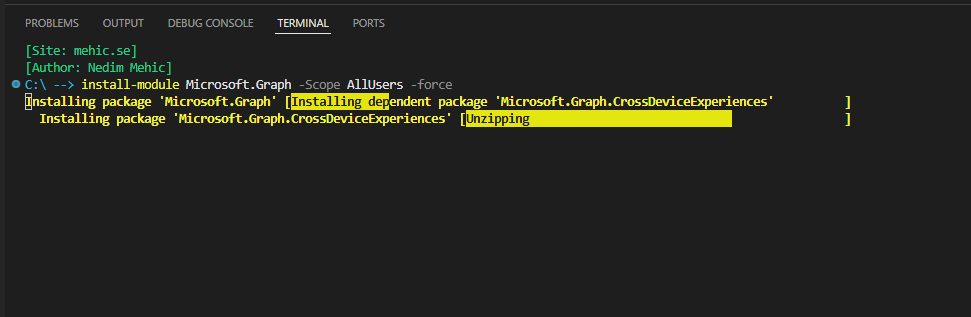
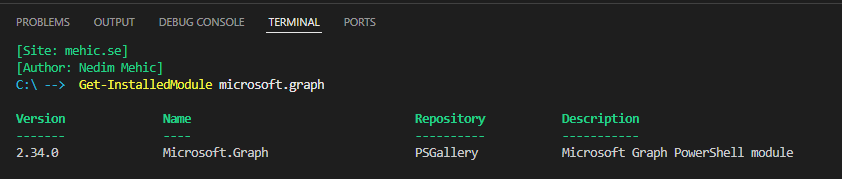
Once done we will have Microsoft.Graph and all the sub-modules available to use.
We have taken the first step toward mastering the Microsoft Graph PowerShell SDK. We explored what it is, reviewed the prerequisites, discussed key considerations, and completed the installation. In future posts, we’ll dive deeper into practical examples, including automating tasks, managing users and groups, and leveraging advanced queries.
Stay tuned.




 Nedim's IT CORNER
Leave a comment