In the previous posts of this series, we’ve built a solid foundation for understanding Desired State Configuration (DSC). We explored what DSC is, delved into the Local Configuration Manager (LCM), and discussed the critical role of Configuration Data in shaping consistent and reliable environments. If you missed the previous posts, you can catch up using the links below.
- Part 1 – Desired State Configuration (DSC) – Part 1 – Getting Started
- Part 2 – Desired State Configuration (DSC) – Part 2 – Local Configuration Manager (LCM)
- Part 3 – Desired State Configuration (DSC) – Part 3 – Configuration Data
In this fourth installment, we shift our focus from theory to practice by looking at how to configure a Domain Controller using DSC. Managing a Domain Controller requires careful planning and attention to detail—there are key considerations to ensure your environment remains secure, consistent, and compliant. I’ll guide you through what to think about before deploying configurations, how to structure them, and the steps to properly configure everything using DSC. Whether you’re a system administrator, DevOps engineer, or IT professional, this post will provide practical insights for bringing your desired state to life in a critical part of your infrastructure.
Note!
While DSC 3.0 is available, it does not yet support Domain Controller configurations or complex on-premises environments. Until that support is added, PowerShell DSC remains the required and supported approach.
I will cover DSC 3.0 in future posts.
Advantages of building environments with DSC
Building environments with Desired State Configuration comes with a range of advantages, especially when it comes to ensuring consistency, reducing errors, and improving overall efficiency in IT management. It is basically that you never touch the machine anymore. One of the key benefits of DSC is the ability to create a standardized “golden image” for your environments. Once you define and configure this base image, you can easily replicate it across multiple systems or customers, ensuring consistency and efficiency. This is especially valuable in hybrid environments, like on-premises data centers and Office 365 tenants, where maintaining uniform configurations across various platforms can be time-consuming and error-prone.
- Consistent Configurations Across All Machines: With DSC, you define a desired state (a blueprint) for your infrastructure, and DSC ensures that every machine, server, or service remains in that exact state, no matter what.
- Reduced Human Error: Instead of manually configuring machines (or for example Microsoft 365 Tenants), DSC automatically applies the configuration and makes sure it stays that way. No more manually checking every setting or hoping everything is correct.
- Self-Healing Infrastructure: DSC will detect the drift from the desired state and automatically bring it back to the correct configuration.
- Scalability and Repeatability: Whether you’re deploying one server or a thousand, DSC allows you to easily replicate environments by applying the same configuration scripts to all your machines.
Current Environment
For this walkthrough, Windows Server 2025 is already installed. At this stage, no additional configuration has been performed beyond the initial installation, update and renaming of the server. This provides a clean baseline for applying Desired State Configuration and clearly demonstrates how DSC can be used to build a Domain Controller from a minimal starting point.
The DSC configuration will be executed from a Windows 11 machine with Hyper-V installed. This machine will act as the management server, compiling and pushing configurations to the Windows Server 2025 instance running in the virtual environment.
Prerequisites
- Required Module – Besides PSDesiredStateConfiguration (which is installed by default), ActiveDirectoryDsc module is required to configure Domain Controllers, domains, and AD objects. (Make sure you have it installed on the server that will become domain controller)
- Local Configuration Manager (LCM) Setup – Before applying any configuration, the LCM on the server must be configured. On a fresh Windows Server 2025 installation, the Local Configuration Manager (LCM) is configured not to automatically reboot after applying configurations. For this setup, we will also change the Configuration Mode from
ApplyAndMonitortoApplyAndAutoCorrect. - Networking –> Ensure that networking is properly configured. This is especially critical when joining new servers to an existing domain, which is something we will cover in a future post. For this post, networking has been configured manually, however, it can also be fully managed using DSC. The DSC module used for this purpose is NetworkingDsc.
Important!
Always ensure that the required DSC modules are installed on the target server before applying any configuration. DSC cannot apply resources that are not available locally on the node.
If you are running DSC from a management server, the required modules must be installed on both the management server (where the configuration is compiled) and the destination servers (where the configuration is applied). Keeping module versions consistent across all systems helps avoid unexpected failures and ensures predictable results.
So the first thing we need to do is to configure LCM on the destination server. There are 2 settings that are important to us:
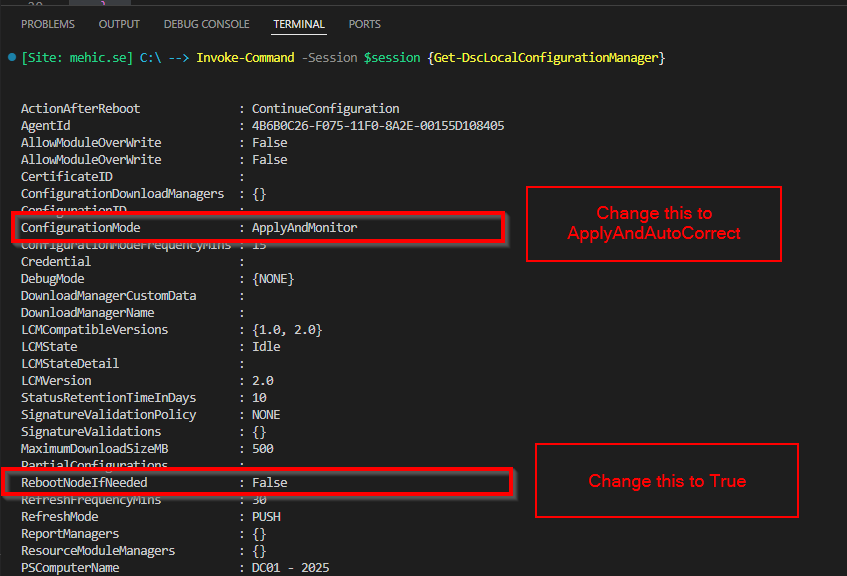
- ConfigurationMode: The default setting on Windows Server 2025 is ApplyAndMonitor. I will change this to ApplyAndAutoCorrect. With this mode, DSC will bring the system into the desired state and will automatically correct any drift it detects, even after the configuration has been applied. This should be used for the production.
- RebootNodeIfNeeded: The default setting on Windows Server 2025 is Off. This will be set to $true so the system automatically reboots if a configuration change requires it. Otherwise, a manual reboot would be necessary. Since the Domain Controller configuration requires a reboot, this setting is required.
Let’s configure the LCM first.
You can check the LCM by running Get-DscLocalConfigurationManager. Because I am running commands from my Windows 11 device I will use Invoke-Command.
$cred = Get-Credential -UserName administrator -Message "VM admin credentials"

$session = New-PSSession -VMName "DC01 - 2025" -Credential $cred
Invoke-Command -Session $session {Get-DscLocalConfigurationManager}
Note!
If you’re unsure of the value or parameter you need to use, press
Ctrl + Spaceto trigger IntelliSense, which will display the available values or parameters.
To set this up, open your preferred code editor (e.g Visual Studio Code) and enter the following code. This will generate a Meta.mof file, which you’ll then need to copy to the destination server.
[DscLocalConfigurationManager()]

Configuration LCM {

    param (

        [parameter(Mandatory = $true)]
        [string[]]$Computername
        )

    Node $Computername {

        Settings {

           RebootNodeIfNeeded = $true
           ConfigurationMode = 'ApplyAndAutoCorrect'
        }


    }

}

 $Computername = 'DC01'

LCM -OutputPath C:\DSC -Computername $Computername -Verbose
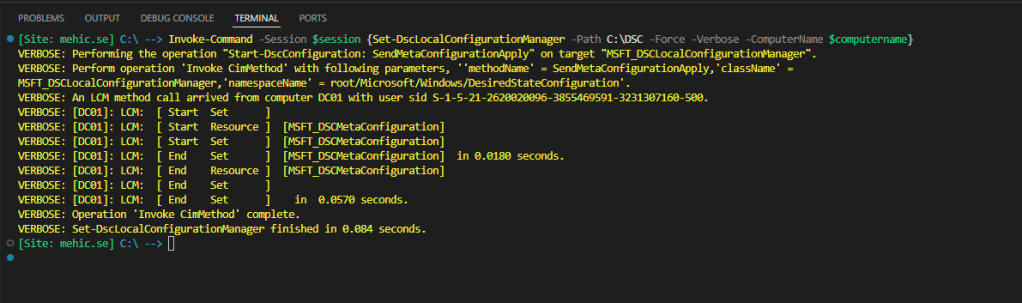
Next we need to push the configuration with the Set-DscLocalConfigurationManager command. If you are running command locally then use Set-DscLocalConfigurationManager -Path C:\DSC -Force -Verbose -ComputerName $computername
Invoke-Command -Session $session {Set-DscLocalConfigurationManager -Path C:\DSC -Force -Verbose -ComputerName $computername}
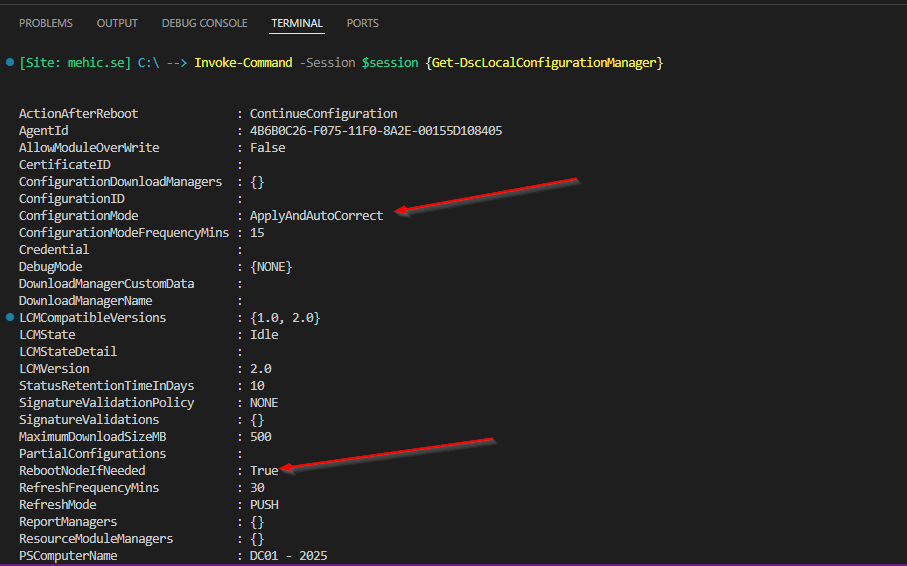
Now, when I check the LCM on the destination server, I can see that it is configured with ApplyAndAutoCorrect, and RebootNodeIfNeeded is True.
Once that’s set up, we can begin creating our configuration document. The first step is to define the Configuration Data. If you’re not familiar with Configuration Data, I recommend checking out Part 3 – Configuration Data, where you’ll find a detailed guide on how to use it and key considerations to keep in mind.
Note!
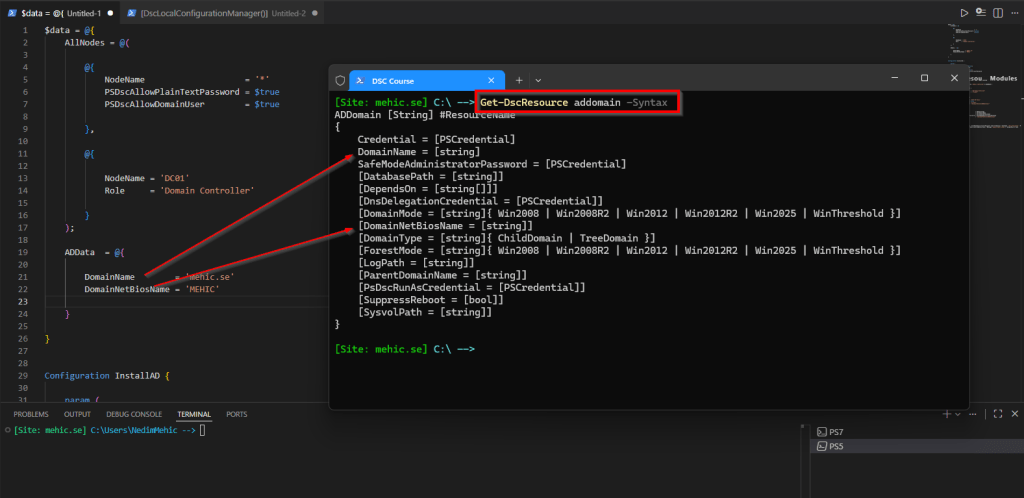
Whenever you need information about a resource or the available parameters, simply run
Get-DscResource <ResourceName> -Syntaxto get a detailed overview. This command will show you all the syntax and options, including which parameters are mandatory and must be used.
For this example, I’ll be using DomainName and DomainNetBiosName, but you can specify other parameters as needed. You might notice that the DNS parameter is missing (since when installing a Domain Controller with PowerShell, we use the -InstallDNS parameter), but don’t worry, DNS will still be installed. I will allow plain text passwords by specifying PSDscAllowPlainTextPassword (although it’s not recommended for production environments, this simplifies the configuration for the purposes of this demonstration).
Later in this post, we will be adding more information to ADData section.
Once done, move to the Configuration part.
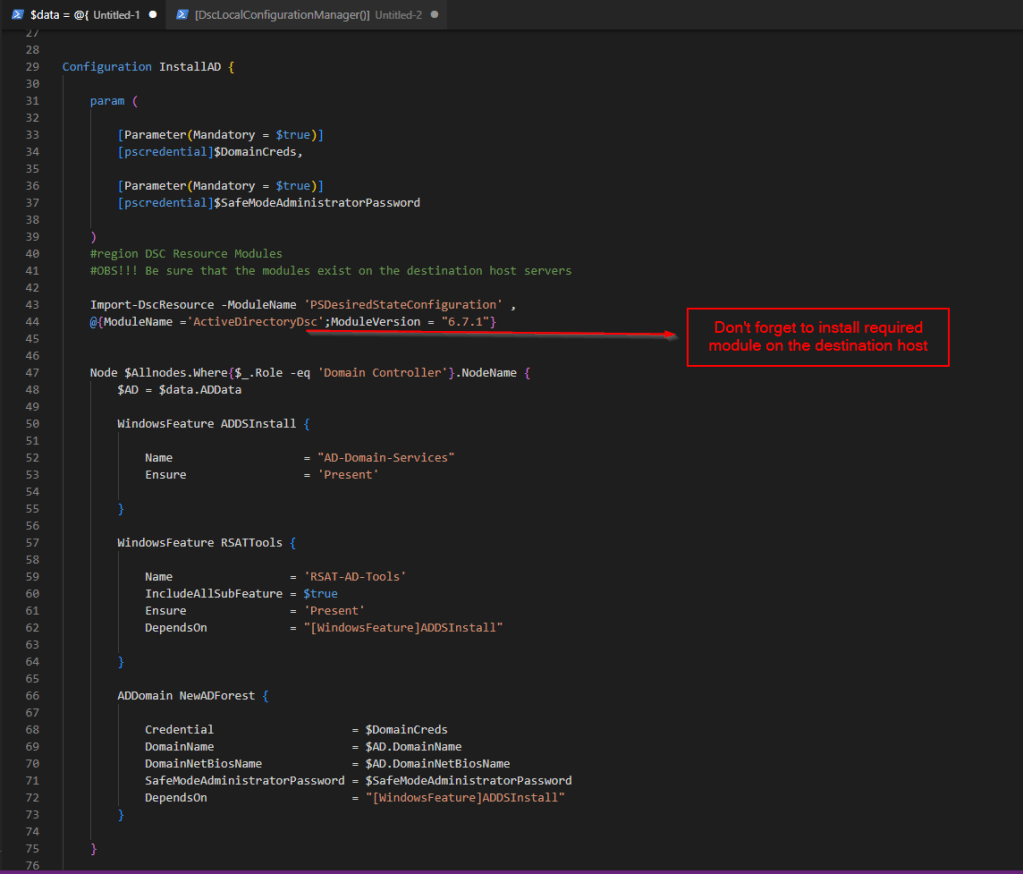
Note!
In production environment –> As we can see configuration data can be included directly within the same file as the configuration script. In most cases, (if you are using it in a production environment), it is stored in a separate file and then loaded and passed to the configuration script at runtime. This approach improves readability, reusability, and simplifies ongoing maintenance.
Whole Code
$data = @{
    AllNodes = @(

        @{
            NodeName                    = '*'
            PSDscAllowPlainTextPassword = $true
            PSDscAllowDomainUser        = $true

        },

        @{

            NodeName = 'DC01'
            Role     = 'Domain Controller'

        }
    );

    ADData  = @{

        DomainName        = 'mehic.se'
        DomainNetBiosName = 'MEHIC'

    }

}


Configuration InstallAD {

    param (

        [Parameter(Mandatory = $true)]
        [pscredential]$DomainCreds,

        [Parameter(Mandatory = $true)]
        [pscredential]$SafeModeAdministratorPassword

    )
    #region DSC Resource Modules
    #OBS!!! Be sure that the modules exist on the destination host servers

    Import-DscResource -ModuleName 'PSDesiredStateConfiguration' ,
    @{ModuleName ='ActiveDirectoryDsc';ModuleVersion = "6.7.1"}


    Node $Allnodes.Where{$_.Role -eq 'Domain Controller'}.NodeName {
        $AD = $data.ADData

        WindowsFeature ADDSInstall {

            Name                   = "AD-Domain-Services"
            Ensure                 = 'Present'

        }

        WindowsFeature RSATTools {

            Name                 = 'RSAT-AD-Tools'
            IncludeAllSubFeature = $true
            Ensure               = 'Present'
            DependsOn            = "[WindowsFeature]ADDSInstall"

        }

        ADDomain NewADForest {

            Credential                    = $DomainCreds
            DomainName                    = $AD.DomainName
            DomainNetBiosName             = $AD.DomainNetBiosName
            SafeModeAdministratorPassword = $SafeModeAdministratorPassword
            DependsOn                     = "[WindowsFeature]ADDSInstall"
        }

    }

}

InstallAD -ConfigurationData $data -SafeModeAdministratorPassword (Get-Credential -UserName '(Only Password)' -Message "Safe Mode Pass Here") `
-DomainCreds (Get-Credential -UserName mehic\administrator -Message 'Domain Admin Creds') -OutputPath C:\DSC
Once done, copy the mof file to the destination server (if you are running and configuring this from the management server).
With that in place, let’s install our DC.
Note!
-wait –> If we run
Start-DscConfigurationwithout the-Waitparameter, it will execute as a PowerShell background job. However, by adding-Wait, the configuration will run interactively, allowing us to see the process in real time.-verbose –> The
-Verboseparameter provides detailed information about the steps being taken during the execution of a cmdlet, including each action performed, the current state of resources, and other useful debug-level details.
Invoke-Command -Session $session {Start-DscConfiguration -ComputerName DC01 -Force -Wait -Verbose -Path C:\DSC}
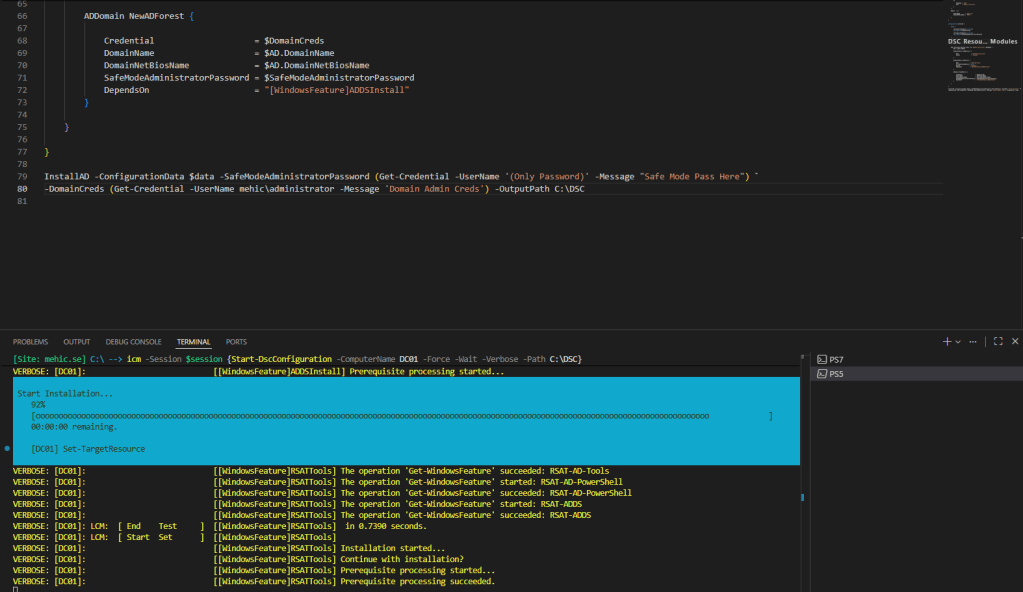
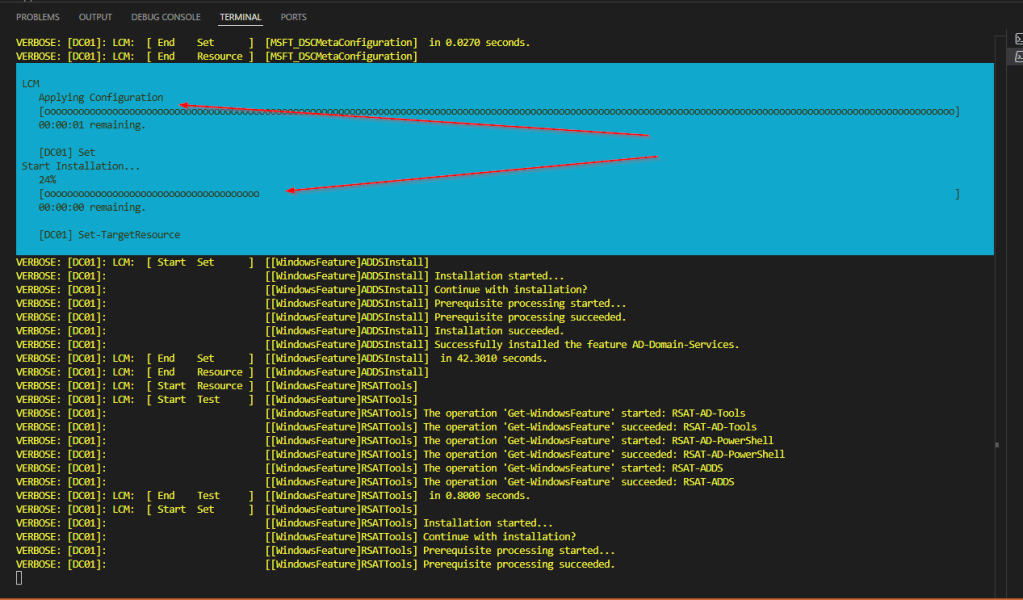
When we execute the command, we’ll be able to see the entire progress. After the configuration is applied and the features are installed, a popup message will appear, notifying me that the DSC is going to reboot the server.
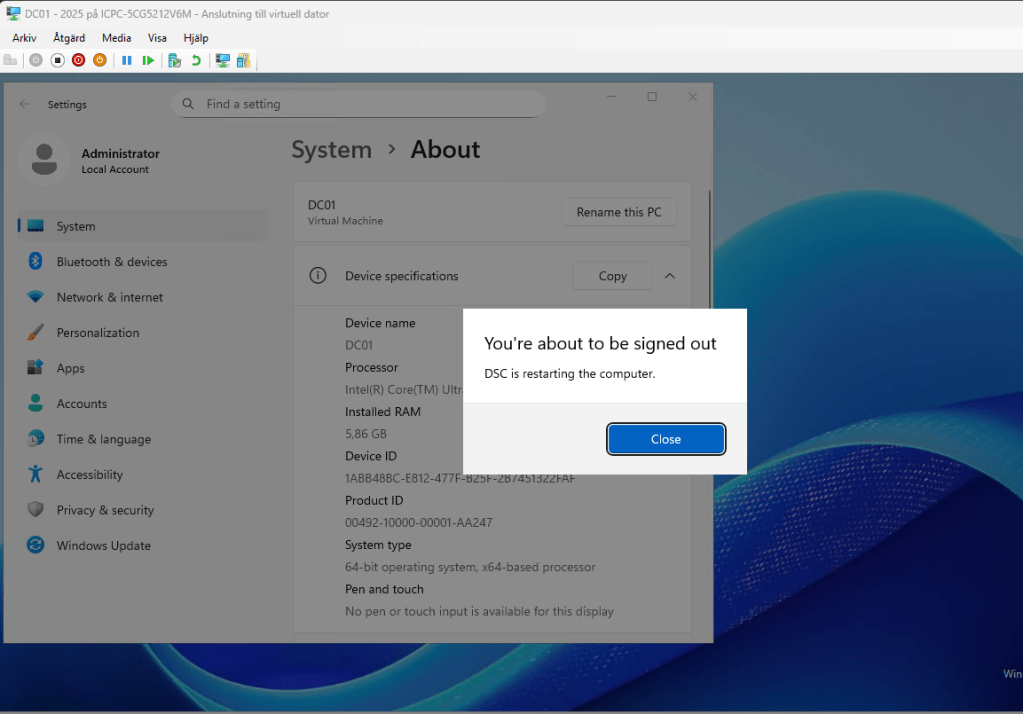
After reboot the DC will be installed.
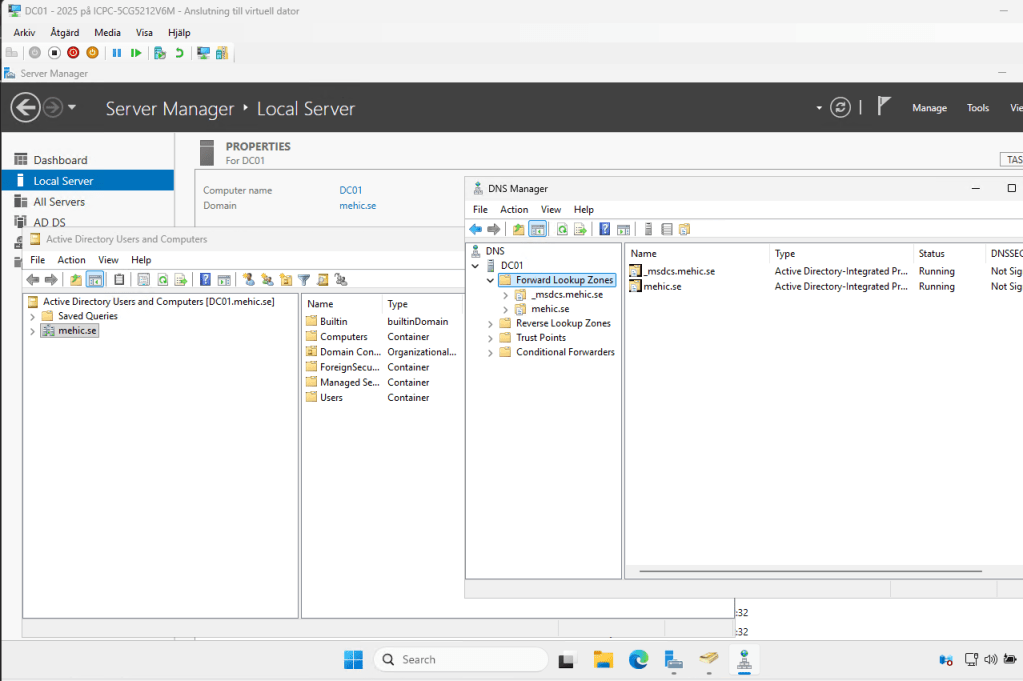
ADDING ADDITIONAL FEATURES TO EXISTING CONFIGURATION DOCUMENT
The main principle of Desired State Configuration (DSC) is that servers should never be configured manually. All roles, features, and system settings must be defined and managed through DSC. This ensures consistency, repeatability, and reduces configuration drift across environments.
If additional roles, features, or settings need to be added after a configuration has already been deployed, the existing DSC configuration can simply be updated and reapplied. DSC will automatically compare the current state of the machine with the desired state defined in the configuration. If any components are missing or incorrectly configured, DSC will detect the differences and bring the system back into compliance.
Next, we will create a new organizational unit along with a new Active Directory group. To accomplish this, we will use the ADGroup and ADOrganizationalUnit resources. You can view all available resources in the ActiveDirectoryDsc module by running the following command.
Get-DscResource -Module ActiveDirectoryDsc
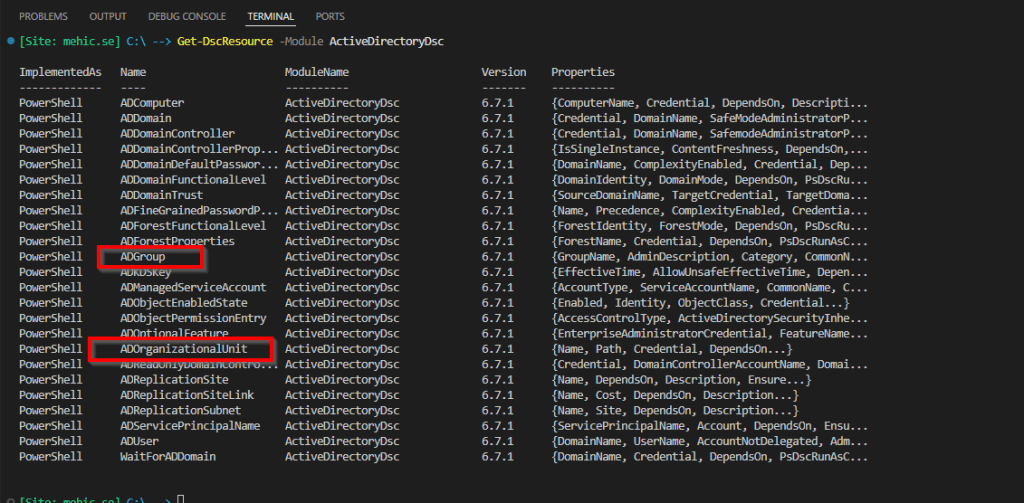
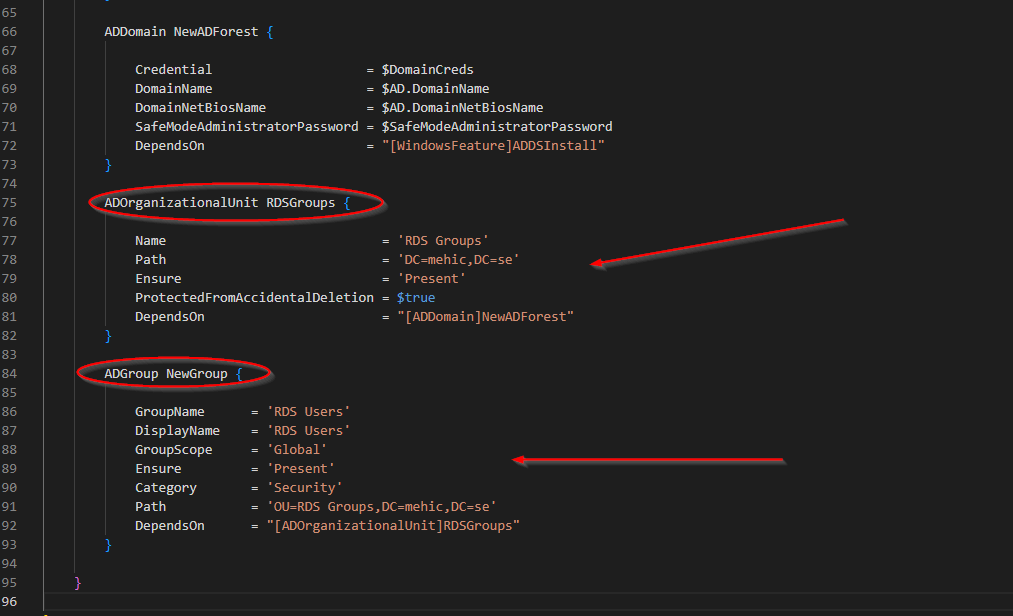
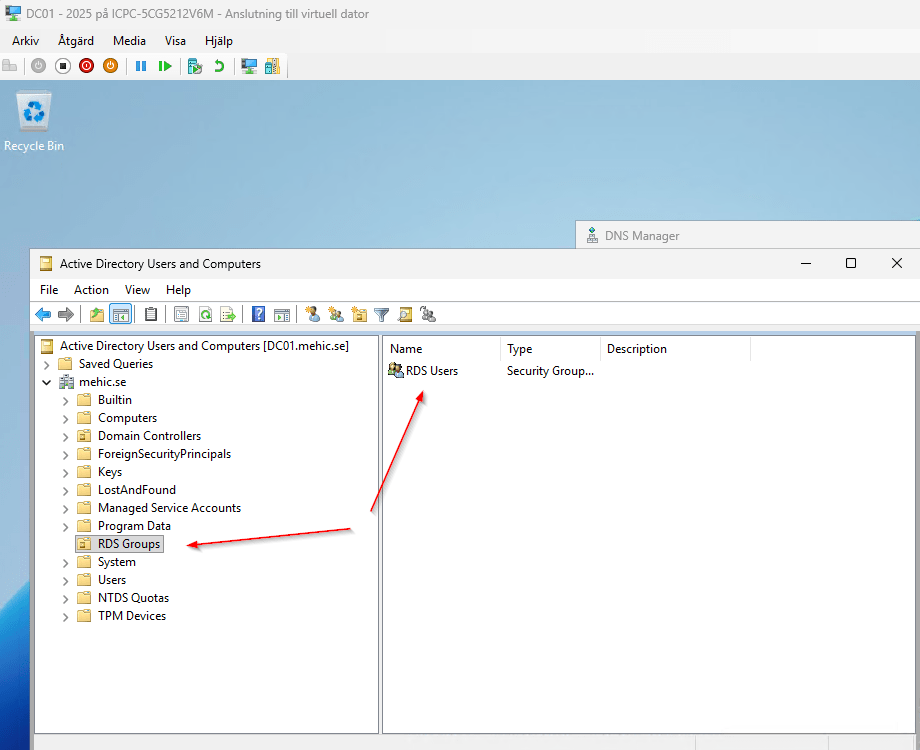
For this demonstration, I will create one organizational unit (RDS Groups) and then create a group (RDS Users) within it.
Once done, run the configuration document to generate new MOF file and copy it to the destination server.
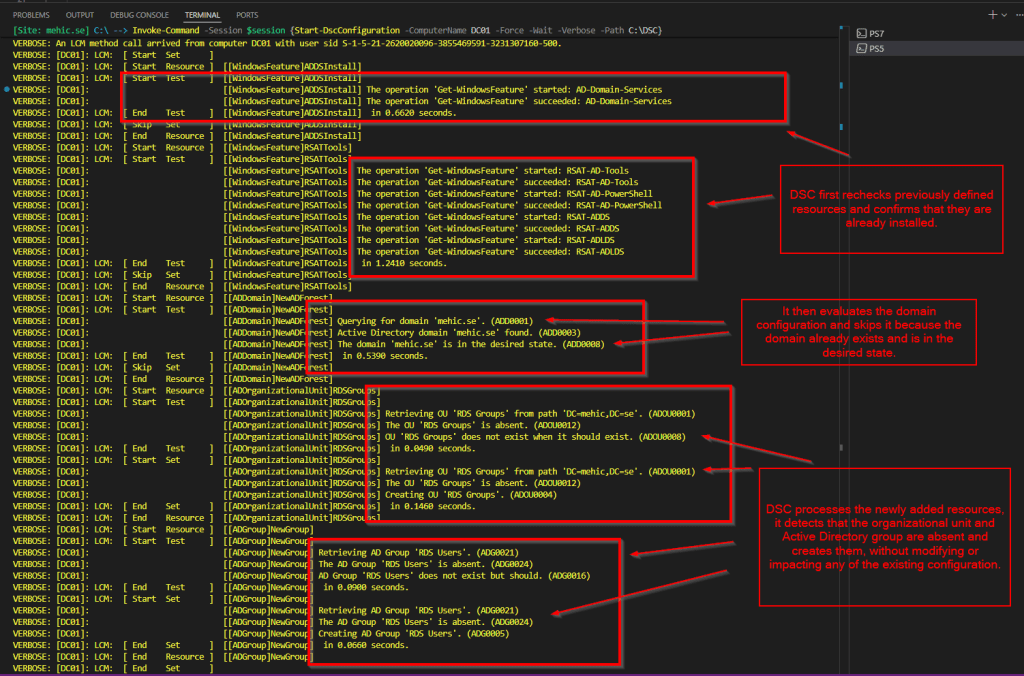
After adding new resources to an existing configuration and pushing it again, DSC first rechecks previously defined resources, such as required features, and confirms they are already installed. It then evaluates the domain configuration and skips it because the domain already exists and is in the desired state. Finally, DSC processes the newly added resources, in this case, it detects that the organizational unit and Active Directory group are absent and creates them, without modifying or impacting any of the existing configuration.
INCLUDE EVERYTHING IN THE SAME DOCUMENT
You might be wondering whether it’s possible to include everything in a single script, avoiding the need to first export LCM, copy files to the destination, and go through multiple steps. The answer is yes. The good news is that you can automate both steps to run consecutively within a single script, effectively creating a seamless “one-shot” process.
Let’s walk through the process. I reverted the VM to its state prior to the DSC configuration, giving us a freshly installed VM to work with. For simplicity, I included the configuration data directly within the same document. When both MOF files are created, we need to copy them to the destination server and execute both LCM and config command.
Note!
Including LocalConfigurationManager resource in the same configuration document will still result in the creation of two files.
Whole code
$Target = "DC01 - 2025"
$LocalDSCPath = "C:\DSC"
$RemoteDSCPath = "C:\DSC" # inside the VM
$vm = Get-VM -Name $target

# Configure new ps session
$cred = Get-Credential -UserName administrator -Message "VM admin credentials"
$session = New-PSSession -VMName $VM.Name -Credential $cred


$data = @{
    AllNodes = @(

        @{
            NodeName                    = '*'
            PSDscAllowPlainTextPassword = $true
            PSDscAllowDomainUser        = $true

        },

        @{

            NodeName = 'DC01'
            Role     = 'Domain Controller'

        }
    );

    ADData   = @{

        DomainName        = 'mehic.se'
        DomainNetBiosName = 'MEHIC'

    }

}


Configuration InstallAD {

    param (

        [Parameter(Mandatory = $true)]
        [pscredential]$DomainCreds,

        [Parameter(Mandatory = $true)]
        [pscredential]$SafeModeAdministratorPassword

    )
    #region DSC Resource Modules
    #OBS!!! Be sure that the modules exist on the destination host servers

    Import-DscResource -ModuleName 'PSDesiredStateConfiguration' ,
    @{ModuleName = 'ActiveDirectoryDsc'; ModuleVersion = "6.7.1" }


    Node $Allnodes.Where{ $_.Role -eq 'Domain Controller' }.NodeName {
        $AD = $data.ADData

        LocalConfigurationManager {

            RebootNodeIfNeeded = $true
            ConfigurationMode  = 'ApplyAndAutoCorrect'
        }

        WindowsFeature ADDSInstall {

            Name   = "AD-Domain-Services"
            Ensure = 'Present'

        }

        WindowsFeature RSATTools {

            Name                 = 'RSAT-AD-Tools'
            IncludeAllSubFeature = $true
            Ensure               = 'Present'
            DependsOn            = "[WindowsFeature]ADDSInstall"

        }

        ADDomain NewADForest {

            Credential                    = $DomainCreds
            DomainName                    = $AD.DomainName
            DomainNetBiosName             = $AD.DomainNetBiosName
            SafeModeAdministratorPassword = $SafeModeAdministratorPassword
            DependsOn                     = "[WindowsFeature]ADDSInstall"
        }


    }

}


InstallAD -ConfigurationData $data -SafeModeAdministratorPassword (Get-Credential -UserName '(Only Password)' -Message "Safe Mode Pass Here") `
    -DomainCreds (Get-Credential -UserName mehic\administrator -Message 'Domain Admin Creds') -OutputPath C:\DSC


# Copy MOF files to target

# Create folders and copy files into VM
Get-ChildItem -Path $localDSCPath | ForEach-Object {
    $fileName = $_.Name
    $sourcePath = $_.FullName

    # Ensure remote folder exists
    Invoke-Command -Session $session -ScriptBlock {
        param($remoteDSCPath)
        if (-not (Test-Path $remoteDSCPath)) {
            New-Item -ItemType Directory -Path $remoteDSCPath -Force | Out-Null
        }
    } -ArgumentList $remoteDSCPath

    # Copy the file
    $destination = Join-Path -Path $remoteDSCPath -ChildPath $fileName
    Copy-Item -Path $sourcePath -Destination $destination -ToSession $session -Force
}

#Apply LCM and DSC inside VM

Invoke-Command -Session $session -ScriptBlock {

    Write-Host "Applying LCM..."
    Set-DscLocalConfigurationManager -Path $RemoteDSCPath -Verbose

    Write-Host "Applying Domain Controller configuration..."
    Start-DscConfiguration -Path $RemoteDSCPath -Wait -Force -Verbose
}
To conclude this post, we successfully installed a domain controller using DSC and covered several important concepts along the way. We also extended the existing configuration document by adding new resources, demonstrating that DSC does not modify or reconfigure components that are already in the desired state. Instead, it applies only the newly defined resources, which helps ensure consistency and prevents unintended changes and in our final step we included everything in the same script. This example was intentionally kept simple to provide a clear understanding of how DSC configurations work and how they can be safely extended over time.
In future posts, we will explore more advanced DSC topics and continue building out the environment.
Stay tuned for upcoming posts, and thank you for reading!




 Nedim's IT CORNER
Leave a comment