Every new Windows Server release brings its own surprises. Sometimes they’re improvements. Sometimes they’re breaking changes that only show up once you try to automate something you’ve automated a dozen times before.
Today is one of those days.
Windows Server 2025 introduces changes that quietly break assumptions many of us have relied on since Server 2016, especially when it comes to automating Remote Desktop Services (RDS). What worked flawlessly on Server 2019 and 2022 can suddenly fail in confusing, inconsistent ways. No syntax errors. No missing roles. Everything lookls right until it doesn’t.
Trying to fully automate an RDS deployment on Server 2025 using DSC on windows server 2025 can quickly turn into a nightmare if you don’t know what’s changed under the hood. And the frustrating part? Most of these issues aren’t obvious, well-documented, or clearly called out by Microsoft.
In this post, I’ll walk through what’s different in Server 2025, why RDS automation breaks even when everything appears to be configured correctly, and how to work around these issues without throwing away automation altogether. If you’re hitting strange DSC failures on Server 2025, especially around RDS, you’re not alone, and there is a way forward.
The goal of this scenario was to prepare the seventh part of my Mastering Desired State Configuration series. In this part, the objective was to build an entire environment using DSC, starting with creating a domain, promoting a second domain controller, joining the RDS servers to the domain, and finally deploying a full Remote Desktop Services (RDS) environment.
WRONG CREDS FORMAT WHEN JOINING SERVER TO A DOMAIN
The first major issue I encountered was during the process of joining the servers to the domain. I usually use domain\username format when specifying creds in DSC.
Operation 'Enumerate CimInstances' complete. Exception calling "FindOne" with "0" argument(s): "The user name or password is incorrect. " + CategoryInfo : NotSpecified: (:) [], CimException + FullyQualifiedErrorId : COMException + PSComputerName : RDCB01
At first glance, it looked like a simple mistake on my side possibly a typo, an incorrect password, or something misconfigured in the DSC configuration document. However, after a second attempt, the exact same error appeared and caused the DSC run to fail.
Since everything in the configuration file looked correct, I decided to dig into the DSC resource itself. I had run into similar issues with other DSC resources in the past, where I had to modify or rewrite parts of the code to make them work properly and this time was no different. That’s where I found the real cause of the problem.
Note!
It’s always a good idea to open the DSC resource and review its requirements, as well as understand how the resource is implemented.
The line that resolved the first issue was adsisearcher. When you use [adsisearcher] without explicitly providing credentials, it binds to Active Directory using the current security context of the process but in DSC, that is not the case. The user name or password is incorrect basically means I could not authenticate whoever is making this LDAP call. Changing the credential format to UPN (user@domain.com) resolves the issue.
([adsisearcher]"(&(objectCategory=computer)(objectClass=computer)(cn=$env:COMPUTERNAME))").FindOne()
rds 2025 new deployment failure
When issue with joining servers to a domain was resolved the real problem occured. Configuration was ready to build up the RDS deployment but stopped with the error code
Error Message: The term 'Get-RDServer' is not recognized as the name of a cmdlet, function, script file, or operable program. Check the spelling of the name, or if a path was included, verify that the path is correct and try again.
Message ID: CommandNotFoundException
Error Category: 13
Error Code: 13
Error Type: MI
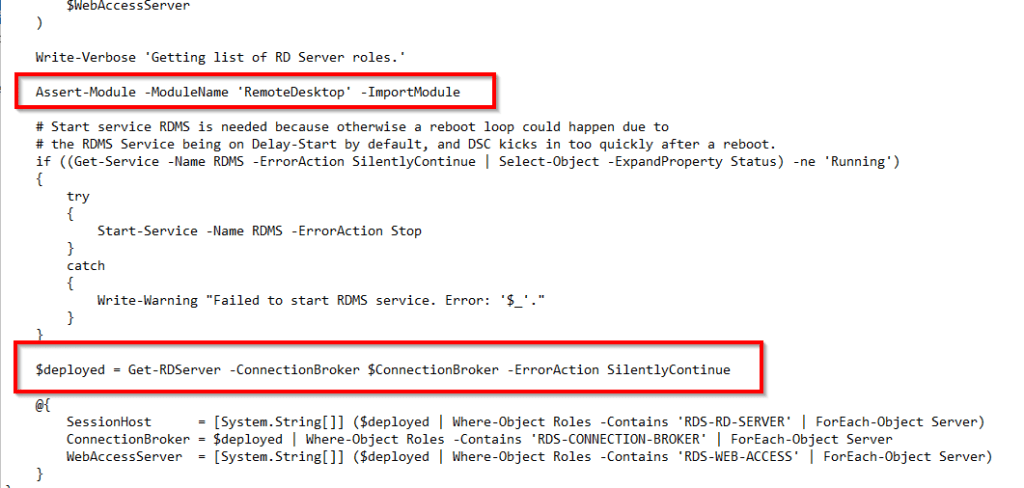
What this error means is that the PowerShell session executing the DSC resource cannot find the Remote Desktop Services management module, even though we have told DSC to install the feature. If we open the DSC recource for new deployment we can see the issue. The reason my deployment is failing with “The term ‘Get-RDServer’ is not recognized” before it even gets to the service start logic is due to the Assert-Module line. Assert-Module is not a built-in PowerShell cmdlet, it is a custom helper function to make sure a required PowerShell module is available before the rest of the script runs.
Inside the Get-TargetResource function, we have this line: Assert-Module -ModuleName ‘RemoteDesktop’ -ImportModule and immediately after $deployed = Get-RDServer -ConnectionBroker $ConnectionBroker -ErrorAction SilentlyContinue
In Windows Server 2025, Assert-Module is failing to find or load the module and because the resource uses -ErrorAction SilentlyContinue on the next line, $deployed becomes $null, and the resource fails later when it tries to use a command it thinks isn’t there.
What I did to make this work? We need to modify the original module code to bypass the environment isolation. We need to replace Assert-Module with a direct manifest import and use fully qualified cmdlet names example RemoteDesktop\Get-RDServer. In the code, find the cmdlets and add the RemoteDesktop\ prefix. You need to replace Assert-Module in both Get and Set blocks.

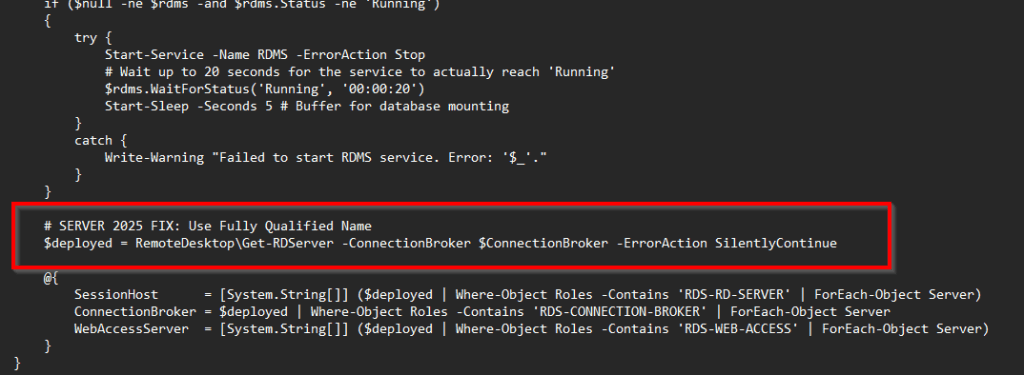
Once we solved the first issue, a second error appeared, showing that fixing one problem often uncovers the next challenge when working with DSC and RDS deployments.
Error Message: The term 'Get-RDSessionCollection' is not recognized as the name of a cmdlet, function, script file, or operable program. Check the spelling of the name, or if a path was included, verify that the path is correct and try again.
Message ID: CommandNotFoundException
Error Category: 13
Error
I realized that all the RDS DSC modules need to be rewritten to work properly with Windows Server 2025. Yes, every single one.
Note!
When modifying the original DSC resources, it’s important to check the corresponding
.schema.moffiles to ensure all variables and functions are correctly defined.
Checking the .schema.mof file is crucial because it defines what properties and data types the DSC resource expects. When I modified the original resources and removed some code, I initially forgot to restore certain required elements.
The command Test-TargetResource of the PS module DSC_RDSessionCollectionConfiguration does not implement the write property ActiveSessionLimitMin mentioned in the corresponding

 MOF schema file C:\Program Files\WindowsPowerShell\Modules\RemoteDesktopServicesDsc\4.0.0\DscResources\DSC_RDSessionCollectionConfiguration\DSC_RDSessionCollectionConfiguratio

n.schema.mof. All write paramenters mentioned in the schema file must be implemented by the command Test-TargetResource.

    + CategoryInfo          : InvalidOperation: (root/Microsoft/...gurationManager:String) [], CimException

    + FullyQualifiedErrorId : WriteParameterNotImplemented
I rewrote the NewDeployment, SessionCollection, SessionCollectionConfiguration, and LicenseConfiguration resources. These updated resources will be included in the seventh part of my Desired State Configuration series.
In the end, working with DSC is as much about understanding the resources as it is about writing configurations. Always take the time to explore the DSC resource you’re using, check its required parameters, see how it handles credentials, and understand its logic. Even when errors point to passwords or credentials, the root cause can often lie in how the resource queries or interacts with the system. I hope this post guides anyone venturing into automating Server 2025 and RDS 2025 with DSC toward a smoother experience.
Thanks for reading,
Cheers



 Nedim's IT CORNER
Leave a comment