
Imagine standing at the threshold of a fully automated Windows environment, where your domain controllers and RDS infrastructure are configured exactly the way you want, every time, without lifting a finger. That’s the power we’re exploring in this post. Building on our previous deep dives into DSC fundamentals, security, configuration data, and composite resources, we’ll now bring the theory to life, two domain controllers, a complete RDS session environment, all orchestrated seamlessly with DSC. Let’s turn configuration into automation you can trust. There is a lot to cover in this post so let’s get started.
Important!
Current RDS DSC resources are not compatible with Windows Server 2025. If you plan to automate Remote Desktop Services deployment using DSC on this version of Windows Server, the existing modules will not work as expected and must be rewritten. I have already refactored the required modules used in this post and decided to rebuild the entire solution with Windows Server 2025 compatibility in the future. You can find a detailed breakdown of the problems here –> Desired State Configuration: Windows Server 2025 and RDS 2025 nightmare and solution
Current Infrastructure & Requirements
For this demonstration, I set up 5 virtual machines. We will install primary domain controller, and then promote the second one. All other VM’s will wait for the domain to complete to continue with domain join and RDS config. The configuration data is excluded from the current configuration document and will be imported during the deployment process. A certificate has been installed on all nodes, which is required for MOF credential encryption. All MOF files will be automatically copied to their respective nodes, ensuring that each node receives only its own MOF file.
- Required Modules:
- ActiveDirectoryDsc (6.7.1)
- DhcpServerDsc (4.0.0)
- CompositeDSC (1.0)
- RemoteDesktopServicesDsc (4.0.0) (You can download updated RemoteDesktopServicesDsc Module below)
- ComputerManagementDsc (10.0.0)
DC01 (Windows Server 2025)
- Primary Domain Controller
- Roles: DNS, DHCP
- Modules: CompositeDSC (This is the module that we built in Part 6), ActiveDirectoryDsc, DhcpServerDsc
DC02 (Windows Server 2025)
- Secondary Domain Controller
- Roles: DNS
- Modules: ActiveDirectoryDsc
RDCB01 (Windows Server 2025)
- Roles: RDS Connection Broker, Web Access
- Modules: ActiveDirectoryDsc, RemoteDesktopServicesDsc, ComputerManagementDsc
RDSH01 (Windows Server 2025)
- Roles: RDS Session Host
- Modules: ActiveDirectoryDsc, RemoteDesktopServicesDsc, ComputerManagementDsc
RDWA01 (Windows Server 2025)
- Roles: RDS Web Access
- Modules: ActiveDirectoryDsc, RemoteDesktopServicesDsc, ComputerManagementDsc
CONFIGURATION DATA
Our first step is to build configuration data. For this demonstration, I will include RDS and DHCP information, but we could also add other configurations such as SQL or Web Server settings.
This time the config data will not be part of the actual configuration document. Microsoft explicitly recommends storing node-specific and environment-specific information in a separate files. Once created, save it as .psd1 file.
@{
    AllNodes = @(

        @{
            NodeName             = '*'
            PSDscAllowDomainUser = $true
            CertificateFile      = 'C:\Certs\DSCCredsEncryption.cer'

        },

        @{

            NodeName = 'DC01'
            Role     = 'Primary DC'
        },

        @{

            NodeName = 'DC02'
            Role     = 'Secondary DC'
        },

        @{

            NodeName = 'RDCB01'
            Role     = 'RD Connection Broker'
        },

        @{

            NodeName = 'RDSH01'
            Role     = 'RD Session Host'
        },

        @{

            NodeName = 'RDWA01'
            Role     = 'RD Web Access'
        }
    );

    ADData = @{

        DomainName        = 'mehic.se'
        DomainNetBiosName = 'MEHIC'

    }

    RDSData = @{

        ConnectionBroker             = 'rdcb01.mehic.se'
        SessionHost                  = 'rdsh01.mehic.se'
        WebAccessServer              = 'rdwa01.mehic.se'
        CollectionName               = 'Megablast RDS'
        AutomaticReconnectionEnabled = $true
        DisconnectedSessionLimitMin  = 360
        IdleSessionLimitMin          = 360
        BrokenConnectionAction       = 'Disconnect'
        LicenseServer                = 'rdcb01.mehic.se'
        LicenseMode                  = 'PerUser'

    }

    DHCPData = @{

        Name             = 'HBG Office'
        IPStartRange     = '192.168.0.120'
        IPEndRange       = '192.168.0.130'
        SubnetMask       = '255.255.255.0'
        ScopeId          = '192.168.0.0'
        AddressFamily    = 'IPv4'
        State            = 'Active'
        LeaseDuration    = '00:08:00'
        IsSingleInstance = 'Yes'
        DNSName          = 'DC01.mehic.se'
        IPaddress        = '192.168.0.10'


    }

}
BUILDING ENVIRONMENT
After defining the configuration data, we proceed to the construction of the Desired State Configuration environment. The following sections provide a detailed, structured breakdown of each stage in the process. The solution is designed to be fully automated, ensuring that no manual actions are required.
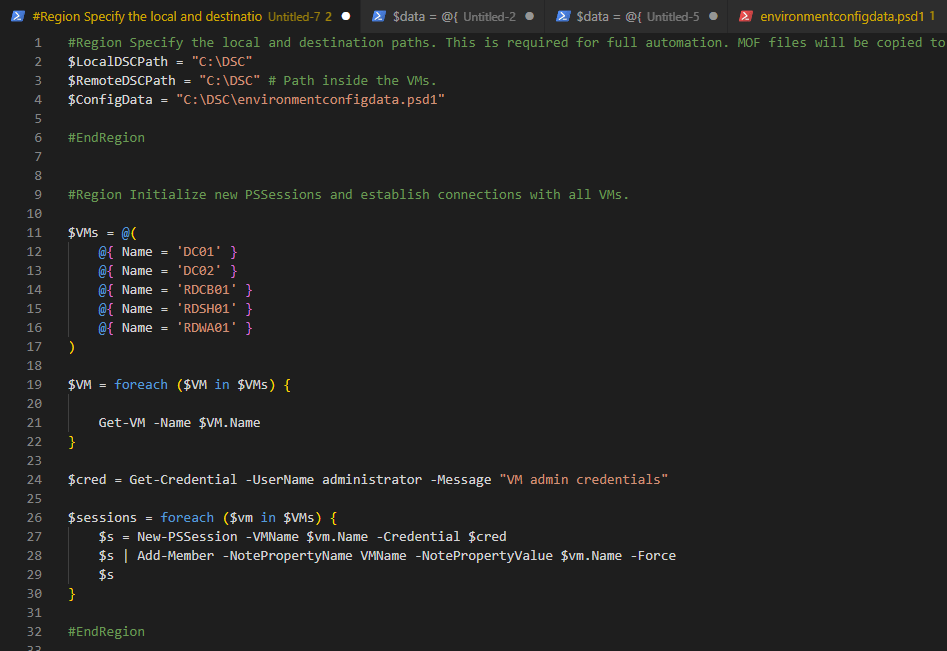
The first part defines the local and remote paths and configuration data location used by DSC. These paths determine where MOF files are generated on the authoring machine and where they will be copied on the destination nodes. Standardizing these paths ensures consistent deployment across all participating virtual machines. The second part prepares connectivity to all virtual machines that will take part in the configuration. An array of VM definitions is created using $VMs = @( … ). Each entry in this array represents a target node and contains the VM name. This structure allows the configuration to scale easily—additional nodes can be added by simply appending new entries to the array.
Using this list of VMs, PowerShell retrieves the corresponding VM’s and establishes new PSSessions to each one using provided administrative credentials. These sessions enable DSC to remotely copy MOF files and apply configurations across all nodes in an automated and consistent manner.
Next, we need to make sure that all the required modules are installed on the target nodes and the management device. New modules that we added to this config are: DhcpServerDsc, RemoteDesktopServicesDsc and ComputerManagementDsc.
Important!
When defining domain credentials $DomainCreds), ensure they are entered in UPN format (
username@domain.com). Using theDOMAIN\Usernameformat will result in the following error message:
Operation ‘Enumerate CimInstances’ complete. Exception calling “FindOne” with “0” argument(s): “The user name or password is incorrect.” (The VMs will successfully join the domain, however, the remainder of the configuration will fail).
First Node is the primary domain controller. First we need to configure LCM and then install all required roles. When that is done, we will install the domain and configure DHCP.
Node $PrimaryDCNode {
        $AD = $data.ADData
        $DHCP = $data.DHCPData

        LocalConfigurationManager {

            RebootNodeIfNeeded = $true
            ConfigurationMode = 'ApplyAndAutoCorrect'
            CertificateID      = '23D658C553CB1642BAACFADFF945B980F74B5185'
        }

        WindowsFeature ADDSInstall {

            Name                   = "AD-Domain-Services"
            Ensure                 = 'Present'
        }

        WindowsFeature RSATTools {

            Name                 = 'RSAT-AD-Tools'
            IncludeAllSubFeature = $true
            Ensure               = 'Present'
            DependsOn            = "[WindowsFeature]ADDSInstall"

        }

        WindowsFeature DHCP {

            Name   = 'DHCP'
            Ensure = 'Present'
        }

        WindowsFeature DHCPRSATTools {

            Name                 = 'RSAT-DHCP'
            Ensure               = 'Present'
            IncludeAllSubFeature = $true
            DependsOn            = "[WindowsFeature]DHCP"
        }

        ADDomain NewADForest {

            Credential                    = $DomainCreds
            DomainName                    = $AD.DomainName
            DomainNetBiosName             = $AD.DomainNetBiosName
            SafeModeAdministratorPassword = $SafeModeAdministratorPassword
            DependsOn                     = "[WindowsFeature]ADDSInstall"
        }

        CompanyADOUStructure ADStructure {

            CompanyName = 'Megablast AB'
            DomainDN    = 'DC=mehic,DC=se'
            DependsOn   = "[ADDomain]NewADForest"

        }

        xDhcpServerAuthorization DHCPAuthorization {

            IsSingleInstance     = $DHCP.IsSingleInstance
            Ensure               = 'Present'
            PsDscRunAsCredential = $DomainCreds
            DNSName              = $dhcp.DNSName
            DependsOn            = @("[WindowsFeature]DHCP", "[ADDomain]NewADForest")
        }

        xDhcpServerScope DHCPScope {

            Name          = $dhcp.Name
            IPStartRange  = $dhcp.IPStartRange
            IPEndRange    = $dhcp.IPEndRange
            SubnetMask    = $dhcp.SubnetMask
            ScopeId       = $dhcp.ScopeId
            AddressFamily = $dhcp.AddressFamily
            State         = $dhcp.State
            LeaseDuration = $dhcp.LeaseDuration
            DependsOn     = "[xDhcpServerAuthorization]DHCPAuthorization"
        }

    }
The second domain controller waits for the domain to be fully configured before continuing with the promotion process. We are using WaitForADDomain resource for that operation.
Node $SecondaryDCNode {
        $AD = $data.ADData

        LocalConfigurationManager {

            RebootNodeIfNeeded = $true
            ConfigurationMode  = 'ApplyAndAutoCorrect'
            CertificateID      = '23D658C553CB1642BAACFADFF945B980F74B5185'
        }

        WindowsFeature ADDSInstall {

            Name   = "AD-Domain-Services"
            Ensure = 'Present'
        }

        WindowsFeature RSATTools {

            Name                 = 'RSAT-AD-Tools'
            IncludeAllSubFeature = $true
            Ensure               = 'Present'
            DependsOn            = "[WindowsFeature]ADDSInstall"
        }

        WaitForADDomain WaitforDomain {

            DomainName    = $AD.DomainName
            Credential    = $DomainCreds
            WaitTimeout   = 1800
        }

        ADDomainController SecondDC {

            DomainName                    = $AD.DomainName
            Credential                    = $DomainCreds
            SafemodeAdministratorPassword = $SafeModeAdministratorPassword
            InstallDns                    = $true
            IsGlobalCatalog               = $true
            DependsOn                     = "WaitForADDomain]WaitforDomain"

        }
}
The third section focuses on Remote Desktop Services (RDS). The first node configured is the RD Connection Broker. Before applying any RDS-specific configuration, the server must be joined to the domain. This is accomplished using the ComputerManagementDsc module, leveraging the Computer resource to perform the domain join and the PendingReboot resource to ensure the system is restarted if required before continuing with the RDS configuration. Once this is complete, the broker installs the required roles but delays configuration until all other nodes have completed the domain join process and their services are installed.
Important!
When configuring RDS in mulit-server deployment the Connection Broker depends on the Session Host Windows Feature. We need to pause the deployment until the Session Host is fully up and running. This prevents the broker from starting the RDS deployment immediately after the role is installed, ensuring a reliable and error-free process.
Node $ConnectionBrokerNode {
        $AD = $ConfigurationData.ADData
        $RD = $ConfigurationData.RDSData

        LocalConfigurationManager {

            RebootNodeIfNeeded = $true
            ConfigurationMode  = 'ApplyAndAutoCorrect'
            CertificateID      = '23D658C553CB1642BAACFADFF945B980F74B5185'
        }

        WindowsFeature RDSConnectionBroker {

            Name   = 'RDS-Connection-Broker'
            Ensure = 'Present'
        }

        WindowsFeature RDLicensing {
            Ensure = "Present"
            Name   = "RDS-Licensing"
        }

        WindowsFeature RDSTools {

            Name   = 'RSAT-RDS-Tools'
            Ensure = "Present"
        }

        WaitForADDomain WaitforDomain {

            DomainName  = $AD.DomainName
            Credential  = $DomainCreds
            WaitTimeout = 1800
        }

        Computer JoinDomain {

            Name       = $ConnectionBrokerNode
            DomainName = $AD.DomainName
            Credential = $DomainCreds
            DependsOn  = "[WaitForADDomain]WaitforDomain"
        }

        PendingReboot RebootAfterDomainJoin {

            Name      = 'Domain Join'
            DependsOn = '[Computer]JoinDomain'

        }

        WaitForAll SessionHost {

            NodeName         = $RD.SessionHost
            ResourceName     = '[WindowsFeature]SessionHost'
            RetryIntervalSec = 60
            RetryCount       = 50
            DependsOn        = '[PendingReboot]RebootAfterDomainJoin'
        }

        WaitForAll WebAccess {

            NodeName         = $RD.WebAccessServer
            ResourceName     = '[WindowsFeature]WebAccess'
            RetryIntervalSec = 60
            RetryCount       = 50
            DependsOn        = '[WaitForAll]SessionHost'
        }

        Script WaitBeforeRDSDeployment {

            GetScript  = {
                @{ Result = "WaitingComplete" }
            }

            TestScript = {
                # Always return false so SetScript runs once
                $false
            }

            SetScript  = {
                Write-Verbose "Waiting 240 seconds before RDS deployment..."
                Start-Sleep -Seconds 240
            }

            DependsOn  = '[WaitForAll]WebAccess'
        }

        RDSessionDeployment NewDeployment {

            ConnectionBroker     = $RD.ConnectionBroker
            SessionHost          = $RD.SessionHost
            WebAccessServer      = $RD.WebAccessServer
            DependsOn            = '[Script]WaitBeforeRDSDeployment'
            PsDscRunAsCredential = $DomainCreds
        }

        RDSessionCollection RDCollection {

            CollectionName       = $RD.CollectionName
            SessionHost          = $RD.SessionHost
            ConnectionBroker     = $RD.ConnectionBroker
            DependsOn            = '[RDSessionDeployment]NewDeployment'
            PsDscRunAsCredential = $DomainCreds
        }

        RDSessionCollectionConfiguration CollectionConfig {

            CollectionName               = $RD.CollectionName
            ConnectionBroker             = $RD.ConnectionBroker
            AutomaticReconnectionEnabled = $true
            DisconnectedSessionLimitMin  = $RD.DisconnectedSessionLimitMin
            IdleSessionLimitMin          = $RD.IdleSessionLimitMin
            BrokenConnectionAction       = $RD.BrokenConnectionAction
            DependsOn                    = '[RDSessionCollection]RDCollection'
            PsDscRunAsCredential         = $DomainCreds
        }

        RDLicenseConfiguration Licenseconfig {

            ConnectionBroker     = $RD.ConnectionBroker
            LicenseServer        = $RD.LicenseServer
            LicenseMode          = $RD.LicenseMode
            DependsOn            = '[RDSessionCollectionConfiguration]collectionconfig'
            PsDscRunAsCredential = $DomainCreds
        }
    }
The final two node sections configure the Local Configuration Manager (LCM) and install the required roles on the Session Host and Web Access servers.
Node $RDSessionHostNode {
        $AD = $ConfigurationData.ADData

        LocalConfigurationManager {

            RebootNodeIfNeeded = $true
            ConfigurationMode  = 'ApplyAndAutoCorrect'
            CertificateID      = '23D658C553CB1642BAACFADFF945B980F74B5185'
        }

        WaitForADDomain WaitforDomain {

            DomainName  = $AD.DomainName
            Credential  = $DomainCreds
            WaitTimeout = 1800
        }

        Computer JoinDomain {

            Name       = $RDSessionHostNode
            DomainName = $AD.DomainName
            Credential = $DomainCreds
            DependsOn  = '[WaitForADDomain]WaitforDomain'
        }

        PendingReboot RebootAfterDomainJoinSessionHost {

            Name = 'Domain Join'
            DependsOn = '[Computer]JoinDomain'
                }

        WindowsFeature SessionHost {
            Name      = 'RDS-RD-Server'
            Ensure    = 'Present'
            DependsOn = '[PendingReboot]RebootAfterDomainJoinSessionHost'
        }
    }

    #EndRegion

    #Region Join RD Web Access Server to a domain and install RD Web Access role

    Node $RDWebAccessNode {
        $AD = $ConfigurationData.ADData

        LocalConfigurationManager {

            RebootNodeIfNeeded = $true
            ConfigurationMode  = 'ApplyAndAutoCorrect'
            CertificateID      = '23D658C553CB1642BAACFADFF945B980F74B5185'
        }


        WaitForADDomain WaitforDomain {

            DomainName  = $AD.DomainName
            Credential  = $DomainCreds
            WaitTimeout = 1800
        }

        Computer JoinDomain {

            Name       = $RDWebAccessNode
            DomainName = $AD.DomainName
            Credential = $DomainCreds
            DependsOn  = '[WaitForADDomain]WaitforDomain'
        }

        PendingReboot RebootAfterDomainJoinWebAccess {

            Name = 'Domain Join'
            DependsOn = '[Computer]JoinDomain'
        }

        WindowsFeature WebAccess {

            Name   = 'RDS-Web-Access'
            Ensure = 'Present'
            DependsOn = '[PendingReboot]RebootAfterDomainJoinWebAccess'
        }

    }
Once those steps are complete, the configuration moves to its final phase, copying the generated MOF files to the destination servers. Each server receives only its own MOF file, ensuring node-specific configuration. After the files are in place, the configuration is pushed to the target servers to apply the desired state. This will ensure that the deployment is fully automated.
Expand to see the whole code
#Region Specify the local and destination paths. This is required for full automation. MOF files will be copied to all VMs.
$LocalDSCPath = "C:\DSC"
$RemoteDSCPath = "C:\DSC" # Path inside the VMs.
$ConfigData = "C:\DSC\environmentconfigdata.psd1"

#EndRegion


#Region Initialize new PSSessions and establish connections with all VMs.

$VMs = @(
    @{ Name = 'DC01' }
    @{ Name = 'DC02' }
    @{ Name = 'RDCB01' }
    @{ Name = 'RDSH01' }
    @{ Name = 'RDWA01' }
)

$VM = foreach ($VM in $VMs) {

    Get-VM -Name $VM.Name
}

$cred = Get-Credential -UserName administrator -Message "VM admin credentials"

$sessions = foreach ($vm in $VMs) {
    $s = New-PSSession -VMName $vm.Name -Credential $cred
    $s | Add-Member -NotePropertyName VMName -NotePropertyValue $vm.Name -Force
    $s
}

#EndRegion

# Configuration Document InstallEnvironment

Configuration InstallEnvironment {

    param (

        [Parameter(Mandatory = $true)]
        [pscredential]$DomainCreds,

        [Parameter(Mandatory = $true)]
        [pscredential]$SafeModeAdministratorPassword

    )
    #Region DSC Resource Modules --> OBS!!! These modules MUST exist on the destination host servers

    Import-DscResource -ModuleName 'PSDesiredStateConfiguration' ,
    @{ModuleName = 'ActiveDirectoryDsc'; ModuleVersion = "6.7.1" },
    @{ModuleName = 'CompositeDSC'; ModuleVersion = '1.0' },
    @{ModuleName = 'RemoteDesktopServicesDsc'; ModuleVersion = '4.0.0' },
    @{ModuleName = 'DhcpServerDsc'; ModuleVersion = '4.0.0' },
    @{ModuleName = 'ComputerManagementDsc'; ModuleVersion = '10.0.0' }

    #EndRegion


    #All Node Variables
    $PrimaryDCNode = $AllNodes.Where{ $_.Role -eq 'Primary DC' }.NodeName
    $SecondaryDCNode = $AllNodes.Where{ $_.Role -eq 'Secondary DC' }.NodeName
    $ConnectionBrokerNode = $AllNodes.Where{ $_.Role -eq 'RD Connection Broker' }.NodeName
    $RDSessionHostNode = $AllNodes.Where{ $_.Role -eq 'RD Session Host' }.NodeName
    $RDWebAccessNode = $AllNodes.Where{ $_.Role -eq 'RD Web Access' }.NodeName


    #Region Install and configure Primary Domain Controller

    Node $PrimaryDCNode {
        $AD = $ConfigurationData.ADData
        $DHCP = $ConfigurationData.DHCPData

        LocalConfigurationManager {

            RebootNodeIfNeeded = $true
            ConfigurationMode  = 'ApplyAndAutoCorrect'
            CertificateID      = '23D658C553CB1642BAACFADFF945B980F74B5185'
        }

        WindowsFeature ADDSInstall {

            Name   = "AD-Domain-Services"
            Ensure = 'Present'
        }

        WindowsFeature RSATTools {

            Name                 = 'RSAT-AD-Tools'
            IncludeAllSubFeature = $true
            Ensure               = 'Present'
            DependsOn            = "[WindowsFeature]ADDSInstall"

        }

        WindowsFeature DHCP {

            Name   = 'DHCP'
            Ensure = 'Present'
        }

        WindowsFeature DHCPRSATTools {

            Name                 = 'RSAT-DHCP'
            Ensure               = 'Present'
            IncludeAllSubFeature = $true
            DependsOn            = "[WindowsFeature]DHCP"
        }

        ADDomain NewADForest {

            Credential                    = $DomainCreds
            DomainName                    = $AD.DomainName
            DomainNetBiosName             = $AD.DomainNetBiosName
            SafeModeAdministratorPassword = $SafeModeAdministratorPassword
            DependsOn                     = "[WindowsFeature]ADDSInstall"
        }

        CompanyADOUStructure ADStructure {

            CompanyName = 'Megablast AB'
            DomainDN    = 'DC=mehic,DC=se'
            DependsOn   = "[ADDomain]NewADForest"

        }

        xDhcpServerAuthorization DHCPAuthorization {

            IsSingleInstance     = $DHCP.IsSingleInstance
            Ensure               = 'Present'
            PsDscRunAsCredential = $DomainCreds
            DNSName              = $dhcp.DNSName
            DependsOn            = @("[WindowsFeature]DHCP", "[ADDomain]NewADForest")
        }

        xDhcpServerScope DHCPScope {

            Name          = $dhcp.Name
            IPStartRange  = $dhcp.IPStartRange
            IPEndRange    = $dhcp.IPEndRange
            SubnetMask    = $dhcp.SubnetMask
            ScopeId       = $dhcp.ScopeId
            AddressFamily = $dhcp.AddressFamily
            State         = $dhcp.State
            LeaseDuration = $dhcp.LeaseDuration
            DependsOn     = "[xDhcpServerAuthorization]DHCPAuthorization"
        }

    }

    #EndRegion

    #Region Install and configure secondary Domain Controller

    Node $SecondaryDCNode {
        $AD = $ConfigurationData.ADData

        LocalConfigurationManager {

            RebootNodeIfNeeded = $true
            ConfigurationMode  = 'ApplyAndAutoCorrect'
            CertificateID      = '23D658C553CB1642BAACFADFF945B980F74B5185'
        }

        WindowsFeature ADDSInstall {

            Name   = "AD-Domain-Services"
            Ensure = 'Present'
        }

        WindowsFeature RSATTools {

            Name                 = 'RSAT-AD-Tools'
            IncludeAllSubFeature = $true
            Ensure               = 'Present'
            DependsOn            = "[WindowsFeature]ADDSInstall"
        }

        WaitForADDomain WaitforDomain {

            DomainName  = $AD.DomainName
            Credential  = $DomainCreds
            WaitTimeout = 1800
        }

        ADDomainController SecondDC {

            DomainName                    = $AD.DomainName
            Credential                    = $DomainCreds
            SafemodeAdministratorPassword = $SafeModeAdministratorPassword
            InstallDns                    = $true
            IsGlobalCatalog               = $true
            DependsOn                     = "[WaitForADDomain]WaitforDomain"

        }
    }

    #EndRegion


    #Region Join Server to a domain and Install and configure RD Connetion Broker and RD Collection

    Node $ConnectionBrokerNode {
        $AD = $ConfigurationData.ADData
        $RD = $ConfigurationData.RDSData

        LocalConfigurationManager {

            RebootNodeIfNeeded = $true
            ConfigurationMode  = 'ApplyAndAutoCorrect'
            CertificateID      = '23D658C553CB1642BAACFADFF945B980F74B5185'
        }

        WindowsFeature RDSConnectionBroker {

            Name   = 'RDS-Connection-Broker'
            Ensure = 'Present'
        }

        WindowsFeature RDLicensing {
            Ensure = "Present"
            Name   = "RDS-Licensing"
        }

        WindowsFeature RDSTools {

            Name   = 'RSAT-RDS-Tools'
            Ensure = "Present"
        }

        WaitForADDomain WaitforDomain {

            DomainName  = $AD.DomainName
            Credential  = $DomainCreds
            WaitTimeout = 1800
        }

        Computer JoinDomain {

            Name       = $ConnectionBrokerNode
            DomainName = $AD.DomainName
            Credential = $DomainCreds
            DependsOn  = "[WaitForADDomain]WaitforDomain"
        }

        PendingReboot RebootAfterDomainJoin {

            Name      = 'Domain Join'
            DependsOn = '[Computer]JoinDomain'

        }

        WaitForAll SessionHost {

            NodeName         = $RD.SessionHost
            ResourceName     = '[WindowsFeature]SessionHost'
            RetryIntervalSec = 60
            RetryCount       = 50
            DependsOn        = '[PendingReboot]RebootAfterDomainJoin'
        }

        WaitForAll WebAccess {

            NodeName         = $RD.WebAccessServer
            ResourceName     = '[WindowsFeature]WebAccess'
            RetryIntervalSec = 60
            RetryCount       = 50
            DependsOn        = '[WaitForAll]SessionHost'
        }

        Script WaitBeforeRDSDeployment {

            GetScript  = {
                @{ Result = "WaitingComplete" }
            }

            TestScript = {
                # Always return false so SetScript runs once
                $false
            }

            SetScript  = {
                Write-Verbose "Waiting 240 seconds before RDS deployment resource..."
                Start-Sleep -Seconds 240
            }

            DependsOn  = '[WaitForAll]WebAccess'
        }

        RDSessionDeployment NewDeployment {

            ConnectionBroker     = $RD.ConnectionBroker
            SessionHost          = $RD.SessionHost
            WebAccessServer      = $RD.WebAccessServer
            DependsOn            = '[Script]WaitBeforeRDSDeployment'
            PsDscRunAsCredential = $DomainCreds
        }

        RDSessionCollection RDCollection {

            CollectionName       = $RD.CollectionName
            SessionHost          = $RD.SessionHost
            ConnectionBroker     = $RD.ConnectionBroker
            DependsOn            = '[RDSessionDeployment]NewDeployment'
            PsDscRunAsCredential = $DomainCreds
        }

        RDSessionCollectionConfiguration CollectionConfig {

            CollectionName               = $RD.CollectionName
            ConnectionBroker             = $RD.ConnectionBroker
            AutomaticReconnectionEnabled = $true
            DisconnectedSessionLimitMin  = $RD.DisconnectedSessionLimitMin
            IdleSessionLimitMin          = $RD.IdleSessionLimitMin
            BrokenConnectionAction       = $RD.BrokenConnectionAction
            DependsOn                    = '[RDSessionCollection]RDCollection'
            PsDscRunAsCredential         = $DomainCreds
        }

        RDLicenseConfiguration Licenseconfig {

            ConnectionBroker     = $RD.ConnectionBroker
            LicenseServer        = $RD.LicenseServer
            LicenseMode          = $RD.LicenseMode
            DependsOn            = '[RDSessionCollectionConfiguration]collectionconfig'
            PsDscRunAsCredential = $DomainCreds
        }
    }

    #EndRegion

    #Region Join RD Session Host server to a domain and install RD Session Host role

    Node $RDSessionHostNode {
        $AD = $ConfigurationData.ADData

        LocalConfigurationManager {

            RebootNodeIfNeeded = $true
            ConfigurationMode  = 'ApplyAndAutoCorrect'
            CertificateID      = '23D658C553CB1642BAACFADFF945B980F74B5185'
        }

        WaitForADDomain WaitforDomain {

            DomainName  = $AD.DomainName
            Credential  = $DomainCreds
            WaitTimeout = 1800
        }

        Computer JoinDomain {

            Name       = $RDSessionHostNode
            DomainName = $AD.DomainName
            Credential = $DomainCreds
            DependsOn  = '[WaitForADDomain]WaitforDomain'
        }

        PendingReboot RebootAfterDomainJoinSessionHost {

            Name = 'Domain Join'
            DependsOn = '[Computer]JoinDomain'
                }

        WindowsFeature SessionHost {
            Name      = 'RDS-RD-Server'
            Ensure    = 'Present'
            DependsOn = '[PendingReboot]RebootAfterDomainJoinSessionHost'
        }
    }

    #EndRegion

    #Region Join RD Web Access Server to a domain and install RD Web Access role

    Node $RDWebAccessNode {
        $AD = $ConfigurationData.ADData

        LocalConfigurationManager {

            RebootNodeIfNeeded = $true
            ConfigurationMode  = 'ApplyAndAutoCorrect'
            CertificateID      = '23D658C553CB1642BAACFADFF945B980F74B5185'
        }


        WaitForADDomain WaitforDomain {

            DomainName  = $AD.DomainName
            Credential  = $DomainCreds
            WaitTimeout = 1800
        }

        Computer JoinDomain {

            Name       = $RDWebAccessNode
            DomainName = $AD.DomainName
            Credential = $DomainCreds
            DependsOn  = '[WaitForADDomain]WaitforDomain'
        }

        PendingReboot RebootAfterDomainJoinWebAccess {

            Name = 'Domain Join'
            DependsOn = '[Computer]JoinDomain'
        }

        WindowsFeature WebAccess {

            Name   = 'RDS-Web-Access'
            Ensure = 'Present'
            DependsOn = '[PendingReboot]RebootAfterDomainJoinWebAccess'
        }

    }

    #EndRegion

}


InstallEnvironment -ConfigurationData $ConfigData -SafeModeAdministratorPassword (Get-Credential -UserName '(Only Password)' -Message "Safe Mode Pass Here") `
    -DomainCreds (Get-Credential -UserName administrator@mehic.se -Message 'Domain Admin Creds') -OutputPath C:\DSC


foreach ($session in $sessions) {

    $vmName = $session.VMName

    # Get both node MOF and meta MOF
    $mofFiles = Get-ChildItem -Path $LocalDSCPath -Filter "$vmName*.mof" -ErrorAction SilentlyContinue

    if (-not $mofFiles) {
        Write-Warning "No MOF files found for $vmName"
        continue
    }

    # Ensure remote folder exists
    Invoke-Command -Session $session -ScriptBlock {
        param($remoteDSCPath)
        if (-not (Test-Path $remoteDSCPath)) {
            New-Item -ItemType Directory -Path $remoteDSCPath -Force | Out-Null
        }
    } -ArgumentList $RemoteDSCPath

    # Copy only this node's MOF files
    foreach ($mof in $mofFiles) {
        Copy-Item -Path $mof.FullName -Destination $RemoteDSCPath -ToSession $session -Force
    }
}

Invoke-Command -Session $sessions -ScriptBlock {

    Write-Host "Applying LCM..."
    Set-DscLocalConfigurationManager -Path C:\DSC -Verbose

    Write-Host "Applying Domain Controller configuration..."
    Start-DscConfiguration -Path C:\DSC -Wait -Force -Verbose
}
We can see the whole process in the verbose mode. Before continuing with configuration steps that depend on Active Directory, the servers wait until the domain is fully available.
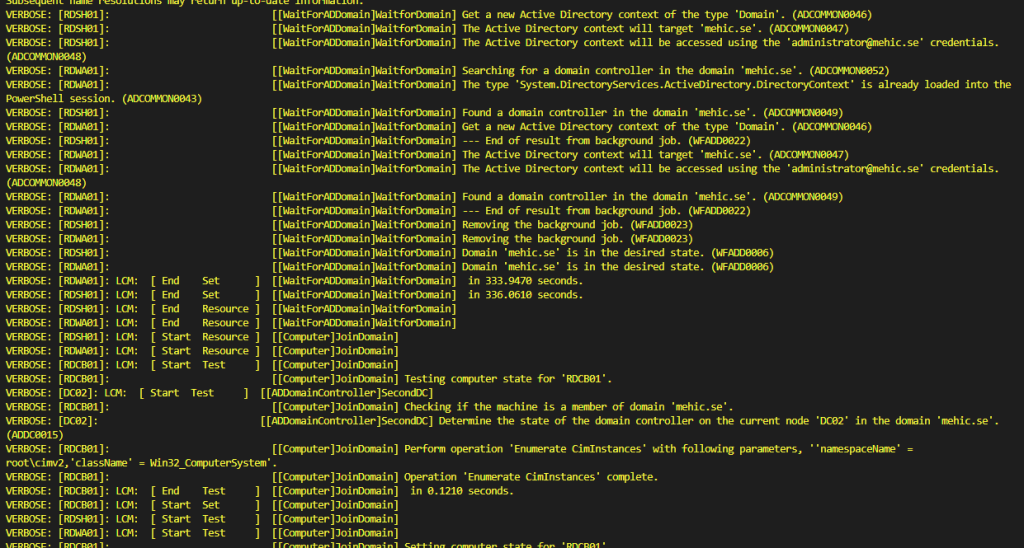
After ca 10 min we have whole environment up and running.
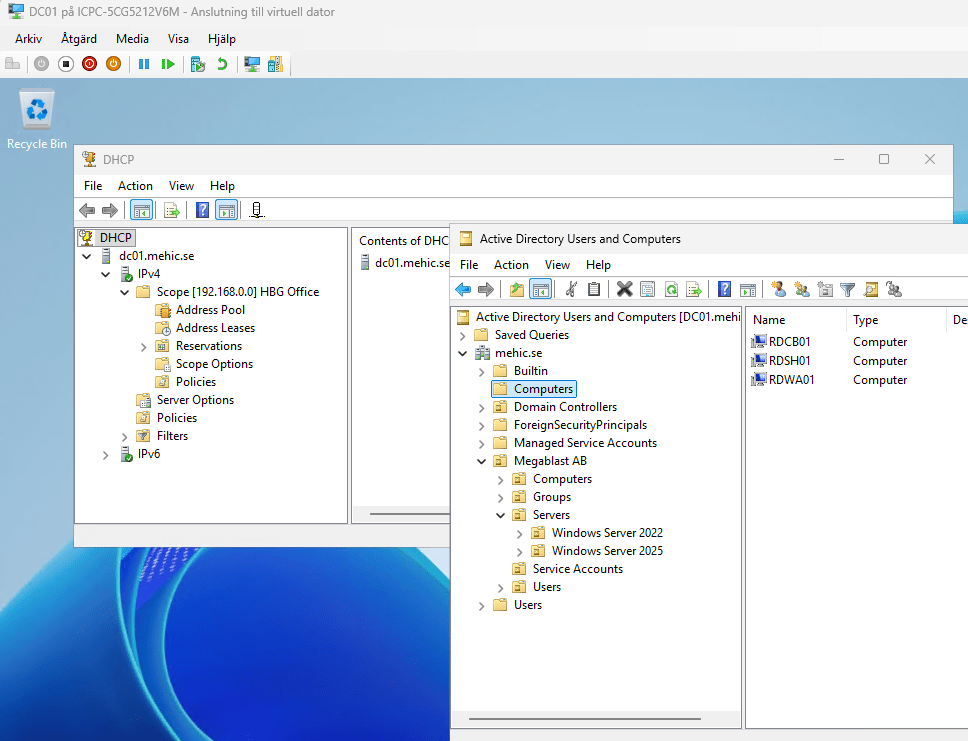
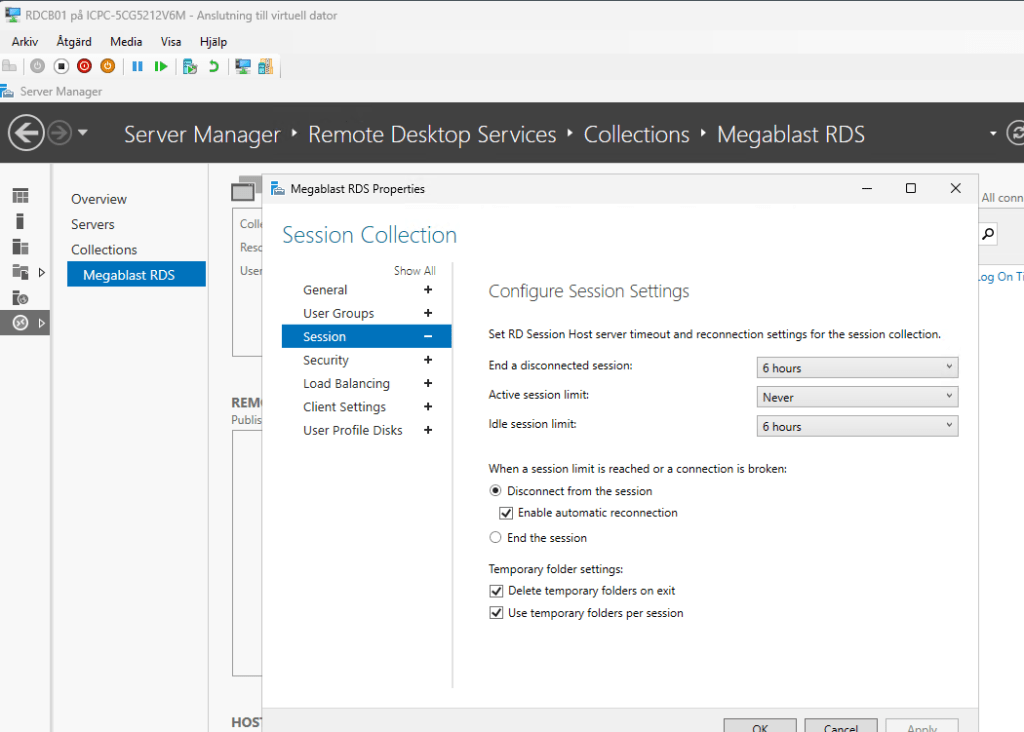
One of the key strengths of DSC in a multi-server deployment is orchestration through dependencies. Each server installs its required roles, waits for prerequisites such as Active Directory availability, performs domain join operations, handles required reboots, and then continues configuration automatically. This ensures that configuration steps occur in the correct order and only when the environment is ready.
However, distributed environments introduce timing considerations. Unlike a single-server deployment, where operations occur sequentially, multiple nodes operate independently. Proper dependency handling and synchronization are therefore critical to avoid race conditions and timeouts. By implementing explicit wait conditions and clear dependency chains, we ensure stability and reliability throughout the deployment process.
By defining the desired state clearly and managing dependencies properly, we create a robust, automated deployment process that reduces manual effort, minimizes configuration errors, and provides long-term operational stability.
Thanks for reading.
Cheers



 Nedim's IT CORNER
Leave a comment