When we activate our Windows OS with activation key, the information is stored in the Windows Registry. Here’s a situation to be avoided. For one reason or the other you have to reinstall the Windows operating system but you discover that you don’t know the product key.

No worries. Use this script to extract your product key from the OS installed on your PC without using any third party software.

  • Open Notepad
  • Copy and paste the following text into the notepad window

function Get-WindowsKey {
    ## function to retrieve the Windows Product Key from any PC
    ## by Nedim Mehic
    param ($targets = ".")
    $hklm = 2147483650
    $regPath = "Software\Microsoft\Windows NT\CurrentVersion"
    $regValue = "DigitalProductId"
    Foreach ($target in $targets) {
        $productKey = $null
        $win32os = $null
        $wmi = [WMIClass]"\\$target\root\default:stdRegProv"
        $data = $wmi.GetBinaryValue($hklm,$regPath,$regValue)
        $binArray = ($data.uValue)[52..66]
        $charsArray = "B","C","D","F","G","H","J","K","M","P","Q","R","T","V","W","X","Y","2","3","4","6","7","8","9"
        ## decrypt base24 encoded binary data
        For ($i = 24; $i -ge 0; $i--) {
            $k = 0
            For ($j = 14; $j -ge 0; $j--) {
                $k = $k * 256 -bxor $binArray[$j]
                $binArray[$j] = [math]::truncate($k / 24)
                $k = $k % 24
            }
            $productKey = $charsArray[$k] + $productKey
            If (($i % 5 -eq 0) -and ($i -ne 0)) {
                $productKey = "-" + $productKey
            }
        }
        $win32os = Get-WmiObject Win32_OperatingSystem -computer $target
        $obj = New-Object Object
        $obj | Add-Member Noteproperty Computer -value $target
        $obj | Add-Member Noteproperty Caption -value $win32os.Caption
        $obj | Add-Member Noteproperty CSDVersion -value $win32os.CSDVersion
        $obj | Add-Member Noteproperty OSArch -value $win32os.OSArchitecture
        $obj | Add-Member Noteproperty BuildNumber -value $win32os.BuildNumber
        $obj | Add-Member Noteproperty RegisteredTo -value $win32os.RegisteredUser
        $obj | Add-Member Noteproperty ProductID -value $win32os.SerialNumber
        $obj | Add-Member Noteproperty ProductKey -value $productkey
        $obj
    }
}
  • Save the file with the .ps1 extension on the Desktop or C:\. Exemple ProductKey.ps1
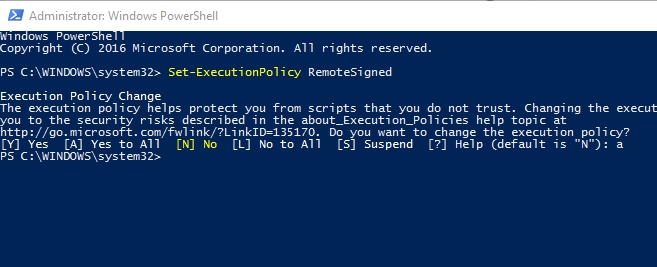
  • Run Powershell as admin and type in

Set-ExecutionPolicy RemoteSigned
screenshot-32

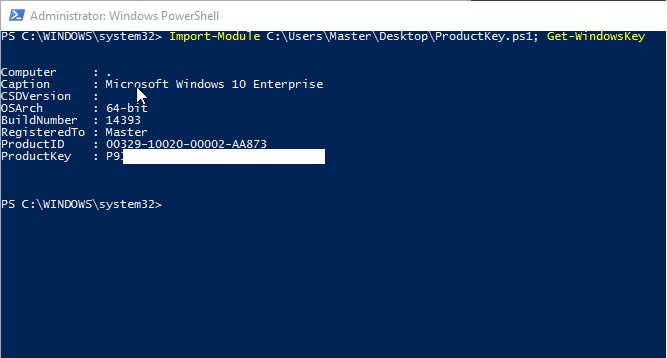
  • Next run this command

Import-Module C:\Users\Master\Desktop\ProductKey.ps1; Get-WindowsKey
productkey

That’s it. Product key is displayed on the screen!

Cheers,

Nedim

19 responses to “How to find Windows Product Key All Versions of Windows”

  1. Hi Nedim! Thank you so much for this. I did try this on a Windows 2012 R2 Standard with a volume license and it returned “BBBBB-BBBBB-BBBBB-BBBBB-BBBBB”. Is it possible to retrieve the key?

    Best regards,
    Peter

    Like

  2. Hi Peter,

    When you use Volume License Key your product key is not stored in the registry and I am afraid that you will not be able to find it unless you login to Volume Licensing Service Center and get the key from there.

    Even if you change the line 6 from $regPath = “Software\Microsoft\Windows NT\CurrentVersion” to $regPath = “Software\Microsoft\Windows NT\CurrentVersion\DefaultProductKey” you may get the key but that is not the right one.

    Best Regards,
    Nedim

    Like

    1. Hi Nedim,

      Thank you for clarifying, I can confirm that it returns the incorrect key.
      Keep up with the good work on the blog. You have a new follower! 🙂

      Best regards,
      Peter

      Like

      1. Hi Peter,

        Thank you, I really appreciate it 🙂

        Cheers,
        Nedim

        Like

  3. Hi Nedim,

    Thank you so much for this script.

    Like

    1. Hi Christopher,

      You are welcome.

      Like

  4. Really a very nice article!! Thank you for sharing this relevant information on Windows Product key! I would also like to recommend http://www.desktopsupportpanel.com/operating-system-basic-things-everyone-needs-to-know

    Liked by 1 person

  5. Thank you for this script

    Like

  6. Kevin Nebroski Avatar
    Kevin Nebroski

    Hi Nedim,
    This script works as expected, although when I compare what is displayed to the actual key that I entered they don’t match. Am I doing something wrong?

    Like

    1. Hi,
      One question. Are you using Volume license? If the answer is yes then you will not be able to retrieve the key. That is by design to prevent stealing the key.

      Like

  7. Hey Nedim,
    One word – WINNER! Awesome “life saving” script of yours here, as it worked perfectly just as you described! I usually don’t have the time to post that many comments, but I had to say, Thank you sir! I really appreciate you posting your script out for all of us who unfortunately lost/misplaced an MS key code as this was the only key code I couldn’t locate for one of our last 3 physical boxes! I Urgently needed this key code for my 2018 MS Software Audit. And, now you know why I said “life saving”…haha, Lol

    Liked by 1 person

  8. Thank you!

    Like

  9. Thanks a lot Nedim. I was looking for this. And a small thing i need to know from u. I downloaded a third party software to extract the product key. But it shows a different product key. Can we rely on third party softwares??

    Thanks!
    Aslam

    Like

    1. Hi,
      Just to point that you will not be able to view key if you have installed volume license because of that you will get different result all the time

      Like

      1. Thanks a lot nedim.

        Like

  10. This is an excellent tip. Explained well and worked like a charm. You saved me a lot of run around. Thank You!!

    Like

  11. Nedim,

    I am trying to run this script on Server 2012 Datacenter edition but it fails with “Import-Module : File C:\Users\========\Desktop\ProductKey.ps1 cannot be loaded. The file
    C:\Users\=======\Desktop\ProductKey.ps1 is not digitally signed. You cannot run this script on the current system.”

    I have run the script successfully on Windows 10 so is there something different about Datacenter edition?

    Like

    1. Hi,
      You need to change execution policy on your server to unrestricted.

      Like

  12. Strahinja Stankovic Avatar
    Strahinja Stankovic

    Great script Nedime, it worked quick & nice when we were in need of checking some Win2016 servers, hvala 🙂

    Liked by 1 person

Leave a reply to Kevin Nebroski Cancel reply

Trending



