In our last 3 parts (Part 5, Part6 and Part7) of How to Deploy and configure DNS 2016 series we will focus on advanced DNS options.
Aging and Scavenging (Most often forgotten configuration for a new DNS server)
DNS aging and scavenging is a process used to remove stale DNS records from a zone. In environments where devices frequently move on and off the network, such as laptops, DNS records can quickly become outdated. For example, when a laptop disconnects from the network and later reconnects after several days or weeks, it may receive a different IP address from the DHCP server. This can result in obsolete DNS records remaining in the zone.
Aging and scavenging addresses this issue in two stages. The first stage, AGING, occurs when a dynamically updated DNS record is created and assigned a timestamp. This timestamp acts as an expiration indicator, allowing the system to determine when a record is no longer valid and eligible for removal.
The timestamp is reset whenever the DNS record is created, modified, or refreshed. Windows-based hosts automatically refresh their DNS records during specific events, ensuring that active records remain current while inactive or outdated records are eventually scavenged.
Windows hosts refresh their DNS records during three specific events:
- At system startup
- During a DHCP lease renewal
- Automatically every 24 hours
This refresh behavior allows devices on the network to retain the same DHCP-assigned IP address and consistent DNS resolution, as long as they remain connected to the network. To successfully refresh a record, the host must be able to communicate with the DNS server.
When devices are disconnected from the network for extended periods, their DNS records can become outdated. This is where the second component of the process—scavenging—comes into play. DNS scavenging automatically removes stale records that have not been refreshed within the configured timeframe, ensuring the DNS zone remains accurate and up to date.
SCAVENGING is the component that actually removes stale records from the DNS database. It relies on two key time intervals, which are important to understand in order to determine why DNS records may appear to disappear at seemingly random times.
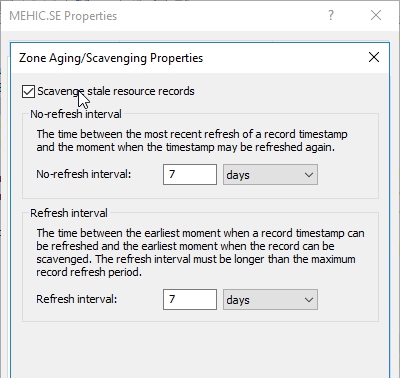
The refresh interval defines the period during which a client must refresh its DNS record. If the record is not refreshed before this interval expires, the scavenging process will remove it from the DNS database. By default, the refresh interval is set to seven days.
If a client is unavailable during this time—for example, if the device is powered off or disconnected from the network—the scavenging process will assume the client is no longer present and will delete the associated DNS record. However, care must be taken when configuring this setting, as removing records too aggressively can result in the unintended deletion of valid DNS entries.
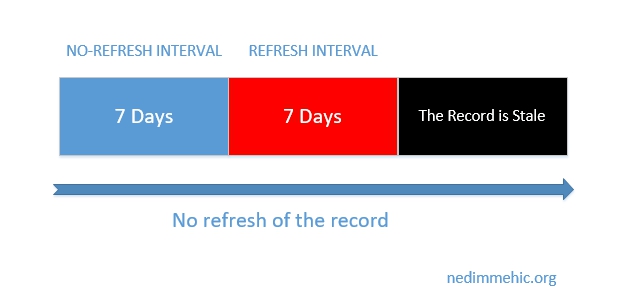
There is also a no-refresh interval, which precedes the refresh interval and is also set to seven days by default. During this period, any refresh attempts from the client are intentionally ignored by the DNS server. For example, even though a client may attempt to refresh its DNS record every 24 hours, the server will not update the timestamp during the no-refresh interval.
This behavior is designed to reduce unnecessary DNS replication traffic between servers in the environment. By limiting how often timestamps are updated, the no-refresh interval helps optimize replication efficiency while still ensuring that active records are eventually refreshed when appropriate.
Picture 1
If the Non-Refresh Interval and the Refresh Interval are 7 days then a resource record is considered as stale if not refreshed after 14 days.
Picture 2
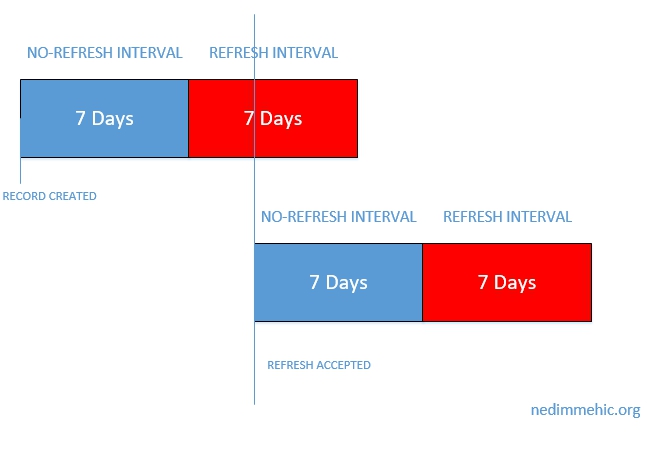
If the Non-Refresh Interval and the Refresh Interval are 7 days then a resource record can be refreshed after 7 days starting from the last refresh. Once done, a new Non-Refresh Interval period will start.
DNS aging uses the resource record timestamp to identify if it is stale or not.
We can distinguish between two types of resource records:
- Resource records having a timestamp equal to zero (0): These are static records and they never become stale

- Resource records having a timestamp not equal to zero (0): These are dynamic records and the time stamp represents the date and time of the last update done on the record (For the time, it represents the hour of the last refresh / update)

Let’s see how we can configure this.
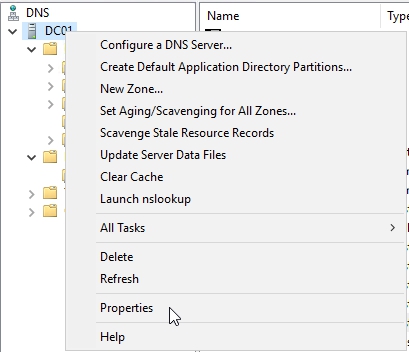
First we need to configure refresh interval for our dns server. Right-Click on your DNS server and select Properties
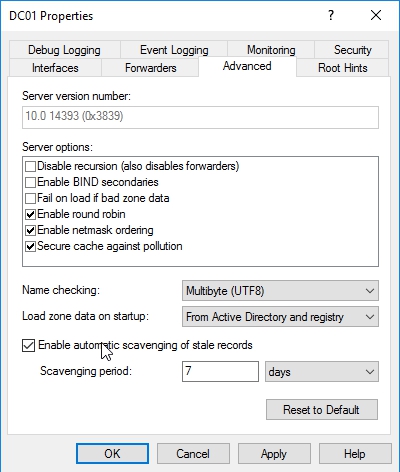
Select Advanced Tab and tick the Enable automatic scavenging of stale records box. Click Apply and OK.
This is the first of the three settings that we need to take a look at.
With AD-Integrated DNS Zones, a single DNS server with DNS scavenging enabled on it is enough to have the DNS scavenging properly done.
Next we need to do is to right click on zone and select properties and make the configuration again.
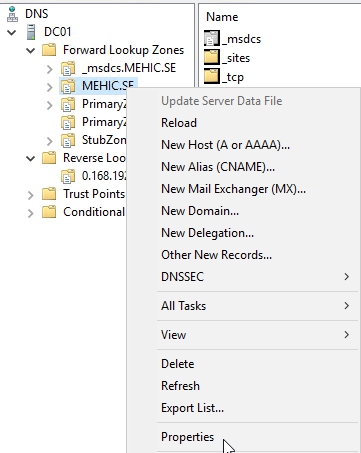
On the General tab, click Aging
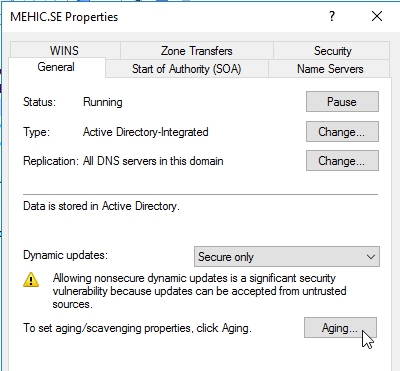
Here we can set the further aging and scavenging properties. Tick the Scavenge stale resource records box and adjust the settings if you need to. Click OK 2 times.
You need to do this on all the different zones that you want to configure aging and scavenging on.
If you right-click on DNS server you will see the option to set the Aging and Scavenging for all zones. You might be kind of careful with this one if only because sometimes you end up with zones that you might not necessarily want aging and scavenging turned on, as I said, aging and scavenging are designed for zones where there’s a lot of dynamic stuff going on, clients that are coming in and out of the network, laptops and devices and so on.
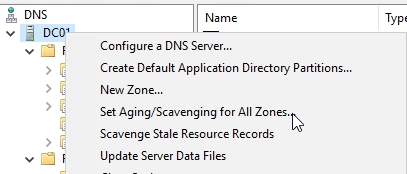
Manually Scavenge stale records
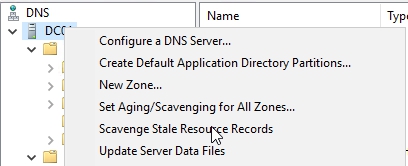
There is an option to manually scavenge stale records and to do it you would need to right-click on dns server and select Scavenge Stale Resource Records
Convert Static record to a Dynamic one
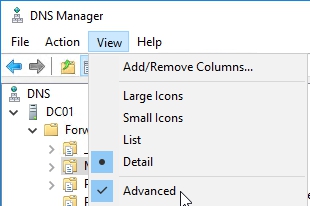
If I needed to take a static record and make it dynamic (vice versa), make it part of this aging and scavenging thing that I’ve turned on, the way in which I do that is simply is by coming back here to the static record and selecting the box to delete the record when it becomes stale. If you don’t see this option go to View –> Advanced

CONFIGURE DNSSEC (DNS Security)
When you type your bank’s website into a browser, your computer contacts a DNS server to resolve the domain name into an IP address. The browser then uses this IP address to connect to the bank’s server and load the website so you can perform your transactions.
However, there is an important security consideration: how can you be sure that the IP address returned by the DNS server actually belongs to your bank? In other words, how do you know the DNS response hasn’t been tampered with or redirected to a malicious site? This is a fundamental question in DNS security, highlighting why validation and protection mechanisms are critical for safe online transactions.
DNSSEC (Domain Name System Security Extensions) was developed to address a fundamental risk in DNS: the possibility of receiving false or malicious responses from a DNS server. Essentially, DNSSEC allows you to verify that the DNS information you receive is authentic.
It does this using cryptographic techniques. When a DNS zone is configured as a signed zone, the DNS server attaches a cryptographic signature to its responses. This signature acts as proof that the data has not been altered and truly originates from the authoritative source.
By implementing DNSSEC, you protect against several types of attacks, including:
-
Man-in-the-middle attacks, where an attacker intercepts your DNS queries and returns false information
-
DNS spoofing, where illegitimate data is inserted into your DNS cache
-
Compromised DNS servers, where attackers manipulate responses from a trusted server
In short, DNSSEC ensures that the IP address returned by a DNS query actually corresponds to the domain you requested, adding a critical layer of trust and integrity to the DNS system.
Why would you use it?
It’s essential to have mechanisms for verifying the integrity of critical infrastructure, and DNSSEC provides one such method. By using DNSSEC, you can ensure that when you query a DNS record, the response you receive is authentic and trustworthy.
There are 4 main components of DNSSEC
- TRUST ANCHOR – it’s a special cryptographic key associated with a DNS zone. It is used to validate DNS resource records, acting like a “root of trust” for that zone—similar to a root certificate authority (CA) in PKI systems.
When you trust the trust anchor, you inherently trust any records that are authorized or signed by it. This is why it is called a trust anchor: it serves as the top-level point of trust for DNSSEC validation.
Trust anchors can be stored in Active Directory, allowing them to replicate automatically to all DNS servers or domain controllers within a forest. They can also be manually imported on standalone domain controllers as needed.
- KEY MASTER – is a critical component when deploying DNSSEC in your environment. It is a special DNS server responsible for generating and managing the signing keys used to protect DNSSEC-enabled zones.
An organization can have a single DNSSEC Key Master, and that server can manage signing keys for multiple zones without issue.
It’s important to back up the Key Master and its keys, as they are essential for DNSSEC validation. One of the advantages of running the Key Master on an Active Directory domain controller is that the signing keys are automatically backed up as part of the Active Directory replication process, simplifying key management and recovery.
- KEY SIGNING KEY (KSK) – is used to sign all DNSKEY records at the root of a DNS zone. It serves as a foundational key in the DNSSEC hierarchy, establishing trust for the zone’s other keys.
The KSK is created and managed by the DNSSEC Key Master. When you first deploy DNSSEC in your environment, you configure a Key Master, which then generates the KSK and oversees its use in signing the zone’s DNSKEY records.
- ZONE SIGNING KEY (ZSK) – is used to sign all other zone data, including individual resource records, with the exception of the DNSKEY records. Like the KSK, the ZSK is generated and managed by the DNSSEC Key Master.
While the KSK establishes trust for the zone’s DNSKEY records, the ZSK handles the signing of the remaining zone data, ensuring the integrity and authenticity of all other DNS records within the zone.
Next thing that we need to understand is the DNSSEC Record Types
RRSIG – is a DNSSEC record type that provides a cryptographic signature for existing DNS records. For every record in a zone—such as A records, AAAA records, MX records, and others—there is a corresponding RRSIG record that verifies its authenticity and integrity.
In other words, RRSIG ensures that each DNS record has not been tampered with and can be trusted by clients performing DNSSEC validation.
NSEC (Technology) – is a DNSSEC record that provides proof of the nonexistence of a DNS record, helping to protect against certain types of spoofing attacks.
Without NSEC, an attacker could attempt to fabricate records that do not exist in a zone, potentially tricking clients into accepting false information. An NSEC record responds to queries for non-existent records by explicitly stating, “This record does not exist.”
By cryptographically proving the absence of a record, NSEC enhances the security and integrity of the DNS, ensuring that clients can trust both existing and non-existent entries.
NSEC3 (Technology) – is an updated version of NSEC that addresses a key limitation of the original system. While NSEC provides proof of nonexistence for DNS records, it also allows zone walking—a technique where an attacker can enumerate all the records in a signed zone.
NSEC3 prevents zone walking by cryptographically hashing record names, making it much harder for an attacker to systematically discover all entries in the zone.
A zone can be signed with either NSEC or NSEC3, but not both. It is generally recommended to use NSEC3 for new deployments, as it provides stronger security and better protection against enumeration attacks.
NSEC3PARAM – specify which records will be included in a response from the DNS server for names that don’t exist.
DNSKEY – this stores the public key used to verify a signature. It may store the public KSK and ZSK keys.
DS – is used to securely sign delegations to subdomains and establish a trust relationship between a parent zone and its child zone.
Think of it like a certificate chain in a PKI system: if you trust a root certificate authority (CA), you also trust any subordinate CAs signed by that root. Similarly, if you trust a parent DNS zone and it includes a DS record for a child zone, you can trust the child zone as well.
DS records are a key component in creating an authentication chain in DNSSEC, ensuring that trust can be securely extended from parent zones to delegated subdomains.
Last thing we need to discuss before demo is Name Resolution Policy Tables (NRPT)
The Name Resolution Policy Table (NRPT) is a feature in Windows that allows organizations to enforce DNSSEC validation for specific zones, suffixes, prefixes, or fully qualified domain names (FQDNs) through Group Policy.
With NRPT, you can configure clients to only accept DNSSEC-signed records from certain zones, ensuring that DNS responses are authentic and trusted. This is conceptually similar to an IPsec policy, where a computer will only communicate with hosts that meet certain security requirements.
NRPT is configured in Group Policy under:
Windows Settings → Name Resolution Policy
It offers several levels of enforcement:
-
Suffix-based policies: Require DNSSEC for all records within a specific domain, e.g., mehic.se
-
Prefix-based policies: Apply DNSSEC requirements to hostnames that start with certain strings, such as
SECoressential. (This is more granular and complex than suffix-based enforcement.) -
FQDN-based policies: Apply DNSSEC only to specific, high-value hosts, such as critical servers, ensuring that clients only accept authenticated DNS responses for these addresses.
By using NRPT, organizations can tightly control which DNS responses are trusted, adding an extra layer of security to Active Directory and internal DNS infrastructure.
Let’s see how we can configure this.
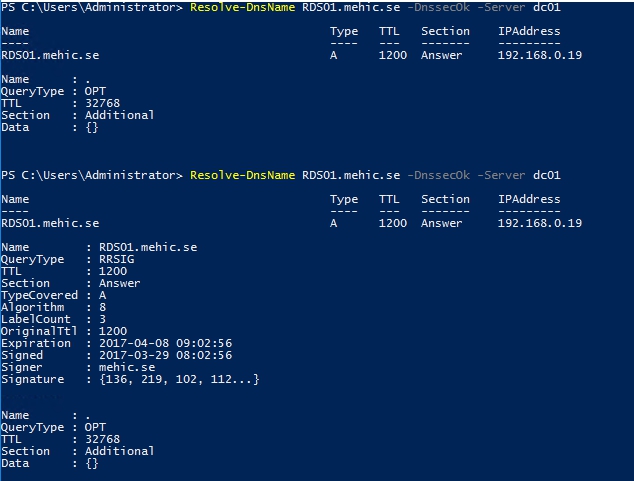
Before we configure DNSSEC let’s open powershell and resolve some record. I will type in Resolve-DnsName RDS01.mehic.se -DnssecOk -Server dc01
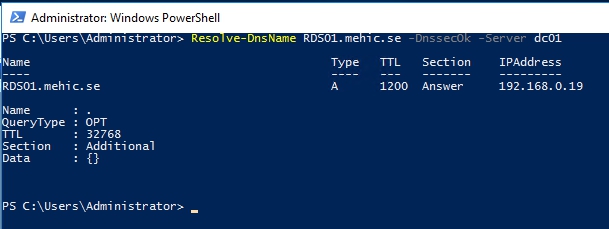
And at the moment you can see there that there’s not a whole lot of information around that record.
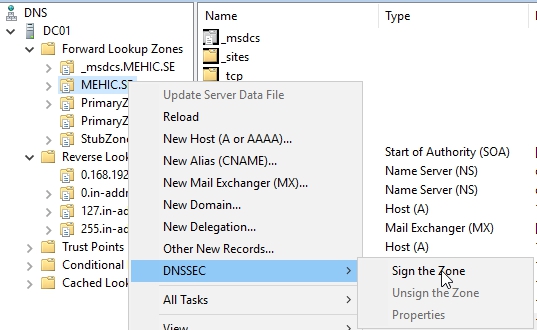
To configure DNSSEC right-click on the zone –> DNSSEC –< Sign the ZONE
This brings up the DNSSEC Security Extensions wizard. Click Next
On Signing Options page, we get the option to either customize zone signing parameters, sign the zone with the parameters of an existing zone. So, if I, for example, had signed PrimaryZone, I could go and use exactly the same parameters as those used in PrimaryZone for Mehic.se. But as this is the first zone in my DNS infrastructure that I’m configuring DNSSEC for, I’m quite happy with the current parameters. Or I could go and use the default settings, but that’s not going to be very informative to you. It is only next and finish and you will not know what happens under the hood. The reason for you to implement DNSSEC comes from some compliance regulation, and when that regulation has settings that defer from the default settings Windows is going to give you with, well then it comes time to actually customize a few of those settings.
So, choose first option and click Next.

On Key Master page, As you can see up here, any authoritative DNS server that hosts a primary copy of the zone can be the Key Master. So it can be this server, or any other server out there that hosts a primary copy, but there’s only one that you’re going to choose as that Key Master. Click Next

On Key Signing Key page, here it gives me a bit of information, and basically tells me what the Key Signing Key is, saying it’s an authentication key that corresponds to a private key used to sign one or more signing keys. Click Next
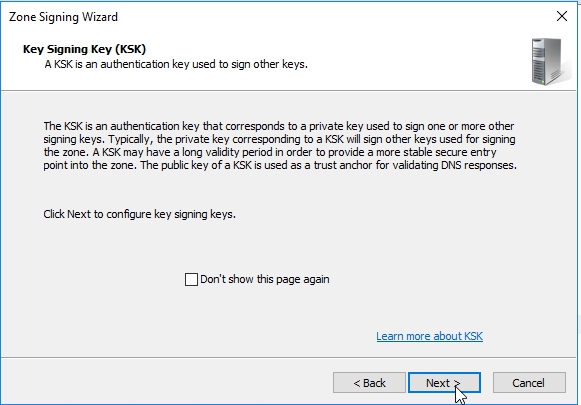
Now we need to go and configure our Key Signing Key, When I’m going to go and configure my Key Signing Key, what I need to do is specify a whole lot of information, such as which algorithm am I going to use, which key length am I going to use, which KSP am I going to use, what’s the replication, and so on? So, do to that, I click Add, and on the New Key Signing Key page, I specify whether I’m going to use pre-generated keys.
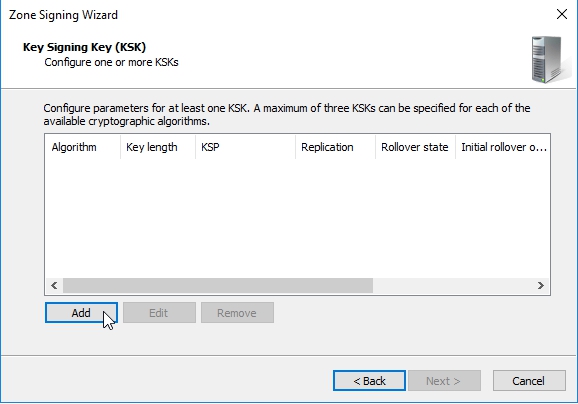
I’m going to go with generate a new set of signing keys. Next thing I can is choose my cryptographic algorithm. Rather than go with RSA/SHA-256, I’m going with RSA/SHA-512. I’m going to keep the default key length of 2,048 bits. I’m going to use the Microsoft Software Key Storage Provider, and my DNSKEY RRSET signature validity period will be by default 168 hours, which means a new signature will be required every 168 hours on each resource record authentication record. All of these here are things that may be adjusted if they’re required by your industry, or other compliance regulation. If you have an Active Directory Integrated Zone, you can replicate the private key to other DNS servers who are also authoritative for the zone.
OBS!!! If you’re not using Active Directory Integrated Zones, and you need to make them Active Directory Integrated, you actually have to unsign the zone, change it to the AD Integrated Format, and then resign the zone. So typically your DNSSEC configuration is going to be the last thing that you do, the last major change that you make to any zones that you create.
Also, your keys will actually roll over after a period of days, by default 755 days. That allows you to just roll over those keys to make sure that you’ve got fresh keys every so many number of years, it looks like here. Click OK and next
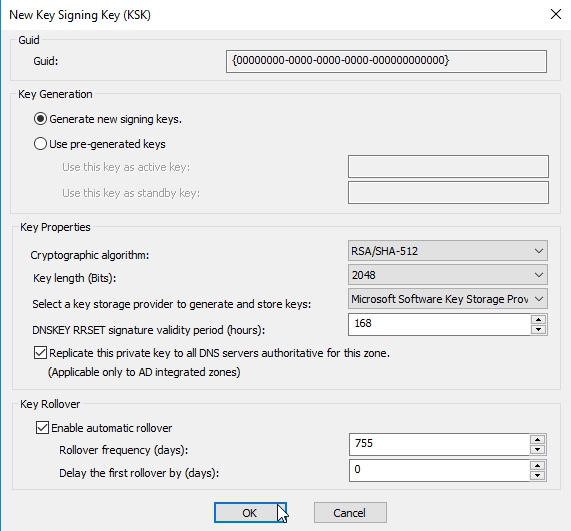
On Zone Signing Key page click next
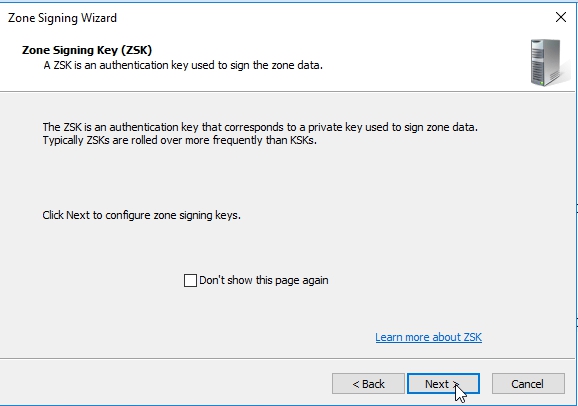
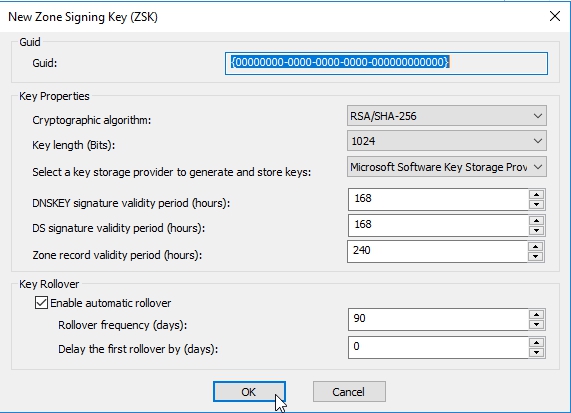
Now I need to do our Zone Signing Key. So, same idea here, I click Add. Here I’m happier to use the default. You can change the defaults or keep them. (most of the decisions that you’ll make here are going to be handed down to you from some other regulation document). When done click OK and Next
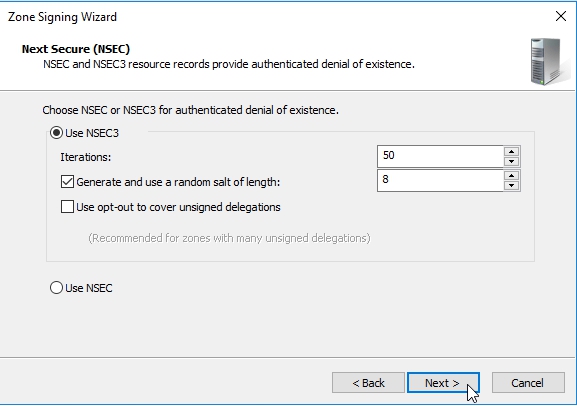
On Next Secure (NSEC) page, Here I get the option of using NSEC3, which is the newer version, or NSEC in terms of denial of existence of records. So, I’m going to go with NSEC3 because that’s the newest version. I’m going to generate and use a random salt of length 8, and I’m not worried about using opt-out to cover unsigned delegations because we’re not using unsigned delegations. Click Next
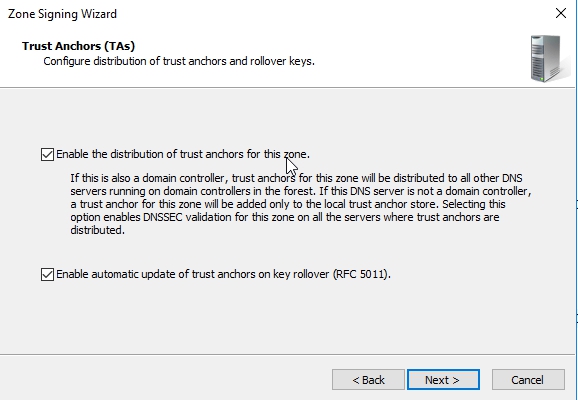
On Trust Anchors (TAs) page, Check the Enable the distribution of trust anchors for this zone box. Trust anchors are going to be required any time you have a non-authoritative server that needs to authenticate against the zone, or resolve against the zone, that server’s going to need to have the trust anchor for it to be able to resolve off of the contents of this zone. So typically, particularly in Active Directory environments, you’re going to check this box when you have Active Directory Integrated Zones. Click Next
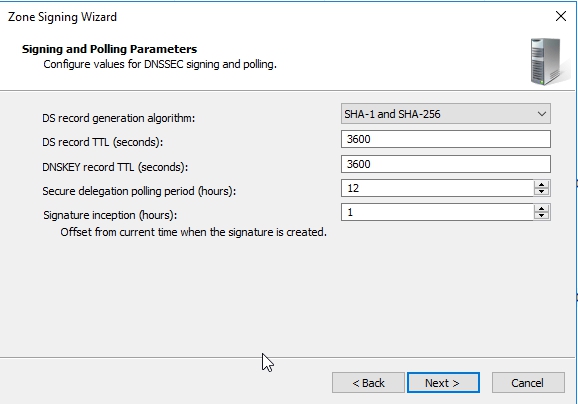
On Signing and Polling Parameters page, this is basically the values for DNS signing and polling. So, DS-record generation algorithm, I’ve said use SHA-1 and SHA-256. The DS-record time to live is 3,600 seconds. The DNSKEY record time to live also 3,600 seconds. Secure delegation polling occurs every 12 hours, and signature inception is the offset, so the polling offset is going to be 1 hour, and that means that it’s all not happening at the same time. Click Next and Finish
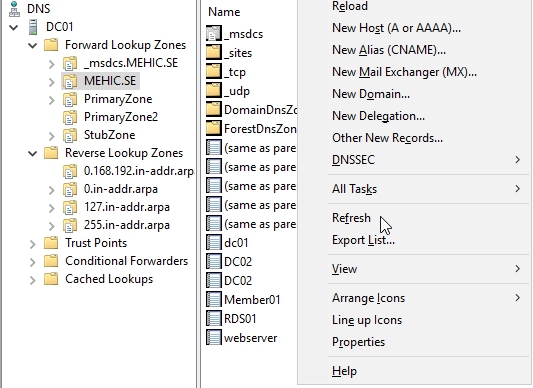
Now if you right-click on empty space in your DNS Manager and select Refresh you’ll see all of those new records for the zone! Lots of RR Sig records, lots of DNS KEY records.

So, what I’m going to do is I’m going to run that PowerShell command, again. And we can see now that we’re getting validation that that record has been digitally authenticated.
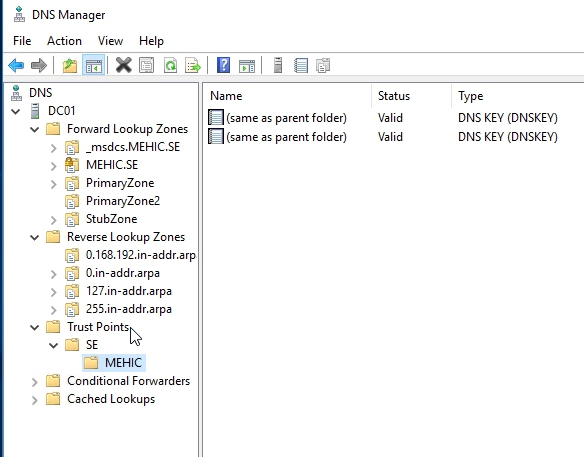
Let’s go back to DNS Manager Console and expand Trust Point. (Trust Point is trust anchor). Trust anchors must be configured on every non-authoritative DNS server that will attempt to validate DNS data
The last thing we need to do is to configure Name Resolution Policy Tables (NRPT)
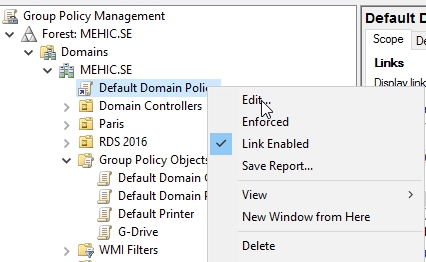
Open Group Policy Management. I will edit Default Domain Policy. Right-Click and select EDIT
Navigate to Computer Configuration\Policies\Windows Settings and click on Name Resolution Policy
The suffix is going to be mehic.se. So, anything in that particular zone. I’m going to enable DNSSEC in this rule, and I’m going to require that clients check the name and address data has been validated.
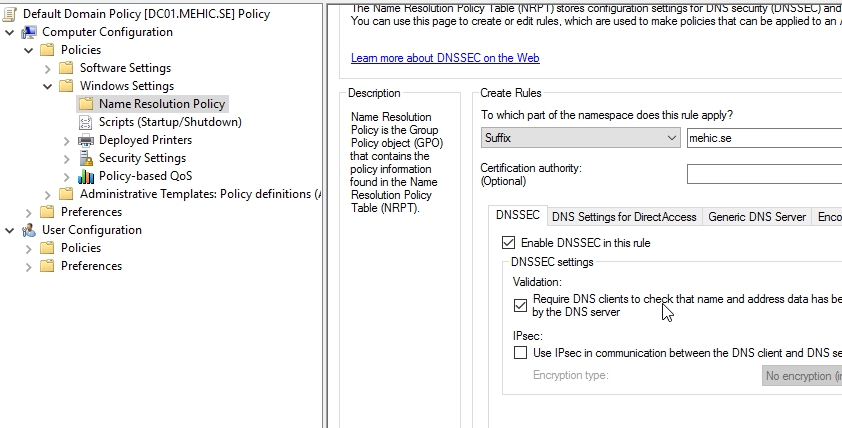
You can configure DNS settings for DirectAccess using the Name Resolution Policy Table. You can also specify Generic DNS Server settings, which means that this specific DNS server will be used for this particular zone. So, you’re able to actually specify, “Oh, if you’re querying this zone, “go and use this particular DNS server”. And Encoding allows you to specify encoding of the request.
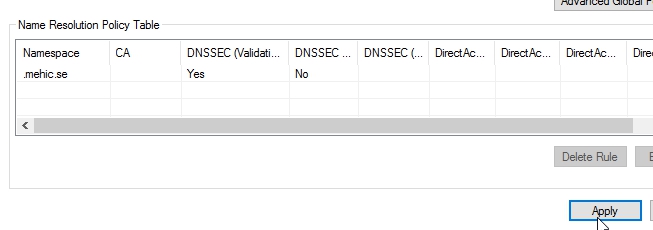
Now scroll down and click on create. It creates the rule. I scroll down. I’m just showing you here that it’s saying perform DNSSEC validation, but don’t perform IPsec validation. Click Apply
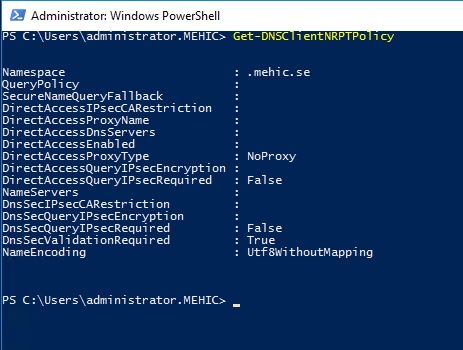
Open Powershell/CMD and type in gpupdate /force. (Sometimes you need to reboot). Next command Get-DNSClientNRPTPolicy
Any new records that are created in mehic.se are going to be automatically signed. To verify create a new A record in zone and hit refresh.
That’s it. To avoid very long posts we will continue with advanced dns options in Part 6.
What we covered.
- What is Aging and Scavenging and how to configure it
- What is DNSSEC
- DNSSEC main components
- DNSSEC Record Types
- How to implement DNSSEC
Thank you for reading!
Cheers,
Nedim






 Nedim's IT CORNER
Leave a reply to Bruce Cancel reply